
How to Create Outlines in Illustrator and Send a Print-Ready File


Emma is our prepress and print production voice, built from the knowledge of our production team, with over 20 years in printing.
The shortcut takes a second. The steps around it are what stop a font substituting on press, and the checklist after it is what stops everything else.
Unlock and unhide every layer, press Command + A to select all, then choose Type > Create Outlines, or Shift + Command + O. On Windows use Shift + Ctrl + O. Illustrator turns each character into a compound path, so the file no longer depends on a font being installed and no substitution can happen at our end. Confirm it with Type > Find Font, which comes back empty on a fully outlined document, then export as PDF/X-1a with document bleed switched on.
Quick answer
One shortcut, and one thing it does not cover
Create Outlines converts live type into vector paths so the file stops depending on your font. Unlock all layers, unhide anything hidden, expand symbols that hold text, select everything, then press Shift + Command + O. Type > Find Font should come back empty afterwards. The part people skip is that the conversion touches nothing else: colour mode, bleed, image resolution, overprint and stroke weight are all exactly as you left them, and any one of them will hold up a job on its own.
Why a Font Has to Leave Your Machine as Shapes
An Illustrator file does not contain your font. It contains a reference to it, and the font itself lives in your system folder. When that file opens on a machine without the typeface installed, the application picks a stand-in and your careful headline reflows into something else.
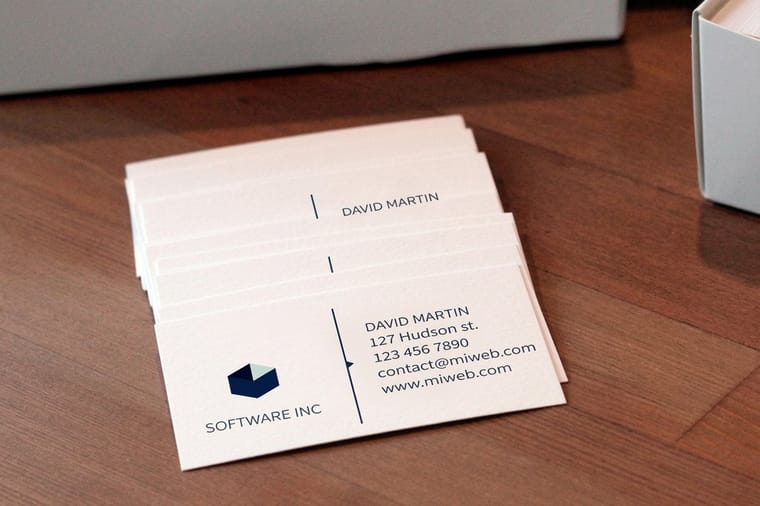
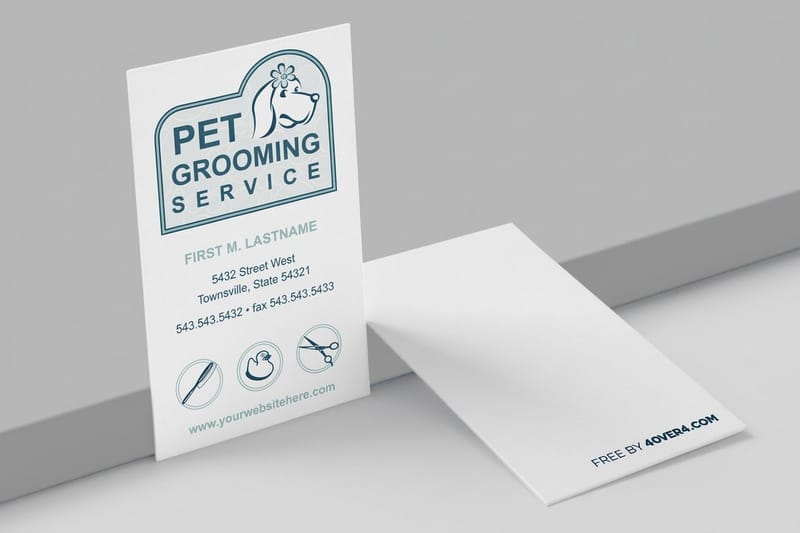
Most of the time nobody notices until it is printed. Line breaks shift, a logotype loses its custom spacing, and a name that fitted on one line now wraps. On a standard business card, where the whole design lives inside 3.5 by 2 inches and starts at $17.57 a box, a substituted face is obvious to the person holding it.
There is a licensing angle too, and it is the part designers usually miss. Every font file carries embedding permissions written by its foundry. Some faces allow full embedding, some allow print-and-preview only, and a few block embedding altogether. Outlined artwork sidesteps all of it, because a path is drawing data rather than font data. That is also why sending the font file to your printer is the wrong fix: in most licences, redistributing the font is not yours to do.
One honest limit. Outlining locks in whatever is on screen right now, including a substitution that already happened. If Illustrator warned you about a missing font when the document opened, resolve it in Type > Find Font first. Outline a substituted font and you have permanently frozen the wrong typeface.
What Create Outlines Does to Your Type
Each character becomes a compound path: a filled shape with its counters, the holes in an a or an o, subtracted from it. A text frame of forty words becomes a group of forty word-shaped objects. Nothing about the appearance changes, which is exactly the point.
What changes is what the file can still do. Compare the three ways type reaches a press:
| How the type travels | Needs the font file | Can it be edited | Where it breaks |
|---|---|---|---|
| Live type in an AI file | Yes, on every machine that opens it | Fully | Silent substitution when the font is missing |
| Fonts embedded in a PDF | No, a copy travels inside | Barely, and only with the right tools | Restrictive embedding permissions, and flattening surprises |
| Outlined paths | No | Not at all | Nothing font related, so the risk moves to your preflight |
Two behaviours catch people out. A stroke applied to text stays a stroke after conversion, so if Scale Strokes and Effects is switched off in your preferences and you resize the outlined group afterwards, the visual weight of the letters changes. And live effects sitting on the type, a drop shadow or a Warp, are not converted at all: Create Outlines handles the glyphs and leaves the effect live above them. Run Object > Expand Appearance first when you want those baked in.
Small type deserves a moment before you convert. Once the letters are paths you cannot bump a 5.5 point legal line up to 7 point without redrawing it, and 5.5 point reversed out of a solid is a size we would ask you to change anyway.
Step by Step: Convert Text to Outlines in Illustrator

The conversion takes four seconds. The preparation around it is what decides whether the file is genuinely clean.
- Save a copy with a new name. File > Save As, and add "-outlined" to the filename. Send that one. Keep the live-text original for the next revision.
- Unlock everything. Object > Unlock All, or Option + Command + 2. This releases individually locked objects but it does not unlock a locked layer, so open the Layers panel and clear every padlock by hand.
- Unhide everything. Object > Show All, or Option + Command + 3, then switch on the eye icon for any hidden layer. Hidden text is still text, and it still reports as a font when the file is checked.
- Expand any symbols containing type. Select the symbol instance and choose Object > Expand. Text inside an unexpanded symbol is not touched by Select All.
- Select all and convert. Command + A, then Type > Create Outlines, or Shift + Command + O. On Windows the two shortcuts are Ctrl + A and Shift + Ctrl + O.
- Prove it. Open Type > Find Font. An empty list means no live type is left in the document. Window > Document Info with the panel menu set to Fonts is the second confirmation.
- Check every artboard. Select All works on the active artboard only when Edit > Select All on Active Artboard is what you reached for. For a multi-page job, use Select > All and then walk the artboards visually.
If a text object refuses to convert, it is almost always inside a linked file rather than the document. A placed AI or PDF keeps its own type, and Select All never reaches it. Embed it through the Links panel and expand it, or outline the source file and relink. Our companion guide on converting text to shapes in Illustrator goes deeper into the stroke, warp and type-on-a-path cases.
The Preflight Checklist to Run After You Outline
Outlining solves one problem. These are the other seven that arrive with roughly the same frequency, in the order worth checking them.
- Document colour mode. File > Document Color Mode should read CMYK Color. A file built in RGB converts at export, and the shift lands hardest on saturated blues and bright greens. Our guide on converting files from RGB to CMYK covers the swatch-level cleanup.
- Stray spot swatches. Open Window > Swatches and look for the small dot marking a spot colour. Unless the job is a genuine spot job, convert those to process, or the RIP will separate a plate you are not paying for.
- Linked images. Window > Links, then check every placed file is embedded and that its effective PPI is at least 300 at final size. A 300 PPI photo scaled to 200 percent is a 150 PPI photo. See the resolution guide for the numbers by product.
- Bleed and safety. 0.125 inch of bleed on all four sides, and nothing you care about within 0.125 inch inside the trim. Bleed, cut line and safety shows how much the blade genuinely moves.
- Hairline strokes. After outlining, select all and scan the Stroke panel for anything under 0.25 point. Below that a rule prints inconsistently, and on a coated stock it can vanish in patches.
- Overprint left switched on. Window > Attributes. An object with Overprint Fill ticked and a white or light fill disappears into whatever sits beneath it. It looks perfect on screen and prints as nothing, which is the single most expensive quiet fault on this list.
- Black builds. Plain 100K for small text so it stays sharp, and a richer build for large solid areas so they do not look washed. 60C 40M 40Y 100K is a common recipe for those flooded blacks.
Anything parked on the pasteboard outside the artboard still lands in the exported PDF unless you trim it, so delete it before you export. If you want the whole handoff standard in one place, our commercial print-ready file guide runs through it, and the blank template library gives you a document that already has trim, bleed and safety drawn in.
Saving the Print-Ready PDF
File > Save As, then Adobe PDF. The preset dropdown is where the decision sits, and there are only two answers worth considering.
PDF/X-1a:2001 converts everything to CMYK and flattens transparency at export. It is the conservative choice, and for a file you have already outlined it costs you nothing, because there is no live text left for flattening to damage. PDF/X-4:2008 keeps transparency live and passes it to the RIP intact, which is better when the artwork has soft shadows or blend modes you want handled at output resolution. If the job has no transparency effects at all, the two produce the same print.
Three settings inside the dialog matter more than the preset. In Marks and Bleeds, tick Use Document Bleed Settings and set the trim mark offset to at least the bleed value, otherwise the marks sit inside the bleed area and confuse the trimmer. In General, untick Preserve Illustrator Editing Capabilities: it embeds an entire copy of the AI document inside the PDF, doubling the file size and carrying the live text back in through the side door. And in Compression, leave colour images at 300 PPI bicubic downsampling rather than pushing them lower to shrink the upload.
Then verify the export rather than trusting it. Open the PDF in Acrobat and check File > Properties > Fonts. On a properly outlined file that tab is empty. If it lists a font, something was locked, hidden, inside a symbol or inside a link, and the fix is back in Illustrator rather than in the export dialog. For the wider format question, choosing the right file type for printing compares PDF against the alternatives we accept.
Font and Outline Mistakes We See Every Week
These arrive in our prepress queue often enough to be predictable, and every one is cheaper to catch on your desktop than on ours.
Outlining before the copy is final. A phone number changes, the type is now paths, and someone spends an hour rebuilding a line that would have taken ten seconds. Save the live version every single time.
The locked layer. Nine out of ten files that arrive with a font warning are outlined everywhere except one locked guide layer holding a stray text label. Unlock, unhide, then select.
Type inside a linked file. A logo placed as a linked AI keeps its own live fonts. It looks outlined and it is not.
Reversed type set too light. White 6 point type in a light weight, knocked out of a heavy solid, fills in as ink spreads. Keep reversed type at 8 point and a medium weight or heavier, and if it must be smaller, thicken the face rather than the stroke.
Expanding a stroke that is doing real work. Object > Path > Outline Stroke is useful when a rule must hold an exact width through scaling, and destructive when applied to everything, because you lose the ability to adjust it. Use it deliberately.
Assuming outlines fix the trim. A perfectly outlined file at the wrong document size is still the wrong file. Start from the correct template, then outline, then export.
If none of this is your kind of afternoon, skip Illustrator. The free online Designer at 4OVER4.COM lays out your artwork at the correct trim with bleed already applied and exports a file that needs no font step from you. It handles the products where this comes up most: standard flyers from $39.54, standard brochures from $57.11, and die-cut stickers from $93.37, where the cut path follows your outlined shape directly.
Wally explains outlining
Letters stop being letters and become shapes
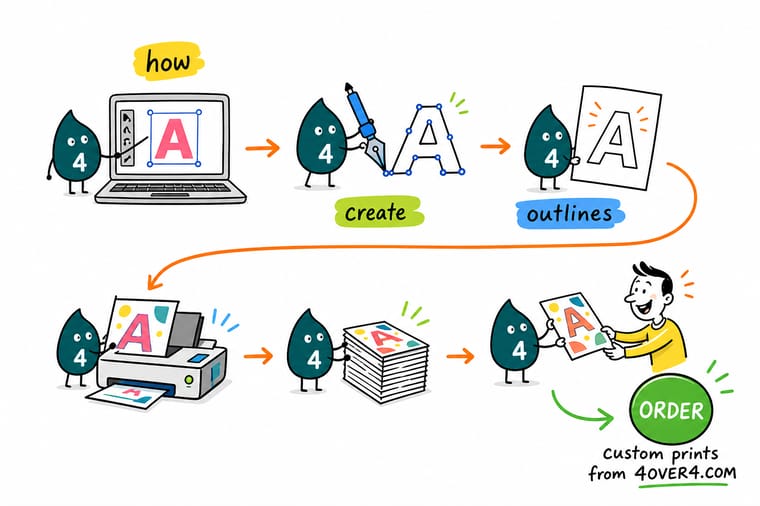
Wally unlocks every layer, unhides the ones somebody hid last Tuesday, selects the whole artboard and presses Shift and Command and O. The letters become paths, so the file carries its own drawing instead of asking our machine for a font it has never seen. Then he checks Find Font, sees nothing, and exports. He still keeps the live version on his desktop, because the client always changes the phone number.
Order standard business cards →
Specs and pricing
Sizes, stocks and starting prices for the files you are outlining
Pick the trim before you build the document, because a correctly outlined file at the wrong size is still the wrong file. Business cards trim at 2 x 3.5, 2 x 2, 1.5 x 3.5 or 2.125 x 3.375 inches, flyers from 4.25 x 5.5 to 11 x 25.5 inches, and postcards from 2.5 x 2.5 to 6 x 11 inches, each built with 0.125 inch of bleed on every side. These are live configuration choices and starting prices from the 4OVER4.COM configurator.


Print it
Send the outlined file and print it
Business cards from 100 on 14pt to 18pt cover, flyers from 50 on 100lb gloss text through 14pt cover, and brochures from 50 with an optional half fold, all on 3 business days of standard production once the outlined PDF is uploaded.

Explore more
Where to go next
Five guides and one range: outlining strokes, warps and type on a path, where the blade lands, RGB to CMYK, which file type to send, the full print-ready handoff, and business card printing.

By the numbers
Files checked by people who print for a living
Common Questions
Your outlining questions, answered
What is the keyboard shortcut to create outlines in Illustrator?
Shift + Command + O on a Mac, Shift + Ctrl + O on Windows. If the shortcut does nothing and the Type > Create Outlines menu item is greyed out, one of three things is true: nothing is selected, the selection contains no live type, or the text sits on a locked layer. Run Object > Unlock All and check the padlock column in the Layers panel, then try again.
Do I still need to outline fonts if I send a PDF?
Not always, but outlining removes the argument. A press-ready PDF normally embeds the fonts it uses, and an embedded font prints correctly. The catch is that every font carries embedding permission bits set by its foundry, and a face licensed preview-and-print-only, or with editing embedding disabled, can be flagged or stripped when the file is processed. Outlined artwork has no font data at all, so there is nothing to permit and nothing to substitute.
How do I check that every font in the file is really outlined?
Three checks, in order. In Illustrator, open Type > Find Font: an outlined file lists nothing. Then open Window > Document Info and switch the panel menu to Fonts, which should also come back empty. Finally, open the exported PDF in Acrobat and look at File > Properties > Fonts. A blank Fonts tab is proof, and it is the same check we run when a file arrives.
Can I undo Create Outlines after saving?
Only within the same working session, using Edit > Undo or the History. Once the document has been saved and closed, the type is a set of paths and Illustrator has no record of the original characters. This is why the first step of the process is File > Save As with an "-outlined" suffix, so the editable version survives untouched.
Does outlining change how the type actually prints?
No. The outline path follows exactly the same contour the font would have produced, so the printed letterform is identical. What changes is everything you can do afterwards: no editing, no spell check, no swapping a weight, and no reflowing a line that turned out too long for the card.
What should I do if I do not own Illustrator?
Skip the font step entirely. The free online Designer at 4OVER4.COM builds your artwork at the correct trim with bleed already applied, and it exports a print-ready file without any outlining on your side. If you would rather work in another program, download the matching blank template first so your document size, bleed and safety margins match the job you are ordering.
Get Started
File outlined and ready to go?
Upload your PDF, or build the whole thing in our free online Designer and skip the font step entirely. Either way our prepress team checks the file before it goes on press.
Legal Disclaimer
Gold Standard guarantees apply to all standard orders placed through 4over4.com. Price match requires verifiable proof of a competitor's published price for an equivalent product with matching specifications and turnaround time. Satisfaction guarantee covers manufacturing defects and print quality issues. Contact support with order number and documentation.
