
How to Make a Google Review QR Code for Print


A printed review code turns a happy customer into a Google review with one scan. Here is how to make it from your review link and print it on the collateral that collects the most reviews.
To make a Google review QR code, copy your review link from your Google Business Profile and paste it into a free QR code generator. Test the downloaded code, then print it at least 0.8 inch across on table tents, cards, or stickers with a short prompt like Scan to leave us a review.

Start here
Making a review QR code in one paragraph
Copy your review link, make a code, print it where customers are. Get your direct review link from your Google Business Profile, paste it into a free QR code generator, and test the downloaded code. Then print it at least 0.8 inch across on table tents, cards, or stickers with a short prompt. The flow below shows every step from link to review.
Watch it printed
See table tents on the press, in 115 seconds
Why a printed review code beats asking out loud
The 60 second version.
- Copy your Google review link from your Google Business Profile, the short one that opens the star prompt rather than your listing.
- Paste it into a free QR code generator.
- Download the code as a high-resolution PNG or an SVG, so it stays sharp whether it prints at 0.8 inch or fills a door hanger.
- Scan it with your own phone and check where it lands, before the file goes anywhere near a press.
- Print it on the piece your customers already touch, at least 0.8 inch across, with a short prompt beside it.
Every business wants more reviews, but asking for them is awkward and easy to forget. A printed QR code solves both problems. It sits quietly where your customer already is, in the moment they are happiest, and turns a good experience into a review with a single scan. No app, no typing, no searching for your business by name.
The whole system is simple: your Google review link becomes a scannable code, and that code goes on the collateral your customers touch. A diner scans a table tent, a shopper scans a card at the register, a client scans a thank-you note at home. The code does the same thing every time, which is open your review box directly.
This guide walks the two-step setup, then shows where to print the code and how to design it so it scans on the first try. Generate the code free with our QR code generator, then print it on the review collateral that fits your business.
When to send the link instead of printing the code
The code and the link are the same thing in two formats. One review URL, printed as a pattern or sent as text, and both land the customer on the same star prompt.
Print wins while the customer is still with you. A table tent in front of a finished meal, a sticker at the register, a card handed over at checkout. Goodwill is at its highest right then and there is no typing involved.
The link wins once they have left. Put it in the footer of a booking confirmation, in the text you send when a job is finished, on the emailed receipt or in an email signature. A service business that visits a customer once a quarter gets more from a link in the follow up message than from anything on paper.
Use both. They point at the same place, so the reviews arrive in the same Business Profile either way.
Step one, get your Google review link
The code is only as good as the link behind it, so start there. Sign in to your Google Business Profile, the account that manages how your business appears on Google and Maps. Find the option to ask for reviews or get more reviews, and Google gives you a short, direct review link. That link is special: it skips the search step and opens your review box for the customer immediately.
Copy that link and keep it handy. This is the destination every scan will reach, so getting it right once means the code works forever. If you manage several locations, each one has its own review link, so grab the correct link for the location the collateral will sit in.
It is worth confirming the link opens the review box, not just your listing, before you move on. Paste it into a browser and check that it lands on the star-rating prompt. A correct link here is what makes the printed code frictionless later.
Step two, turn the link into a QR code

With the link in hand, making the code takes a minute. Open a free QR code generator, paste in your review link, and it produces a scannable code that points to exactly that URL. Download it as a high-resolution PNG or a vector file so it stays crisp when printed at any size, from a small card to a large poster.
Before you commit it to a print run, test the code. Scan the downloaded image with a couple of different phones and confirm it opens your review box. This ten-second check prevents the costly mistake of printing thousands of pieces that point to the wrong place or fail to scan.
A quick note on the two kinds of codes. A static code is fixed to your link and never changes, which is perfect here because your review link is stable. That means you can reprint the same collateral for years without regenerating anything. Our free QR code generator creates the code you need for print.
What the code holds and what it cannot tell you
A QR code is a printed pattern that holds one web address. That is the entire contents. It carries no customer data, no star rating and no record of who scanned it, which is worth knowing before somebody offers to sell you a smarter version.
What follows from that:
- The code cannot count scans. A static code pointing straight at your review URL has nothing to report from.
- Your reviews still arrive where they always did, in your Google Business Profile, so that is where you measure the effect.
- Scan counting needs a redirect service in the middle, which puts a third party link between the customer and your review box. That link can lapse or start charging, and every piece you printed goes dead with it.
- The code cannot be edited once printed, so it is the destination that has to stay stable, which is why pointing it at your own review URL matters.
For a printed review code, static and plain is the version that outlives the print run.
Where to put the code for the most reviews
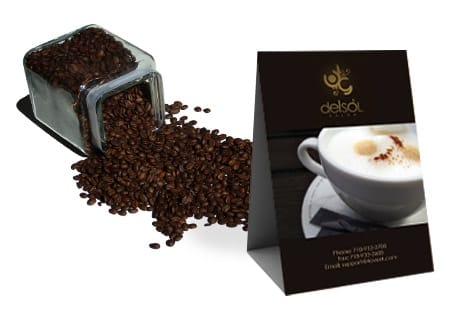
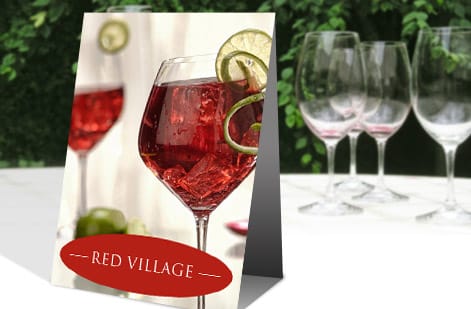
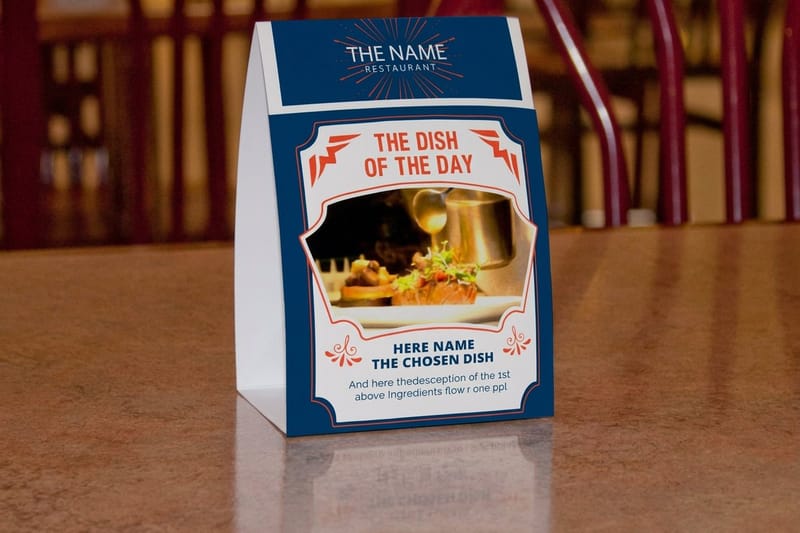
Placement is what turns a code into reviews. The goal is to catch customers right after a positive experience, so match the collateral to your moment. Restaurants and cafes get the most from table tents, because a diner with a good meal in front of them has both the time and the goodwill to scan.
Retail and service counters do well with stickers at the register and review cards handed over at checkout, while appointment businesses can add the code to thank-you cards, receipts, and follow-up mailers that reach the customer at home. The same code can live on all of them at once, so you are not limited to one placement.
Wherever it goes, pair the code with a short, warm prompt. A line like Scan to leave us a review, with a row of stars, tells people what the code does and gives them a reason to act. Our table tents, QR code business cards, and sticker labels are all natural homes for a review code.
Printable formats for your review QR code
One code, five homes. Pick the format by the moment it lands in, and size the code for the distance it gets read from: 0.8 inch is the floor for anything held or sat in front of, and it goes up from there as the reader gets further away.
| Format | Code size | Where it earns its keep |
|---|---|---|
| Table tents | 0.8 in and up, sized to read across a set table | Dining rooms, cafes and bars. It sits in front of a happy customer for the length of a meal, which is the highest-scanning spot there is. |
| Counter cards | 0.8 in, with the code built into the layout | Next to the register or handed over with the receipt. The code is already part of the design, so nothing looks bolted on. |
| Stickers | 0.8 in on a small die-cut, larger on a window decal | Register fronts, laptop lids, takeout bags and packaging. The code keeps working after the customer leaves the building. |
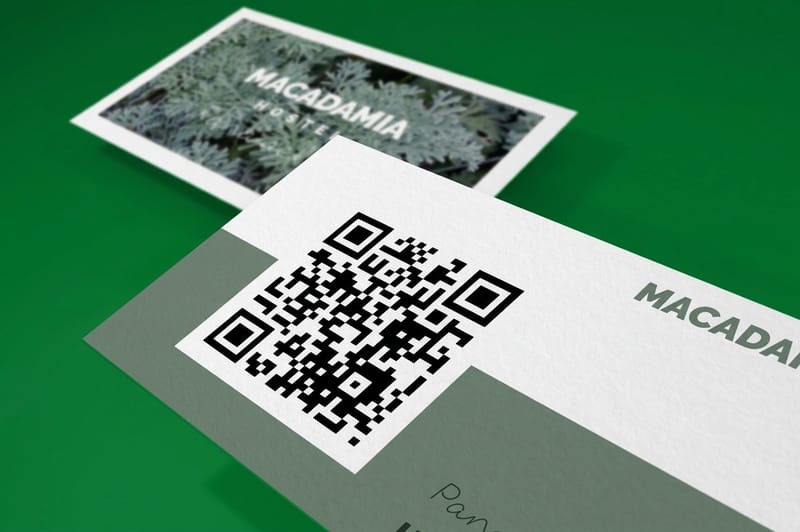
| Business cards | 0.8 in on the back, with the front left clean | Appointment and service work. The card goes in a wallet and the scan happens at home, once the job is done and the customer is pleased. |
| Door hangers | Noticeably larger, because it is read at arm length in daylight | Home services, cleaning and delivery. Leave it on the handle after the visit with the prompt above the code. |
Running the code on every table? Order review QR table tents in one run so the artwork, the stock and the code match across the whole dining room, and reprint from the same file when a tent gets tired.
Designing and printing the code so it always scans
A printed code fails for predictable reasons, and all of them are easy to avoid. Print the code at least 0.8 inch across, larger on pieces seen from a distance, and keep a clear quiet zone, an empty margin, around it so nothing crowds the pattern. Keep it dark on a light, high-contrast background rather than reversed or laid over a busy photo, and it will read on the first try in any lighting.
Set the file up like any print piece: work in CMYK, add 0.125 in of bleed, and keep the code and your prompt inside a safe margin. Because customer phones read QR codes natively, there is no app to worry about, so the only job is printing the code clearly and placing it well.
From there it is choosing the product and specs. Use the live specs and pricing panel below to build your review collateral, whether that is table tents for the dining room, cards for the counter, or stickers for the register, and turn your happiest customers into your best reviews.
Wally turns a link into reviews
Review link, QR code, printed where they sit
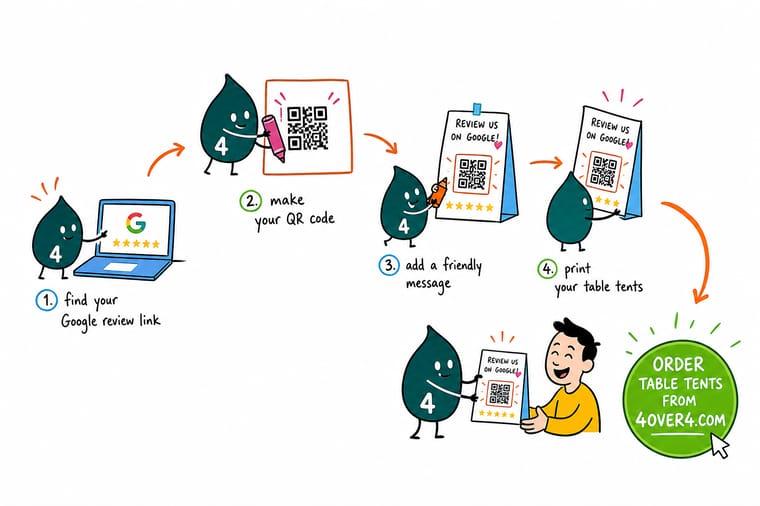
Wally keeps it to two moves: copy your Google review link, paste it into a free generator, and test the code. Then print it big and high-contrast on table tents, cards, and stickers with a Scan to leave a review prompt. Customer phones read it with no app. Set it up once and 4OVER4 prints the pieces that collect the reviews.
Order your review collateral →Quick reference
The review QR code setup at a glance
From link to print, these are the settings that make a review code reliable. Get each one right and every scan lands on your review box.
| Element | Set it to | Why it matters |
|---|---|---|
| Review link | From Google Business Profile | Use the get-more-reviews option in your profile to copy the direct link that opens your review box for a customer. |
| QR code | Free QR code generator | Paste the review link into a generator to create a scannable code you can download and place on any print piece. |
| Print size | 0.8 in or larger | Keep the code at least 0.8 inch across so phones read it easily from a table or a counter without fuss. |
| Contrast | Dark code on light background | High contrast and a clear quiet zone around the code make it scan on the first try in any lighting. |
| Call to action | Scan to leave a review | A short prompt beside the code tells customers what it does and why, which lifts the number of scans. |
Step by step
Make and print a review QR code in 6 steps
- Get your Google review link Sign in to your Google Business Profile, choose the option to ask for reviews or get more reviews, and copy the short link it gives you. That link opens your review box directly for a customer.
- Create the QR code Paste the review link into a free QR code generator and download the code as a high-resolution PNG or vector file so it stays crisp when printed at any size.
- Test the code before you print Scan the downloaded code with a couple of different phones to confirm it opens your review box. Testing now prevents a whole print run pointing to the wrong place.
- Choose where it goes Pick the collateral your customers touch at the right moment: table tents on tables, thank-you cards in bags, stickers at the register, and cards handed over at checkout.
- Design it big, clear, and prompted Place the code at least 0.8 inch across on a high-contrast background, leave a quiet zone around it, and add a short line like Scan to leave us a review with your star branding.
- Print the review collateral Set the file up in CMYK with bleed, run it through the free file check, and order the table tents, cards, or stickers that carry your review code into the world.
Specs and pricing
Table tent specs and live pricing
Table tents put your review code where diners sit. Here are the live specs and price-per-unit for table tents at 4OVER4.COM, straight from the configurator.

| Quantity | Price Per Unit | Total |
|---|---|---|
| 250 | $2.22 | $554.39 |
| 500 | $1.19 | $596.08 |
| 1,000 | 69.3¢ | $693.34 |
| 2,500 | 33.3¢ | $832.28 |
| 5,000 | 25.0¢ | $1,249.11 |
| 10,000 | 18.0¢ | $1,804.90 |
| 15,000 | 17.6¢ | $2,638.57 |
| 20,000 | 17.4¢ | $3,472.23 |
Order it
Print the collateral that carries your code
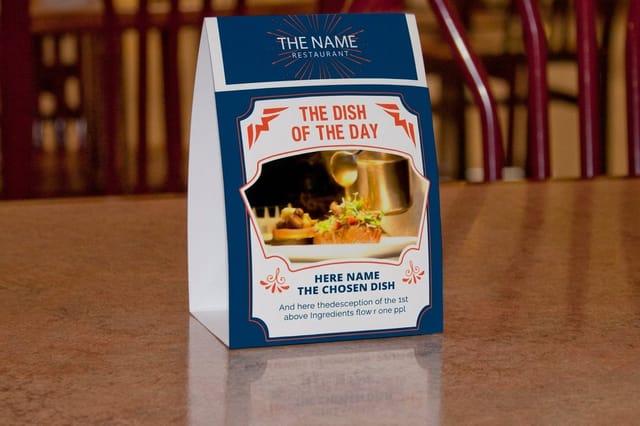
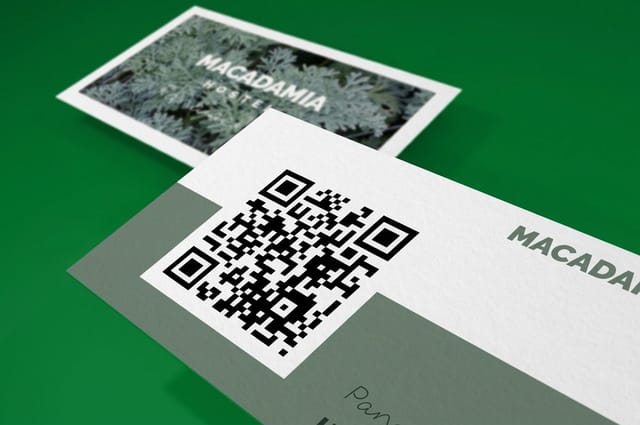
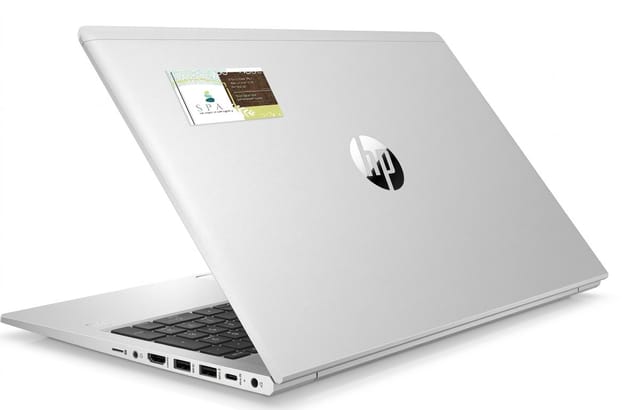
See it in use
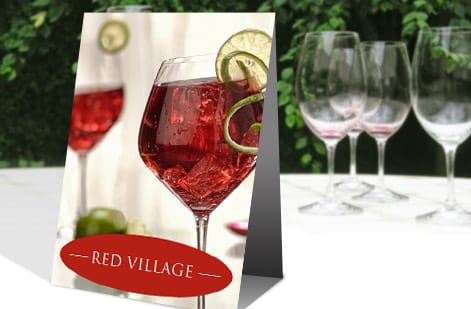
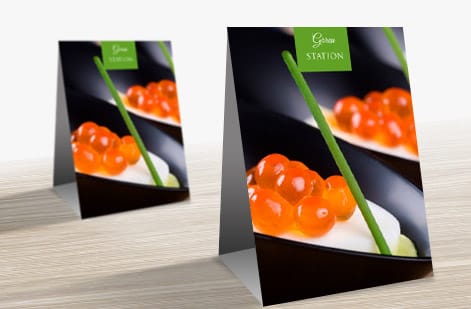
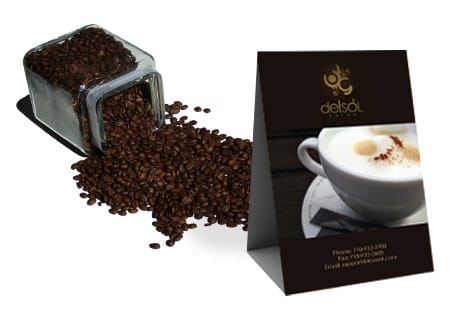
Table tents our customers printed with a review code





Explore more
Where to go next
By the numbers
The print floor behind a review code campaign
Common Questions
Common questions about Google review QR codes
How can I find my Google review QR code?
Sign in to your Google Business Profile and look for the option to ask for reviews or get more reviews. Google shows you a short review link there and offers a ready made code built around it. You can print that one, or copy the link and make your own code, which is the better route when you want control of the file and the size it prints at.
Is Google QR code free?
Yes. The review link and the code Google offers inside your Business Profile cost nothing, and pasting that link into a free generator costs nothing either. The only money in this is printing the piece that carries the code. Be careful with generators that hand back a tracking link they own rather than your own review URL, because that link can be switched off later and every printed piece dies with it.
Can I put my logo in a Google review QR code?
Usually yes. QR codes carry error correction, so a small logo in the center still reads as long as it stays modest and the pattern around it is untouched. Keep the code dark on a light background, leave the quiet zone clear, print at 0.8 inch or larger, and test the finished file with two or three phones before the run. If any phone hesitates, shrink the logo rather than enlarging the code.
How do I make a QR code for Google reviews?
Making a QR code for Google reviews takes two steps. First, get your review link: sign in to your Google Business Profile, use the option to ask for or get more reviews, and copy the direct link it provides, which opens your review box for a customer. Second, turn that link into a code: paste it into a free QR code generator and download the result as a high-resolution image. Test the code with a phone to confirm it opens your review box, then print it on table tents, cards, or stickers with a short prompt like Scan to leave us a review. That is all it takes to collect reviews from printed collateral.
Do Google review QR codes expire?
No. A QR code is a printed pattern that holds a web address, so it keeps working for as long as the address behind it does, and your Google review link stays valid while your Google Business Profile is live. A table tent printed today will still open the star prompt next year. Two things do kill a code: pointing it at a third-party short link that lapses instead of your own review URL, and printing it too small, too low in contrast, or crowded right to the trim. Keep the destination stable, print at 0.8 inch or larger with a clear quiet zone, and the code outlives the piece it is printed on.
Are Google review QR code generators free?
Yes, generating the code costs nothing. Paste your review link into a free QR code generator, download the result as a high-resolution PNG or a vector file, and it is yours to print as many times as you like across as many products as you like. Watch out for generators that hand you a tracking link they control rather than your own review URL, because that link can be switched off or start charging later, and every piece you printed goes dead with it. The only real cost here is printing the collateral that carries the code, and that price comes down to the product, quantity, size, stock and finish you choose.
How do I choose the right QR code review collateral?
Choose the collateral by where and when your customers are most willing to review. Restaurants and cafes do well with table tents, because a diner sitting with a good meal has both the time and the goodwill to scan. Retail and service counters suit stickers at the register and cards handed over at checkout. Appointment businesses can add the code to thank-you cards, receipts, and follow-up mailers. The best pieces catch people right after a positive experience, so match the format to your moment: on the table, at the register, or in the bag they carry home.
What does QR code review collateral cost and how are prices set?
The QR code itself is free to generate, so the only cost is printing the collateral that carries it. That price is set by the product, the quantity, the size, the stock, and any finish. Quantity is the biggest lever, so a bulk run of table tents, cards, or stickers costs little per piece. A standard size on a standard stock is the affordable base, while premium stocks and finishes add to it. You set each option in the configurator and the total updates live, so you can see exactly what a larger run or a heavier stock does to the price before you order.
What sizes, stocks, and finishes are available for QR code review pieces?
It depends on the product carrying the code. Table tents come in standard tent sizes on sturdy cover stock that stands up on a table, business cards and review cards use standard card sizes and weights with gloss, matte, or soft-touch finishes, and stickers come in many shapes and sizes on durable, adhesive stock. Across all of them, the key is printing the code large enough and with enough contrast to scan reliably. Each product page lists its full range of sizes, stocks, and finishes with live pricing so you can build the exact review piece you need.
How long does QR code review collateral take to print and ship?
The QR code is ready the moment you generate it, and the printed collateral follows a standard schedule, with most orders moving into production the same or next business day once the artwork passes the free file check. Table tents, cards, and stickers with special finishes can add a little finishing time. The exact production and shipping estimate appears in the configurator as you build the order, so you always see the timeline before checkout. Because the review link stays the same, you can reprint the collateral any time without regenerating the code.
How big should a Google review QR code be when printed?
Print the QR code at least 0.8 inch (about 2 cm) across so a phone reads it comfortably from normal viewing distance, and go larger on pieces seen from farther away, like a poster or a window sticker. Always leave a clear quiet zone, an empty margin, around the code so nothing crowds it, and keep it dark on a light, high-contrast background rather than reversed or placed over a busy photo. A code that is too small, low contrast, or hemmed in by other elements is the most common reason a scan fails, so give it room and contrast and it will read on the first try.
Do I need a special app for customers to scan the code?
No. Modern iPhone and Android cameras read QR codes natively, so a customer simply opens their camera, points it at the code, and taps the link that appears, which opens your Google review box. There is no separate app to download. Because of that, the friction is not on the customer side, it is on yours: the code has to be printed clearly, placed where people will see it, and paired with a short prompt telling them what it does. Get those right and scanning is effortless, which is exactly why printed review codes collect reviews so well.
Get Started
Ready to turn happy customers into reviews?
Generate your review QR code, then order the table tents, cards, and stickers to carry it at 4OVER4.COM. Adjust size, stock, and finish and watch your price update live.
Legal Disclaimer
Gold Standard guarantees apply to all standard orders placed through 4over4.com. Price match requires verifiable proof of a competitor's published price for an equivalent product with matching specifications and turnaround time. Satisfaction guarantee covers manufacturing defects and print quality issues. Contact support with order number and documentation. On-time delivery rate based on tracked orders 1999 to 2026. Individual results may vary based on shipping carrier performance.
