
Brochure Design Ideas You Can Pull Off in MS Word


How to design a brochure in MS Word that people actually read
A Letter sheet in Microsoft Word, turned to landscape and split into three columns with 0.5 inch margins, is already a trifold brochure; left in portrait with two columns, it is a bifold. Word ships with built-in brochure templates, drag-and-drop images, and the column tools that do that panel math for you. 4OVER4.COM has printed 10 billion cards and marketing materials for more than 150,000 businesses since 1999, and plenty of those jobs started life as a Word document. If you can type a letter, you can lay out a brochure.
The hard part is not the software. It is knowing what makes a brochure worth keeping. This guide walks through layout, type, color, images, and print setup, so your file comes out sharp on paper. Whether you are promoting a local event, launching a product, or planning a run of direct mail brochures, these steps get you there in Word.
How to make a brochure in MS Word, step by step
Here is the whole build in eight steps. Follow them in order and you end up with a folded brochure that prints clean, not a document that looks right on screen and falls apart on paper.
- Open Word and start a new document. Launch Word, choose File then New, and start from Blank document if you want full control of the panels. Save the file straight away as a .docx so nothing is lost while you work.
- Choose a brochure template. Type brochure in the New screen search box and press Enter. Word loads bifold and trifold layouts with the panels already divided. Pick the one closest to your brand and customize from there.
- Set orientation and columns. Go to Layout, then Orientation, and pick Landscape for a trifold or Portrait for a bifold. Then open Layout, Columns, More Columns and set three equal columns for a trifold or two for a bifold.
- Set margins and the column gutter. In Layout, Margins, Custom Margins, set every margin to 0.5 inch. In the Columns dialog set the spacing between columns to about 0.5 inch so type never crowds a fold.
- Add your content and images. Type your headline, body copy and contact details panel by panel. Insert photos through Insert, Pictures, and set every one to 300 DPI at its final printed size so it stays sharp on paper.
- Place the fold guides. Turn on View, Ruler, and drop a light vertical line at each column break through Insert, Shapes, Line so you can see exactly where the paper folds. Keep headlines and logos at least 0.25 inch clear of those lines.
- Proof the layout on paper. Print one copy at home and fold it by hand. Read every panel in the folded order, check that nothing important lands on a crease, and have someone else read it for typos.
- Export a print ready PDF. Choose File, Export, Create PDF/XPS, pick Standard quality, and save. Upload that PDF to 4OVER4.COM, choose your stock, finish, fold and quantity, and the file prints exactly as you laid it out.
How to create a bifold brochure in Word, 7 steps
A bifold is one sheet folded once, so you get four panels: front, inside left, inside right, and back. It is the fastest brochure to build in Word because you only manage two columns per side.
- Start a blank document and save it as a .docx before you type anything.
- Stay in Portrait under Layout, Orientation, since a Letter sheet folded once reads best tall.
- Split the page into two equal columns through Layout, Columns, More Columns, with 0.5 inch of spacing between them.
- Set 0.5 inch margins on all four sides in Layout, Margins, Custom Margins.
- Lay out page 1 as the outside, back panel on the left column and front cover on the right, then page 2 as the two inside panels.
- Insert your images at 300 DPI and keep every headline 0.25 inch clear of the center fold.
- Print one copy, fold it, read it, then export a PDF through File, Export, Create PDF/XPS.
The trifold variant
A trifold uses the same seven steps with three changes. Switch to Landscape under Layout, Orientation. Set three equal columns instead of two. Then remember that the panel that folds inward is about 1/16 inch narrower than the other two, so pull its text in slightly or it will crowd the fold.
Panel order trips people up. On page 1, left to right, you get the inside left flap, the back panel, and the front cover. Page 2 holds the three inside panels the reader sees when the brochure opens flat.
How to make a pamphlet in Word
A pamphlet is the same object under a different name, usually a single folded sheet handed out at an event, a clinic, or a counter. The Word build is identical, so here are the same eight steps in pamphlet terms.
- Open a new Word document and save it with the pamphlet name so revisions stay together.
- Search pamphlet or brochure in File, New. The templates Word returns work for either, since both are folded sheets.
- Pick the fold, one fold for a four panel pamphlet or two folds for six panels, then set Portrait or Landscape to match.
- Set the columns and 0.5 inch margins so each pamphlet panel is a real column rather than text you nudged into place.
- Write the front panel first. A pamphlet is usually picked up from a rack, so the top third of the cover has to say what it is.
- Add your images and a QR code if the pamphlet points to a booking page or a form.
- Fold a test print and read it the way a reader would, cover first, then inside spread, then back.
- Export a print ready PDF and send it to press. Pamphlets print on the same stocks as custom brochures.
Pick the right layout before you type a word
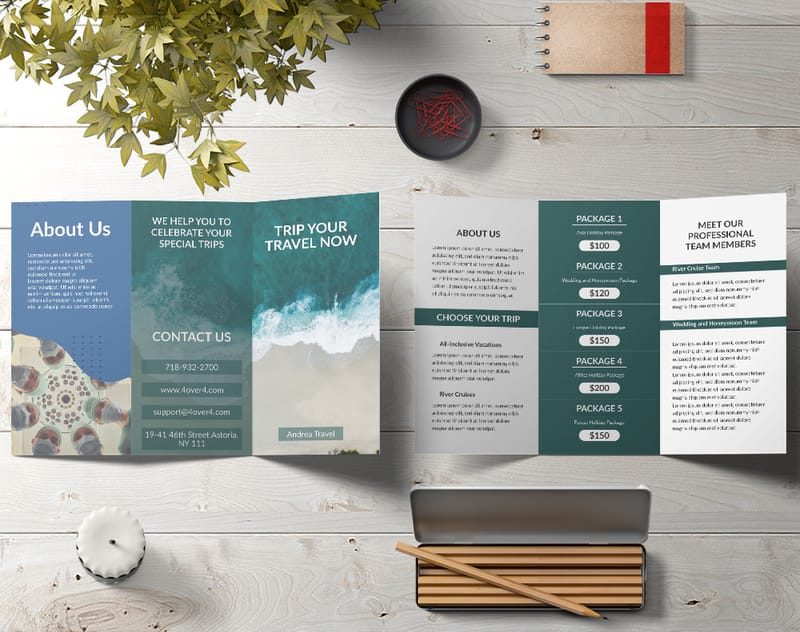
Your first decision shapes everything else. Bifold or trifold? A bifold brochure gives you four panels, which stays clean and simple for event programs or a single product spotlight. A trifold gives you six panels, so you get room for pricing, service lists, and a clear call to action.
Do not default to trifold just because it is common. If you stretch three sentences across six panels, the brochure looks empty. Cram a novel into four and nobody reads it. Match the format to how much you actually have to say.
In Word you set this up under Layout. For a trifold, switch to landscape and split the page into three equal columns. For a bifold, stay in portrait with two columns. Set margins to half an inch on every side to make the most of the printable space.
Use Word's built-in brochure templates
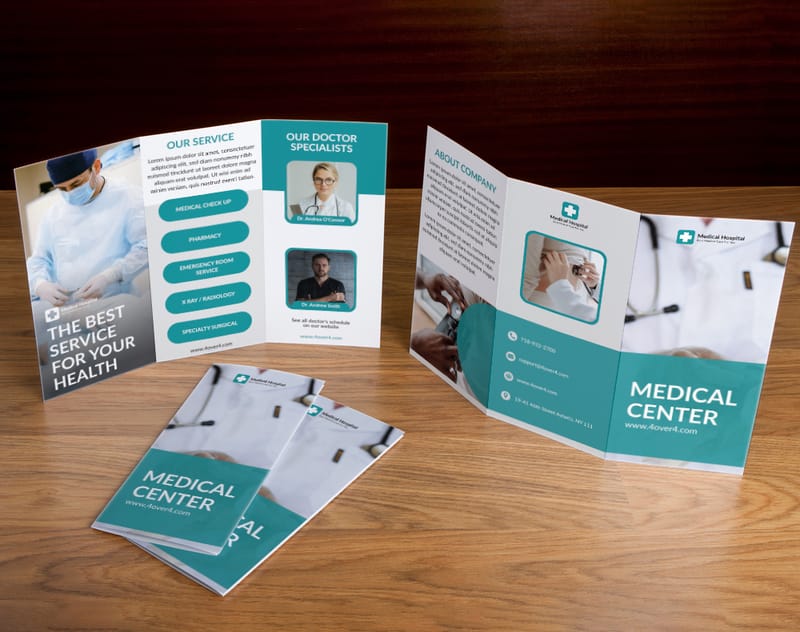
Open Word, choose File then New, type brochure in the search box, and press Enter. Word loads a set of ready-made layouts, some minimal, some bold, some corporate. Pick one close to your brand personality. You will customize it anyway, so do not agonize over a perfect match.
Swap the placeholder text and stock photos for your own copy and images. Change the fonts to your brand faces, and use the custom color picker under Format then Font Color to match your exact brand shade. Keeping your custom brochures consistent with the rest of your print builds recognition fast.
Typography that works on paper, not just on screen
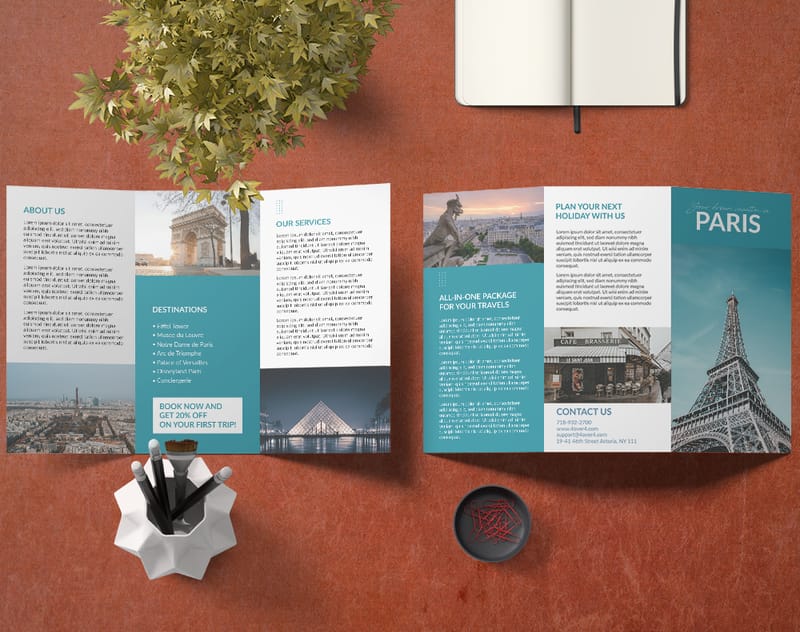
This is where most Word brochures fall apart. People pick fonts that look fine on a monitor and turn to mush in print. A few rules keep you safe.
For headlines, use a bold sans-serif between 18 and 24 point. Arial Black, Calibri Bold, and Franklin Gothic all stay crisp from a distance.
For body text, sit between 10 and 12 point. Go smaller and readers squint. Serif faces like Georgia and Cambria read well on paper because the serifs guide the eye along each line. For a wider look at how type choices shape a design, these graphic design portfolio examples are worth a browse.
One more rule. Limit yourself to two fonts, one for headings and one for body. Three looks chaotic. Four looks like a ransom note.
Color choices that print true
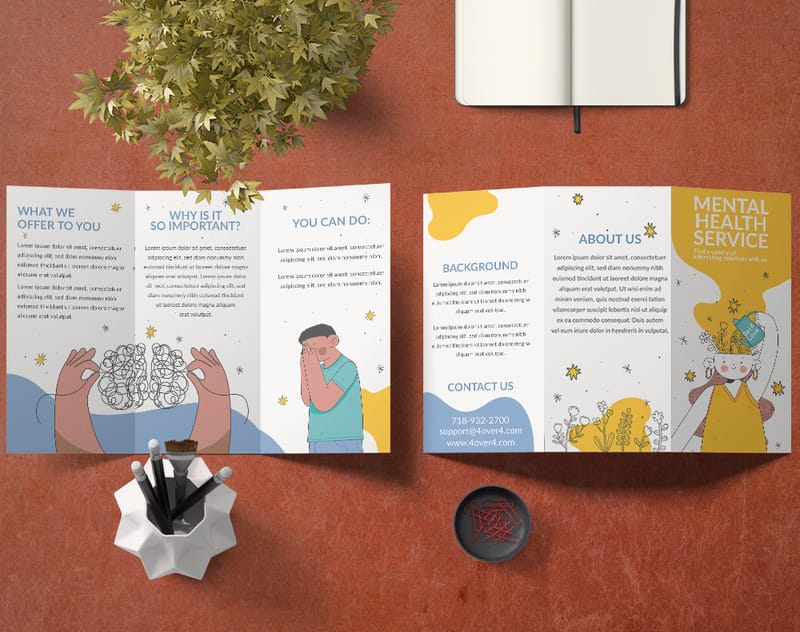
Your screen mixes red, green and blue light, and the press lays down cyan, magenta, yellow and black ink, so a pure RGB green of 0, 255, 0 or an electric blue of 0, 0, 255 comes off the press flatter and darker than it looks in Word. Word stores every color as RGB, and the conversion to ink happens at the press, so plan for it while you still control the file.
Stick with rich, saturated colors that translate well to CMYK. Deep navy, burgundy, forest green, and warm gold all print beautifully. If your brand uses a Pantone color, look up its closest CMYK values and enter them by hand in Word’s custom color dialog.
Keep high contrast between text and background. Dark text on a light panel is always safe. White on dark works too, but bump the weight a little, since thin white type can vanish on heavy ink. For more color-forward print ideas, these funny print ad examples play boldly and the same logic carries to brochures.
Print it
Custom brochures, printed sharp
Take your finished Word file to real paper. Bifold or trifold, gloss or matte, in the fold and stock your design deserves.
Quantity and price
Brochure pricing and specs
Real configurator numbers. The more you order, the lower the per-piece cost drops.
| Quantity | Price Per Unit | Total |
|---|---|---|
| 50 | $1.14 | $57.11 |
| 100 | 82.4¢ | $82.38 |
| 200 | 53.3¢ | $106.55 |
| 300 | 41.0¢ | $123.02 |
| 400 | 34.9¢ | $139.49 |
| 500 | 31.2¢ | $155.97 |

Images: resolution matters more than you think
This is the number one mistake in Word brochures. People drag in a small web image at 72 DPI and wonder why the print looks pixelated. For clean output, every image needs to be at least 300 DPI at its final printed size.
In plain terms, a photo that fills half a letter-size panel should be around 1500 by 2100 pixels. Stretch a small file to fill a big space and it goes blurry. Word will not warn you, so you have to check it yourself.
Where do you find high-resolution images? Your own camera works, since most phones now shoot 12 megapixels or more. Free libraries like Unsplash and Pexels offer high-res options too. Just confirm you have the right to use any image commercially.
When you place an image, right-click, choose Size and Position, and keep Lock aspect ratio checked so nothing distorts. Use Tight or Square wrapping to flow your copy around the photo naturally.
Write copy that fits the fold
A brochure is not a website and not a blog post. People scan it in seconds, so your copy has to earn attention fast. Lead with your strongest benefit on the front panel, not your company name or founding year. A restaurant might open with Farm to Table Dining, Seven Nights a Week.
Inside, follow a logical flow panel by panel. Problem, solution, proof, action. Keep paragraphs to two or three sentences, use bullets for service lists, and bold the key phrase in each section so scanners catch it.
Every brochure needs one clear call to action. Tell readers exactly what to do next, whether that is visit a site, call a number, or scan a QR code. Put it on the back panel, the one facing out when the brochure sits in a rack. For more print ideas, the full library of printing articles is a good next stop.
Set up margins, bleeds, and safe zones
Printing at home on an inkjet? Half-inch margins are fine. Sending your file to a professional printer like 4OVER4.COM? Then you need to think about bleed and safe zones.
Bleed is the area beyond the trim line where your design keeps going, so a slightly off cut does not leave a white edge. Most printers want 0.125 inch of bleed on every side. In Word you approximate this by extending background colors and images a touch past the trim area.
The safe zone is the opposite. Keep all critical text and logos at least 0.25 inch inside the trim line so nothing gets clipped. This matters most on trifolds, where the panel that folds inward runs about a sixteenth of an inch narrower than the other two.
Here is how to set it up in Word without guessing. Under Layout, Size, Custom Paper Size, add 0.25 inch to both the width and the height of your finished size, which gives you 0.125 inch of bleed on all four edges. Set your margins to 0.5 inch so the text block already sits clear of the trim. Then drop a rectangle from Insert, Shapes with no fill and a thin colored outline at your true trim size, leave it on screen while you work, and delete it before you export. That rectangle is your trim line, and everything that must survive the cut stays a quarter inch inside it.
Do this once and the file behaves at press. Skip it and the first thing you notice on the printed brochure is a white sliver down one edge, or a phone number with its top clipped off. No amount of good design in Word survives a file that ignores the trim.
Use Word's drawing tools for visual interest
Word’s shape and drawing tools are underrated for brochures. You can build colored text boxes, rounded callout panels, divider lines, and simple icons from basic shapes.
Try a colored sidebar. Drop in a rectangle one panel wide, about 3.67 inches on a landscape Letter trifold, run it 0.125 inch past the trim so the color bleeds off the edge, fill it with your brand color, and layer text on top to break up a wall of copy. Use the Align tools under Format then Arrange so every element lines up. Misaligned pieces look sloppy even when the writing is great.
Reach for WordArt only for the occasional headline, and SmartArt for a process flow or org chart. Do not overdo it. Clean and simple always beats busy and cluttered. If you want ideas for using print beyond brochures, these logo sticker ideas show how far a small piece of print can travel.
Paper stock and finish, what happens after Word
Your Word design is only half the story. The paper you print on changes the whole experience. A brochure on flimsy 20 pound copy paper feels disposable. The same design on 100 pound gloss text stock feels like something worth keeping.
4OVER4.COM offers 60+ paper types for brochures. Gloss makes colors pop and photos vivid. Matte feels smooth and cuts glare under office lighting. Uncoated stocks have a natural, textured hand that suits eco-minded and artisan brands. Pair a brochure with matching flyers and the whole campaign feels intentional.
When you are ready to print, save your file as a high-quality PDF. In Word, choose File then Save As then PDF, open Options, and pick High quality printing. That locks in your fonts, images, and layout exactly as the printer will see them.
Another format
Folded brochures, ready to mail
Prefer a classic fold? Compare stock, finish, and turnaround on folded brochures.
Common MS Word brochure mistakes, and how to fix them
After years of printing brochures for every kind of business, 4OVER4.COM sees the same slip-ups again and again. Here is what to watch for.
- Too many fonts and colors. Stick to two fonts and three or four colors so the piece looks cohesive, not like a collage fighting for attention.
- Ignoring the fold. Print a test copy and fold it before you send the file. Text that looks centered on screen can land right on a fold line, and the inner trifold panel is slightly narrower.
- Low-resolution images. Check every image at 300 DPI. Zoom to 200 percent on screen, and if it looks fuzzy there it will look worse in print.
- No white space. Resist filling every inch. White space gives the eye a place to rest and makes the content feel organized. A crowded brochure gets tossed.
- Forgetting the back panel. The back of a trifold is prime real estate, often the first thing seen in a rack. Put your logo, tagline, and contact details there.
Brochure ideas by industry
Different businesses need different approaches. Here is what tends to work, and why.
- Real estate agents. Lead the front panel with a strong property photo and the listing price. Use inside panels for a floor plan, neighborhood highlights, and your contact info. Trifold gives you the room this detail needs.
- Restaurants and cafes. A bifold menu keeps it simple. Front panel, your best dish and the restaurant name. Inside, menu categories with prices. Back panel, hours, location, and a QR code to online ordering.
- Event planners. Lead with the date and a compelling image, then use inside panels for the schedule, speaker lineup, or venue map. Pair the brochure with matching invitation cards and study these event program examples for layout ideas.
- Nonprofits. Open with your mission and a hard impact number, like meals served or families helped. Inside, tell the story with photos and testimonials. The back panel carries donation details and your website.
- Startups and small businesses. Focus on the problem you solve, not a feature list. Keep the design modern and minimal so the message does the work.
Travel and event brochure ideas you can build in Word
Two of the most searched brochure types are also the easiest to lay out in Word, because both lean on photos and short blocks of text.
- Travel brochure. A trifold with one destination per panel: a full-bleed photo on the cover, a three-line pitch on the inside flap, then a panel each for where to stay, what to do and how to book. Keep the map on the back panel so it reads when the brochure is folded.
- Event brochure. A bifold with the schedule on the inside spread as a two-column table, the speakers or acts down the left, the venue and ticket details on the back. Set the table in Word\u2019s Insert menu, not with tabs, so the columns survive the PDF export.
Both print cleanest on 100 lb gloss text with a 0.125 inch bleed; export as PDF with the marks on, then upload to the brochure product page.
From template to print, step by step
- Pick a layout, bifold or trifold, that matches your content.
- Open Word, go to File then New, and search brochure to load a template.
- Swap in your text, brand colors, brand fonts, and high-resolution photos.
- Fine-tune with columns, shapes, and the alignment tools for visual balance.
- Proofread, print a test fold, then save a high-quality PDF.
- Upload to 4OVER4.COM, choose stock, finish, and fold, and place your order.
Start fast
Templates and print-ready blanks
Brochure templates and exact-size blanks so your layout lines up with the fold and bleed.
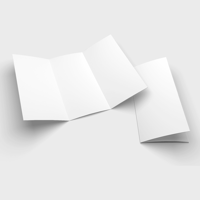
Free Word brochure templates you can start from
You have two free starting points, and they solve different problems. Word's own File, New, brochure templates give you a finished look you can retype, and so do the finished 4OVER4.COM brochure templates you edit online. The 4OVER4.COM brochure blank templates give you the opposite: an empty file already built to the exact trim, bleed and fold of the size you are ordering, so nothing shifts at the press.
If you are printing with us, start from the blank. Pick your size in the blank templates library, download the bifold or trifold layout that matches, and build inside the guides. If the guide lines are new to you, read how blank templates work first, and grab our other blank templates as a free download for every other format. For folded sizes, the folded brochure blanks carry the panel widths already adjusted for the inward fold. Then use the free designs below if you want a layout to borrow rather than a blank page to face.
Free downloads
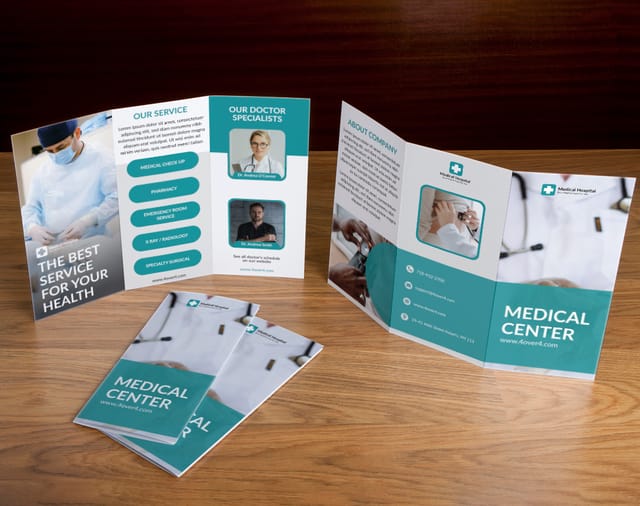
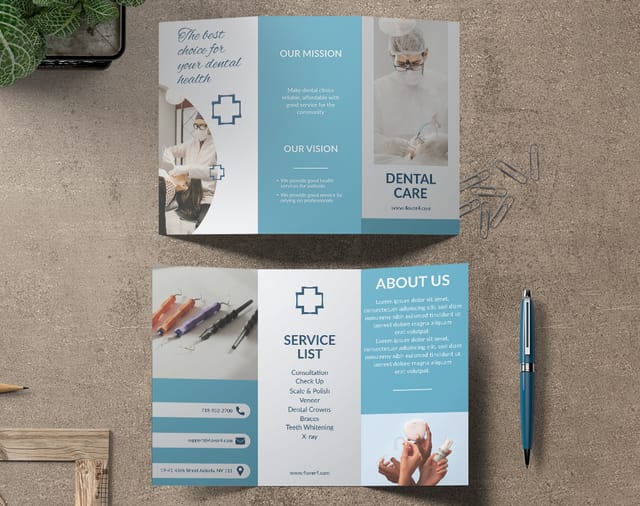
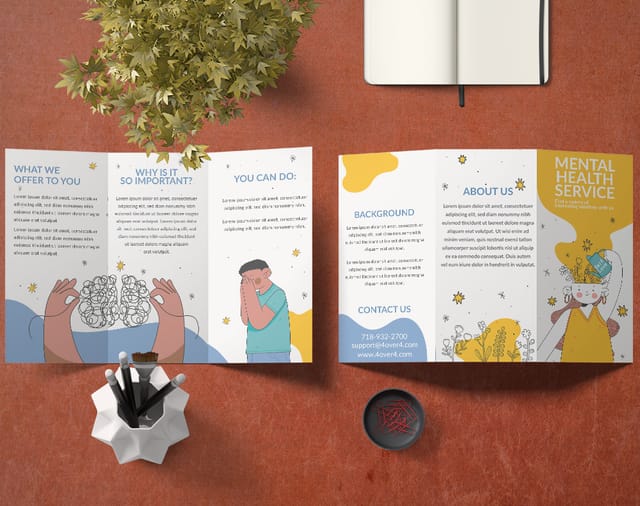
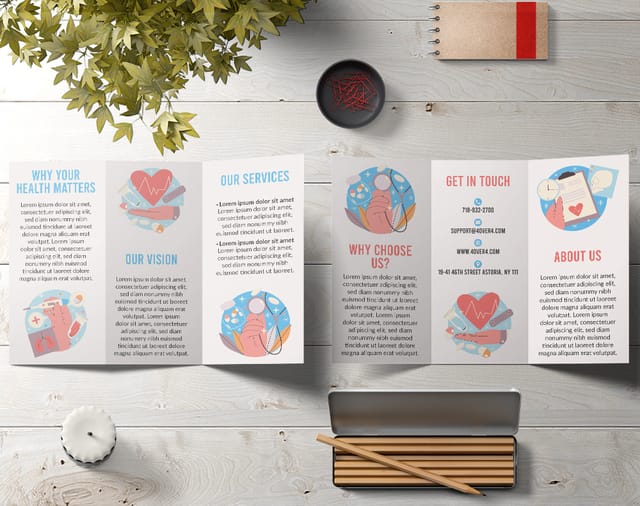
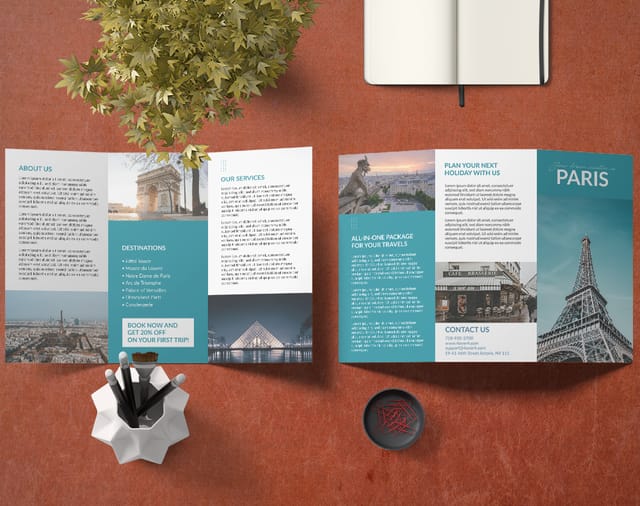
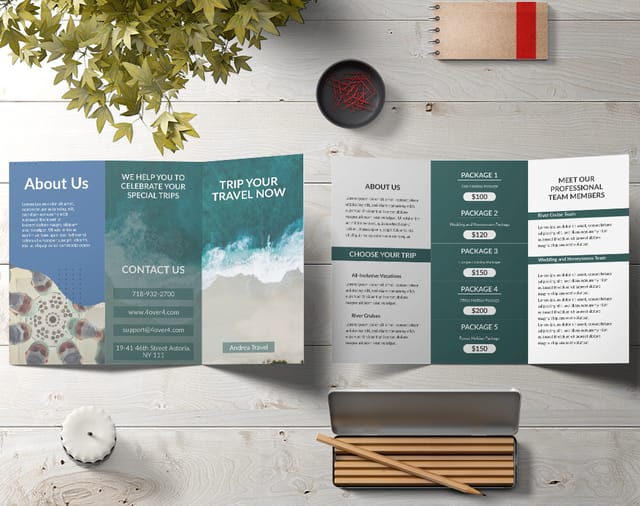
Free brochure design templates
Open any layout in the 4OVER4.COM online designer and make it your own.
Export your Word brochure for professional printing
You have designed the brochure and it looks great on screen. Now do a final proofread. Print a draft at home and fold it, then check that every line is readable, images are sharp, and nothing important sits on a crease. Have someone else read it too, since fresh eyes catch typos yours skip.
Save as PDF through File then Export then Create PDF, and choose Standard quality for a clean balance of size and sharpness. Before you send it, check three things Word will not check for you. Every image should still be 300 DPI at its printed size, so turn off Word's picture compression under File, Options, Advanced. Your artwork should run 0.125 inch past the trim on every edge if it bleeds. And nothing you care about should sit inside the 0.25 inch safe zone from the trim line, because trimming moves a hair either way on every press in the world.
This is the part Word tutorials skip, and it is the part that decides whether the printed piece matches the screen. When you upload to 4OVER4.COM you pick stock, finish, quantity, and fold, and the file is checked before it runs. Orders ship with a 99.8 percent on-time rate, so your Word file gets the same treatment as one built in InDesign.
Wally turns your Word file into a real brochure
Templates in, print-ready PDF out
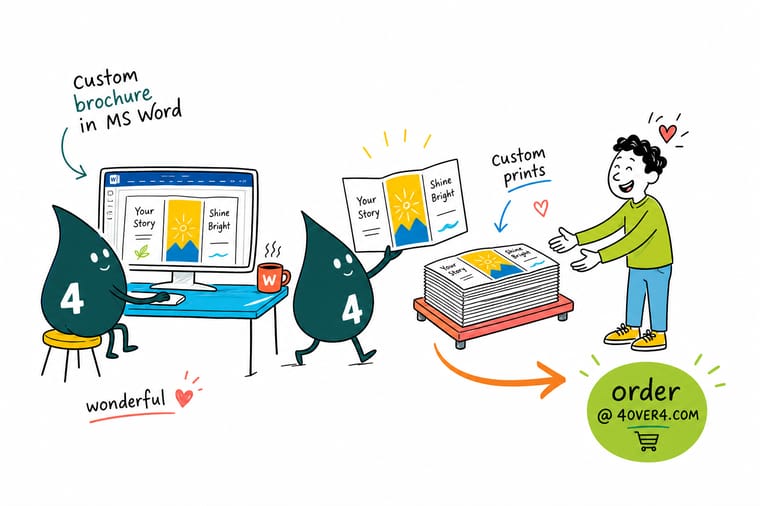
You do not need fancy software. Pick a bifold or trifold, start from a Word template, keep two fonts and 300 DPI images, then leave a 0.125 inch bleed and a 0.25 inch safe zone. Save a high-quality PDF and 4OVER4.COM prints it sharp on any of 60+ papers, folded and ready to hand out.
Order custom brochures →What to remember about designing brochures in Word
Explore more
More ways to brand with brochures and print
Related products and reads on 4OVER4.COM, one card each, so you can keep exploring brochure printing.
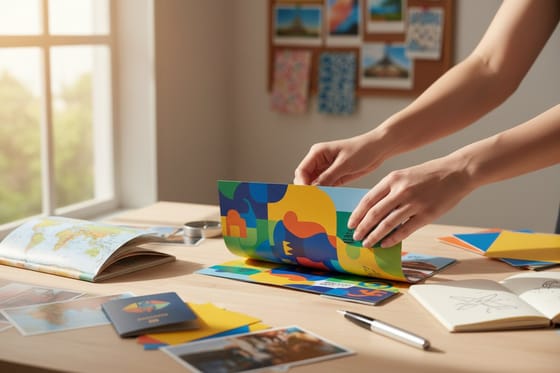 Article Travel Brochure Design That Survives a Rack and Still Gets Picked Up Travel brochure folds, panel order and photo choices that work in a rack display, plus the stock weight that s
  Article Custom Letterhead Design Ideas That Make Your Brand Stand Out Custom letterhead design ideas that make your brand look established, with layout rules, paper weights, ink ch
 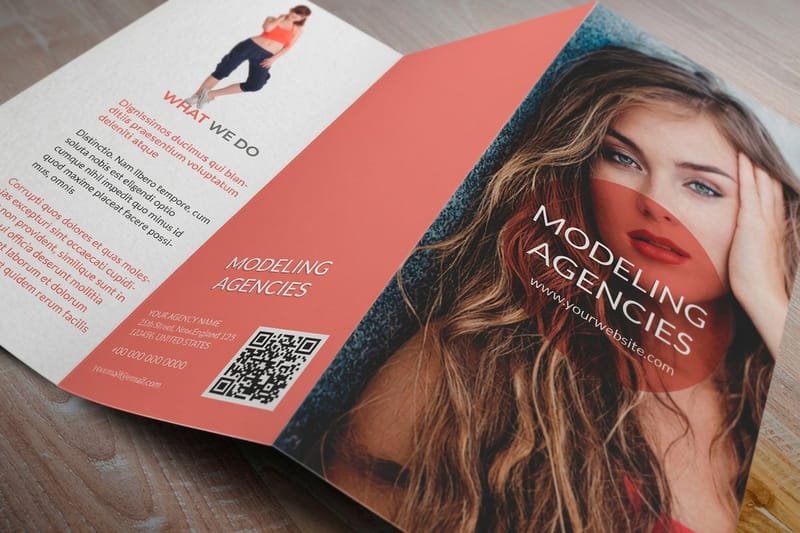 Hub Marketing Materials Every promotional print format in one place. Product Custom Brochures Bifold and trifold brochures printed sharp.
 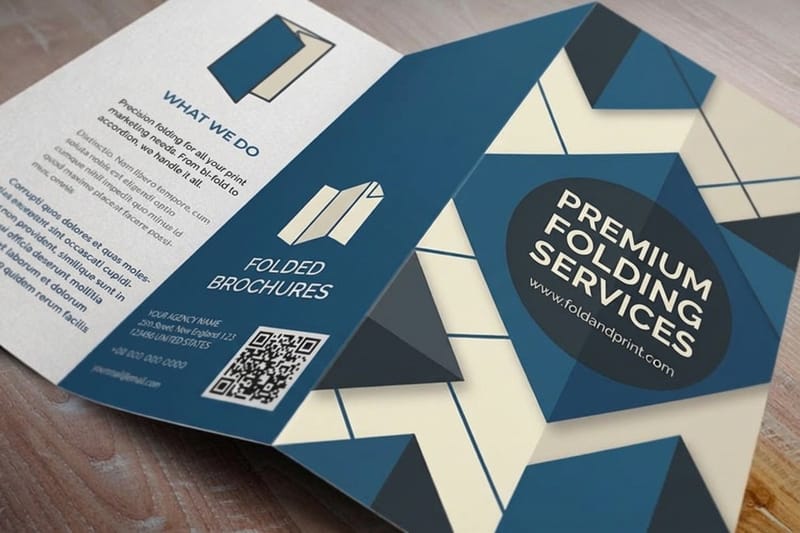 Product Folded Brochures Classic folds, ready to mail or rack.
 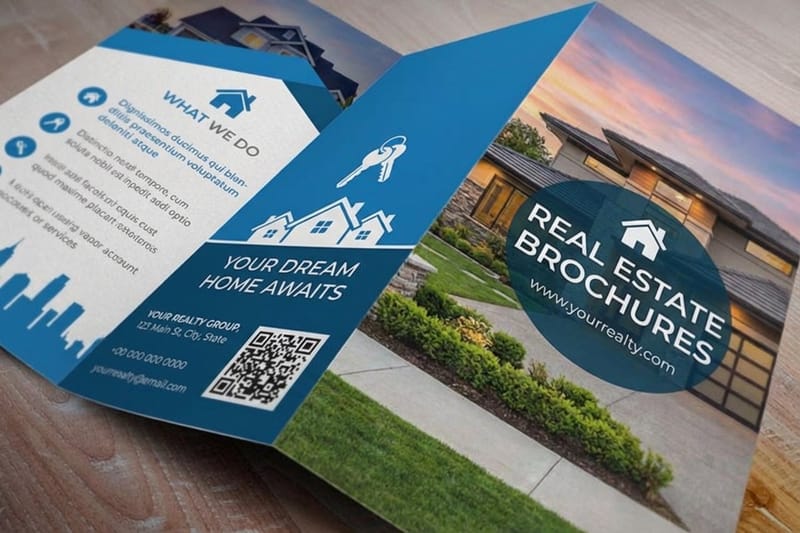 Product Real Estate Brochures Listing brochures built to sell homes.
 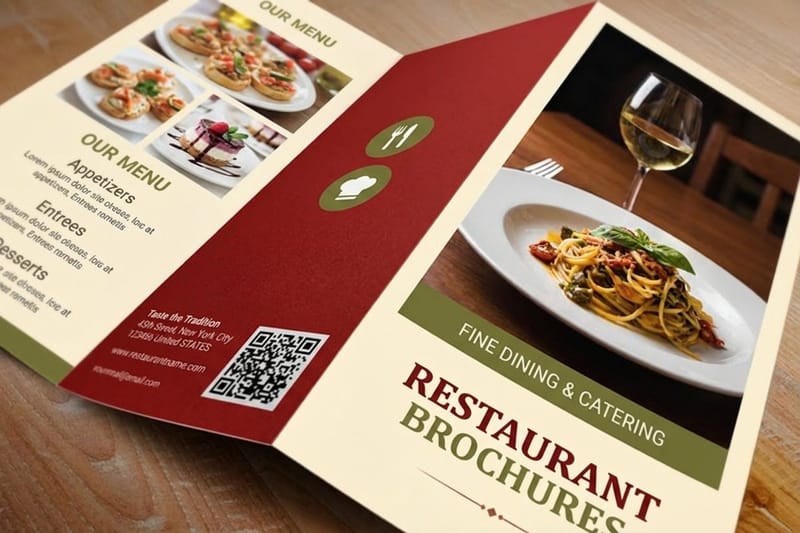 Product Restaurant Brochures Menu brochures that make mouths water.
  Article Company Brochure Examples Real brochures worth studying.
  Article Travel Brochures Why travel brochures still convert.
 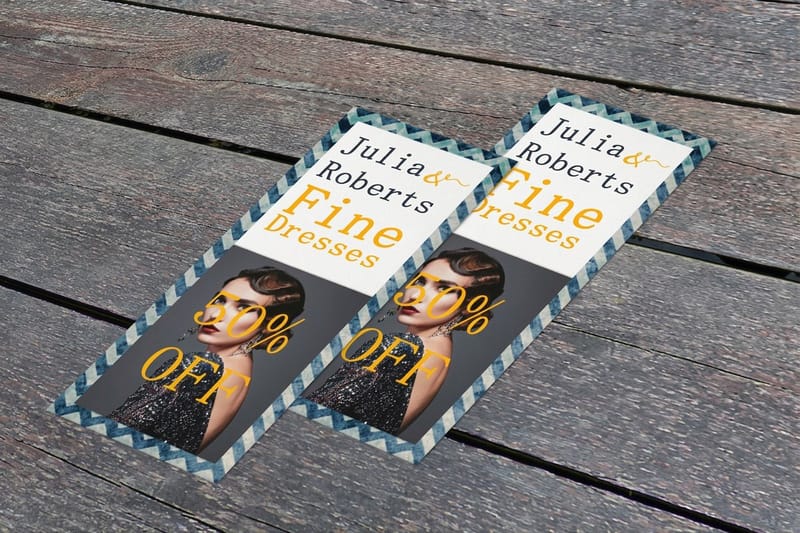 Related Rack Cards Slim brochures for racks and counters.
 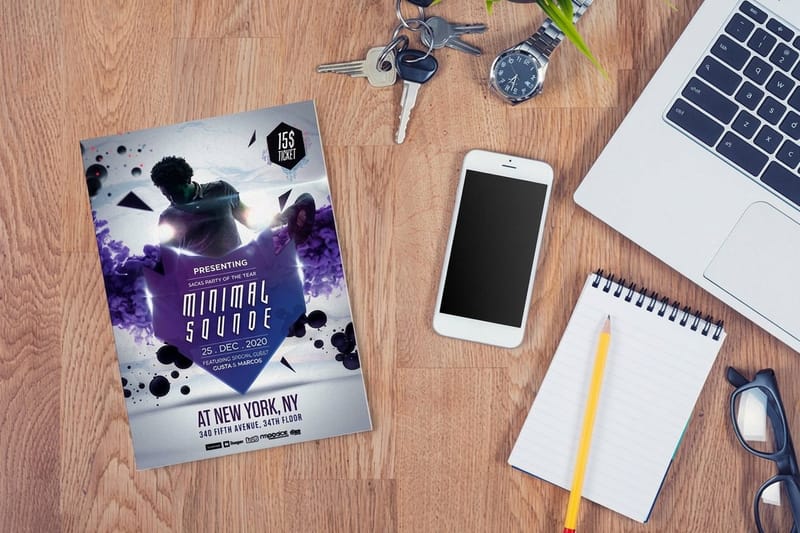 Related Flyers Single-sheet promo alongside your brochure.
 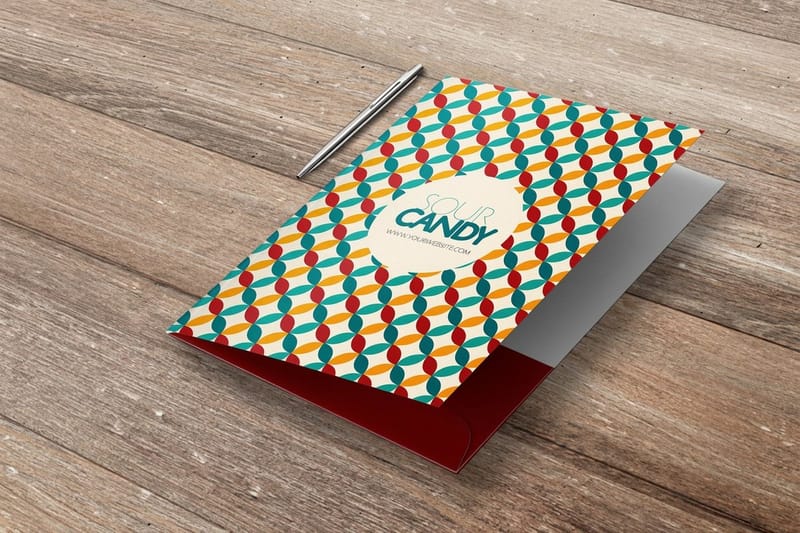 Related Pocket Folders Hold brochures and sales sheets together.
 Ready to print your brochure?
Start from a template, keep your images sharp, and 4OVER4.COM prints your bifold or trifold on premium stock, as fast as same day.
Common questions about brochure design in MS Word
What is the easiest way to create a brochure?
Start from one of Word’s own brochure templates: File, New, search for brochure, pick a bifold or trifold, then replace the placeholder text and photos with yours. Keep two fonts and three colors, check every photo is 300 DPI at its printed size, and export as a PDF with bleed when you are done.
What Microsoft program can I use to create brochures?
Word handles a bifold or trifold well and is what most people already have. Publisher gives finer control over columns and bleed, and PowerPoint works if you set the slide to the finished brochure size. Whichever you use, export a PDF for printing rather than sending the native file.
What are the best practices for designing a brochure in MS Word?
Start from a built-in template, then customize the fonts, colors, and images to fit your brand. Use two fonts at most, keep every image at 300 DPI or higher, set half-inch margins, and lay out panels with columns. Always print a test fold, and save a PDF for the sharpest handoff to your printer. To round out a campaign, 3D lenticular postcards make a striking companion piece.
How do I choose the right layout for my Word brochure?
It comes down to content. Bifold brochures have four panels and suit simple messages like event programs or a product highlight. Trifolds give you six panels for detailed service lists, pricing, or step-by-step information. Our guide to what a trifold brochure is shows how the three panel fold works. In Word, use landscape with three equal columns for a trifold, or portrait with two columns for a bifold, and match the layout to how much you have to say.
What makes MS Word effective for brochure marketing?
Word is already on most computers, so you get faster turnaround and lower design costs than hiring out every update. Pair solid fundamentals like clean type, high-res images, and a strong call to action with professional printing from 4OVER4.COM on premium stock, and the result competes with brochures built in specialized software. Add black postcards for a bold, coordinated look.
How much should I budget for a brochure designed in MS Word?
The design itself costs nothing beyond your time, since Word is usually pre-installed. Your budget goes to printing, which varies by stock, finish, quantity, and fold. Ordering in larger runs drops the per-piece cost sharply, and with 60+ paper types at 4OVER4.COM you can match your budget to the quality you want.
How do I make a bifold brochure in Word?
Start a blank document, stay in Portrait, then open Layout, Columns, More Columns and set two equal columns with 0.5 inch of spacing. Set all four margins to 0.5 inch. Page 1 holds the outside, back panel on the left and front cover on the right. Page 2 holds the two inside panels. Print one copy, fold it by hand to check nothing sits on the crease, then export a PDF through File, Export, Create PDF/XPS.
Does Word have built in brochure templates?
Yes. Choose File then New, type brochure in the search box, and press Enter. Word returns bifold and trifold layouts with the panels, columns and placeholder images already set up. Swap in your own copy, brand fonts and photos, and the fold structure stays intact. You can also start from a print-ready blank in the 4OVER4.COM brochure blank templates library.