What You'll Learn About Putting Social Media on Your Business Cards
Business cards with social media icons bridge the gap between a physical handshake and a lasting digital connection. This guide covers which platforms to include, where to place icons for clean design, and how to format handles so people actually follow you. 4OVER4 has printed 10 billion+ cards for 150,000+ businesses, and the ones that convert best almost always include social links. Here's how to get yours right.
Why Your Business Card Needs Social Media Links in 2026
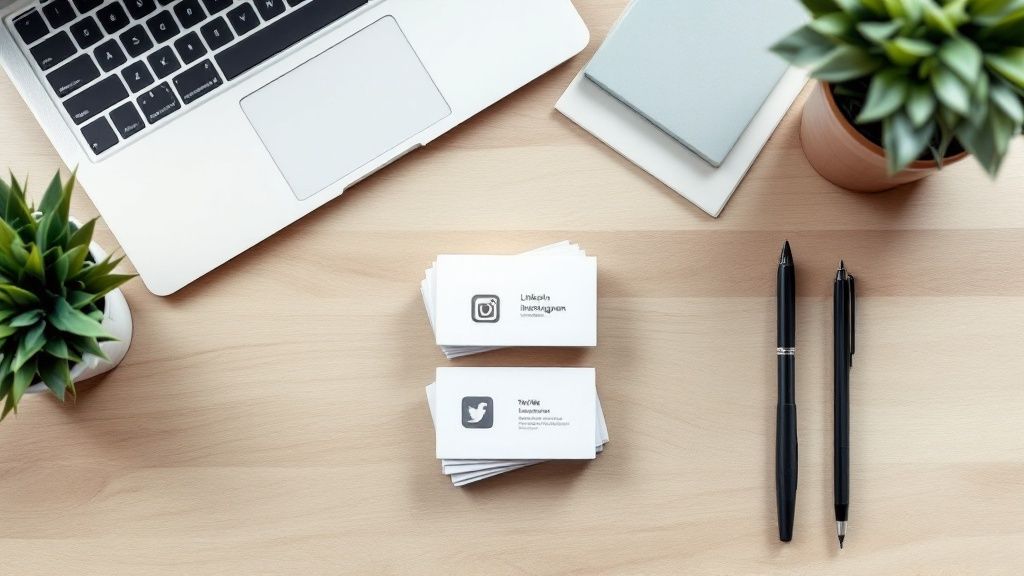
A business card without social media is a dead end. Someone takes your card, maybe glances at it, and that's where the relationship stalls. Add your Instagram handle or LinkedIn URL, and suddenly that card becomes a doorway into your brand's full story - your work, your personality, your proof.
"Standard Business Cards /5"
| Quantity | Price Per Unit |
|---|---|
| 100 | $0.18 |
| 4,000 | $0.03 |
| 35,000 | $0.02 |
| 100,000 | $0.02 |
Ink Color
Finish
Variable Data (Codes, Names, Etc.)
Rounded Corners
Total Sets
Proof Options
This business cards with social media guide walks you through everything: icon selection, layout best practices, QR code integration, and the mistakes that make cards look cluttered instead of professional. Whether you're a freelancer, real estate agent, or startup founder, you'll leave here knowing exactly how to design a card that drives real follows and engagement.
"Free Business Cards With Free Shipping /5Paper Type14pt Gloss Cover14pt Uncoated Cover (30% PCW)Proof OptionsStraight To ProductionFree Online Proof"
Before you dive in, check out 4OVER4's Daily Deals for current pricing on card stock options. And if you're exploring other print projects, our guide on How To Clean Rubber Stamps is worth a read too.
"Die-Cut Any Shape Business Cards /5"
Ink Color
Finish
Die Cutting
Total Sets
Proof Options
How to Design Business Cards With Social Media Icons That Actually Work
Social media icons on a business card aren't decoration. They're functional design elements that tell someone exactly where to find you online. Get them right and you'll turn casual contacts into followers, leads, and customers. Get them wrong and your card looks like a cluttered mess nobody wants to keep.
Let's break this down step by step.
Choose the Right Platforms - Not All of Them
The biggest mistake people make? Listing every social account they've ever created. Your card has limited real estate. Pick two to three platforms that actually matter for your business. A photographer needs Instagram. A B2B consultant needs LinkedIn. A restaurant needs Facebook and maybe TikTok.
Ask yourself: where do my ideal clients or customers spend their time? That's your answer. A real estate agent doesn't need a Twitch handle on their card. A gaming streamer doesn't need LinkedIn. Be intentional. If you're unsure which platforms pair best with your industry, the Faq Hub at 4OVER4 has resources to help you think it through.
Here's a quick breakdown by industry:
- Creative professionals (designers, photographers, artists) - Instagram and Behance or Dribbble
- Corporate and B2B (consultants, lawyers, accountants) - LinkedIn and Twitter/X
- Retail and food service (restaurants, boutiques, salons) - Instagram and Facebook
- Tech startups - LinkedIn, Twitter/X, and GitHub if relevant
- Event planners and entertainers - Instagram, TikTok, and YouTube
Icon Placement and Sizing That Keeps Things Clean
Social media icons should support your card's design, not fight it for attention. The standard approach is grouping them together - usually along the bottom edge or vertically along one side. This creates a clean visual block that's easy to scan.
Size matters here. Icons that are too large compete with your name and title. Too small and they're unreadable. Aim for icons between 4mm and 6mm in height. That's big enough to recognize at a glance but small enough to stay out of the way.
Keep consistent spacing between each icon. Uneven gaps look sloppy, even if the rest of your design is polished. And always use the official brand icons - don't grab random clip art versions. Facebook, Instagram, LinkedIn, and other platforms all provide downloadable icon packs in their brand guidelines.
"I switched from listing full URLs to just clean icons with my handle next to each one. The card went from looking like a classified ad to something people actually compliment me on."
- Marcus L., freelance graphic designer, ★★★★★
If you're working on other printed marketing materials alongside your cards, learning How To Make Flyers with matching social media branding creates a cohesive look across everything you hand out.
How to Format Your Social Media Handles
Don't print full URLs on your business card. Nobody wants to read "https://www.instagram.com/yourbusiness" in 6-point type. Use the platform icon followed by your handle: @yourbusiness. That's it. Clean, scannable, and universally understood.
If your handle is the same across all platforms, you can simplify even further. List the icons in a row with a single handle underneath. This works beautifully when your branding is consistent.
For LinkedIn, handles can be awkward (those random character strings). Create a custom LinkedIn URL first - it takes 30 seconds in your profile settings. Same goes for Facebook. A custom URL like facebook.com/yourbrand is far more professional than facebook.com/profile.php?id=100042738.
Pro tip: test every handle and URL before you send your card to print. A typo in your Instagram handle means every single card in that batch is wrong. 4OVER4 offers proofing on every order, but catching handle errors is on you.
QR Codes - The Smart Alternative to Printed Handles
QR codes have made a serious comeback. Instead of listing three or four handles, you can use a single QR code that links to a landing page with all your social profiles. Tools like Linktree, Beacons, or a simple custom page on your website work perfectly for this.
Place the QR code on the back of your card. This keeps the front clean for your name, title, and primary contact info. The back becomes your digital gateway. Make sure the QR code is at least 20mm x 20mm - anything smaller can cause scanning issues, especially on textured paper stocks.
For cards that really stand out with QR functionality, consider 3D Lenticular Business Cards from 4OVER4. The dimensional effect grabs attention and practically begs someone to flip the card over and scan your code.
One thing to watch: active QR codes are better than static ones. Active codes let you update the destination URL without reprinting your cards. If you change your Linktree or update your social handles, the same QR code still works.
Blank Templates


Design Principles for Social-Media-Friendly Cards
Your card's overall design needs to accommodate social media elements without feeling cramped. Here are the principles that work:
- White space is your friend. Don't fill every square millimeter. Breathing room makes social icons pop.
- Use a two-sided layout. Front for name, title, and primary contact. Back for social icons, QR code, and tagline.
- Match icon color to your brand. Monochrome icons (all black, all white, or all one brand color) look cleaner than multicolor platform logos.
- Hierarchy matters. Your name should be the largest text. Your title second. Social handles should be smaller but still legible - never below 7pt font.
- Pick a paper stock that supports readability. Matte and soft-touch finishes reduce glare, making small text and icons easier to read. Glossy finishes can cause reflection that obscures fine details.
If you want to see how different finishes look and feel before committing, order Free Samples from 4OVER4. Holding the actual paper in your hand tells you more than any screen preview.
Color and Contrast for Social Media Icons
Icons need contrast to be visible. A light gray Instagram icon on a white card? Invisible. A dark icon on a dark background? Same problem. Test your design in both digital preview and a physical proof.
The safest approach: use monochrome icons that match your primary brand color. If your brand is navy blue, make all social icons navy blue. This creates visual unity and avoids the "rainbow of logos" look that cheapens an otherwise nice card.
For dark-colored cards, white or light metallic icons stand out beautifully. Foil stamping on social icons is a premium touch that catches light and draws the eye directly to your handles. It's a small detail that signals you take your brand seriously.
Learning to pair your card design with other branded materials makes a big difference. Our guide on How To Make Envelopes covers matching print collateral, and How To Fold A Brochure shows how consistent branding extends across formats.
Industry-Specific Social Media Card Strategies
Real estate agents: Lead with LinkedIn and Instagram. Include a QR code linking to your property listings page. Your card should feel sturdy and premium - thick stock signals trustworthiness in real estate.
Beauty and salon professionals: Instagram is non-negotiable. Your work is visual. Consider a card with a soft-touch matte finish that feels as luxurious as the services you provide. Place your Instagram handle prominently - it's basically your portfolio.
Startup founders: LinkedIn and Twitter/X. You're building credibility fast, and these platforms show thought leadership. A clean, minimalist card with bold typography and just two social icons says "I'm focused and I know what I'm doing."
Event planners: Instagram and TikTok for showcasing past events. A QR code on the back linking to a highlight reel converts better than any list of handles. If you're also creating event materials, check out Custom Magnets Faq for save-the-date ideas that complement your cards.
"I'm a wedding photographer and my Instagram handle on my business card has brought in more inquiries than my website contact form. People want to see your work instantly - the card makes that happen."
- Priya K., wedding photographer, ★★★★★
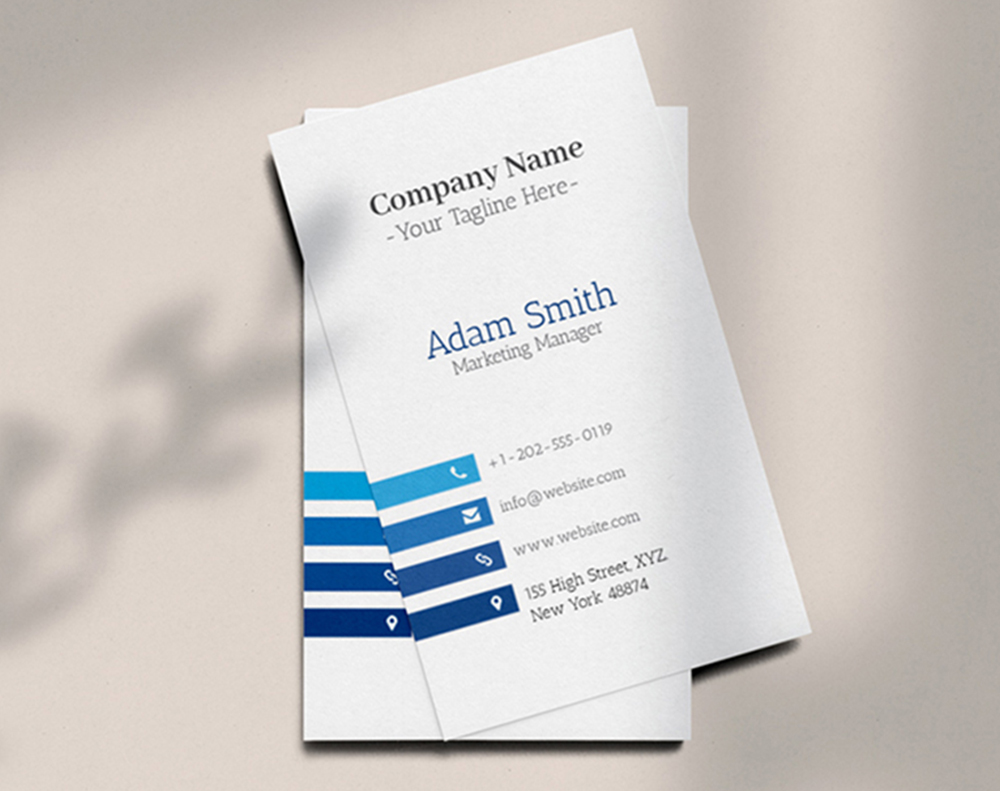
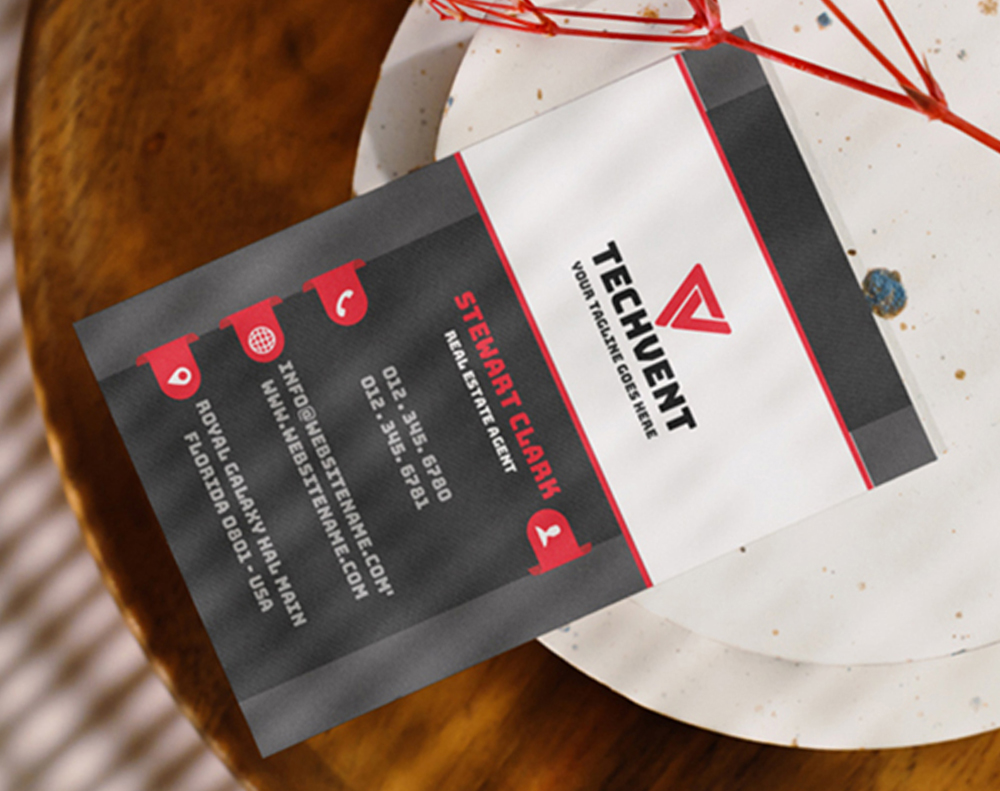
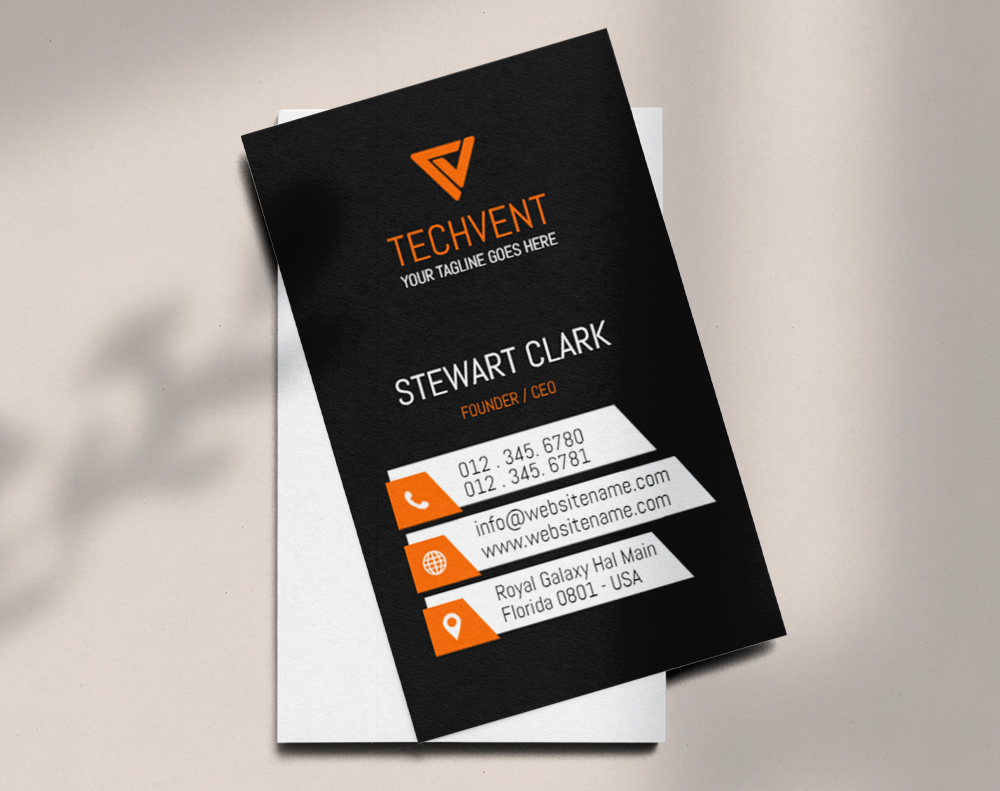
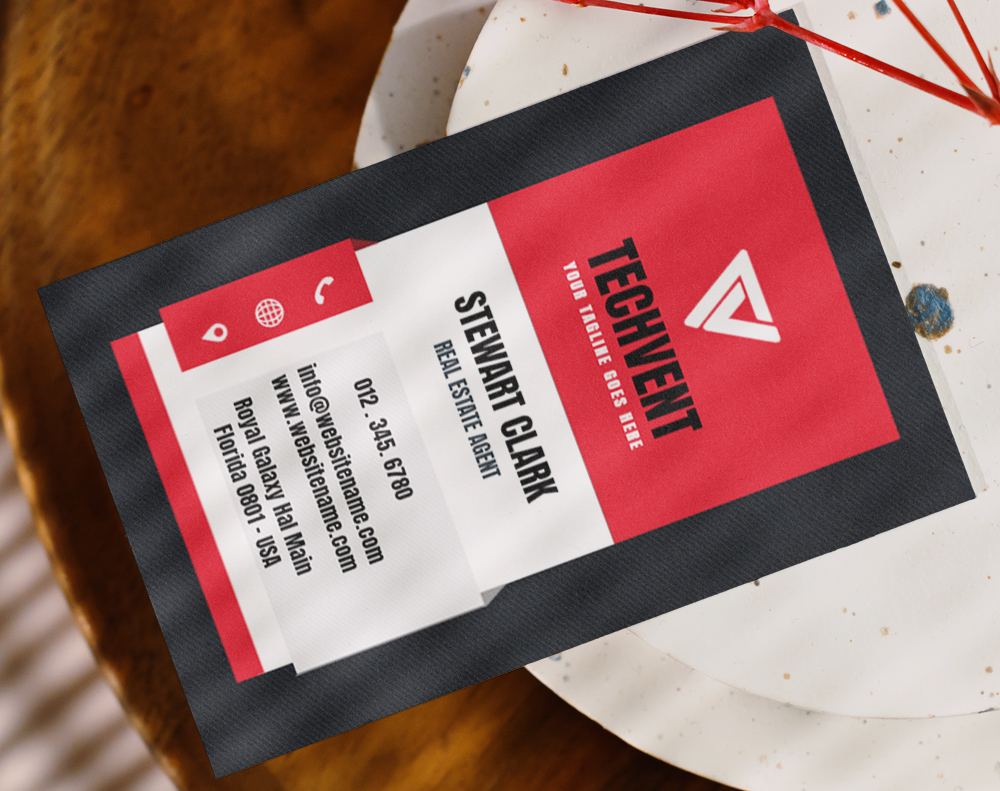
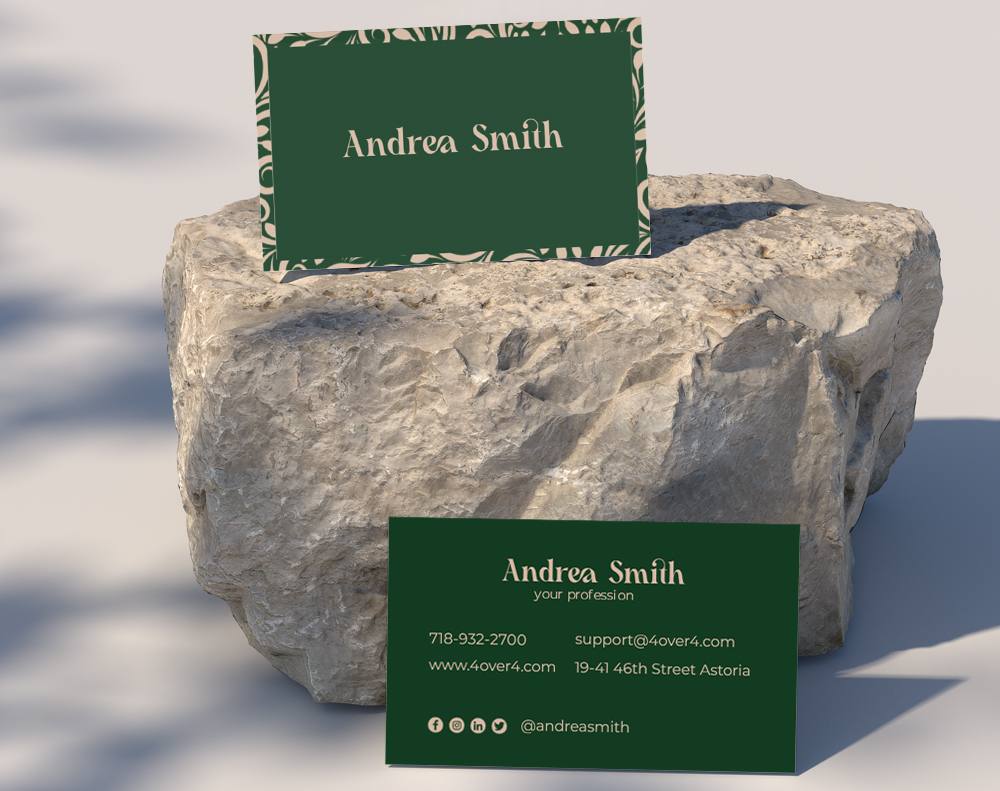
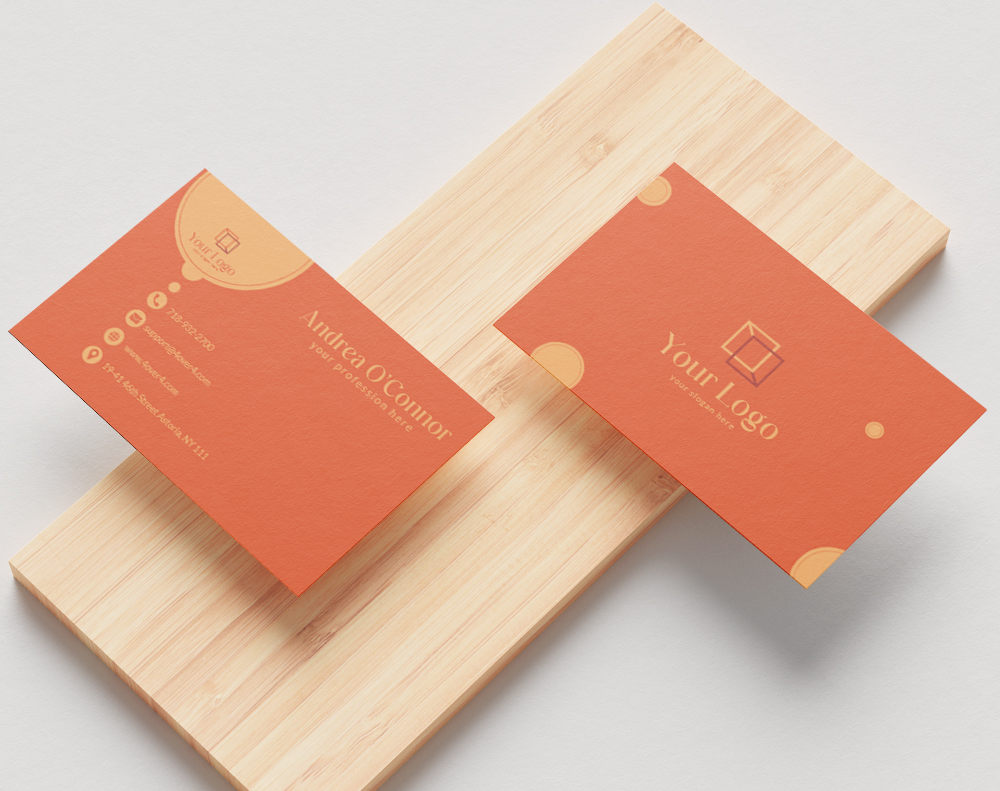
Here are some real examples of business cards with social media icons done right, plus templates you can customize for your own design:
Mistakes That Ruin Business Cards With Social Media Elements
Even well-designed cards fall flat when social media details are handled carelessly. Here are the most common errors 4OVER4 sees across 10,000+ reviews and countless customer designs:
- Listing inactive accounts. If you haven't posted on Twitter since 2022, don't put it on your card. Dead profiles hurt credibility more than having no social presence at all.
- Using outdated icons. Twitter's bird logo is gone - it's X now. Facebook's logo has changed. Using old icons makes your card look dated before someone even reads it.
- Cramming too many platforms. Five or six icons create visual noise. Stick to two or three that actually drive business results.
- Forgetting to proofread handles. One wrong character means your card points to someone else's account - or nowhere at all.
- Placing icons in the bleed zone. Icons too close to the card edge risk getting trimmed during cutting. Keep all elements at least 3mm from the trim line.
A business cards with social media guide is only useful if you avoid these pitfalls. Double-check every detail before approving your proof at 4OVER4.
Best Card Options for Social Media-Ready Designs
Not every card stock works equally well for designs with social media icons and QR codes. Matte and soft-touch finishes keep small text and icons crisp without glare. Thicker stocks like 32pt feel premium and give your card staying power - people don't toss a card that feels expensive.
- The Horizontal Line: This is the classic for a reason. Lining up your icons in a neat row, usually along the bottom, creates a clean footer for your social links. It just works.
- The Vertical Stack: For a more modern or minimalist design, stacking icons vertically down one side can be a really stylish choice. It’s a great way to balance out the negative space on the card.
- Don’t change the colors. The Facebook blue is that blue for a reason.
- Don’t rotate or warp the logo.
- Don’t add weird effects or merge it with other graphics.
You're on more than three platforms. If you try to cram icons for LinkedIn, Instagram, X, Facebook, and TikTok onto a tiny card, it's just going to look cluttered and chaotic. A single QR code that links to a landing page (like a Linktree) is a much more elegant solution.
You want to track who's actually scanning your card. A dynamic QR code can give you real data on how many people are engaging with your card. This is a game-changer for seeing if your networking efforts are paying off.
You're going for a super minimalist vibe. A single, clean QR code can consolidate your entire online presence into one scannable square, keeping your design sleek and uncluttered.
4OVER4 offers options across 60+ paper types, so you can match your card's feel to your brand personality. If you're exploring print beyond business cards, check out Free Invitations for event materials that pair with your card design. You can also grab Free Invitations to test how your social branding looks on different formats.
Here are the top product picks, pricing details, and what real customers have to say:
Free Design Templates
"Ordered business cards with social media guide from 4OVER4 and the quality blew me away. Sharp colors, premium feel, arrived 2 days early."
"Been using 4OVER4 for business cards with social media guide for a year. Consistent quality every time. The online designer made it easy."
"Switched to 4OVER4 and saved 40% on business cards with social media guide. Better quality than my old printer. 60+ paper options."
"4OVER4's business cards with social media guide helped us look more professional. Clients notice the difference."
Your Questions About Social Media on Business Cards, Answered
How many social media icons should I put on my business card?
Stick to two or three platforms that are most relevant to your business. Listing more creates clutter and makes your card harder to read. Choose the platforms where you're most active and where your target audience spends their time.
Should I use full URLs or just my handle for social media on business cards?
Use the platform icon followed by your handle (like @yourbrand). Full URLs waste space and look messy. If your handles vary across platforms, list each one next to its icon. For a single link to all profiles, use a QR code pointing to a Linktree or similar landing page.
What size should social media icons be on a business card?
Icons should be between 4mm and 6mm in height. This size is large enough to recognize instantly but small enough to keep your layout clean. Always maintain consistent spacing between icons for a polished, professional look.
Can I use a QR code instead of listing individual social handles?
Yes, and it's a smart move. A single QR code on the back of your card can link to a page with all your social profiles. Use a active QR code so you can update the destination without reprinting cards. Make the code at least 20mm x 20mm for reliable scanning.
What paper finish works best for business cards with social media icons?
Matte and soft-touch finishes are ideal. They reduce glare, making small icons and handles easier to read. Glossy finishes can cause reflection that obscures fine details. 4OVER4 offers 60+ paper types so you can find the right match for your design.
Do social media icons on business cards actually increase followers?
They do when your profiles are active and your card design makes the handles easy to find. The key is pairing a well-designed card with strong social content. A card gets someone's attention - your social profile keeps it.
"I added my Instagram and LinkedIn icons to the back of my 32pt soft-touch cards from 4OVER4. Within two months of networking events, my LinkedIn connections jumped by over 200. The card quality made people actually want to keep it."
- Devon R., marketing consultant, ★★★★★