
How to Make Business Cards in Google Docs Step by Step


Set your page to 3.5 by 2 inches, drop in your name, logo, and contact details, then export a print-ready PDF. Here is the full Google Docs workflow, from blank document to cards in your hand.
To make a business card in Google Docs, open File then Page Setup, set the page to 3.5 by 2 inches with 0.25-inch margins, add your name and contact details, insert your logo, then download the file as a PDF and send it to print. Google Docs is free, runs in any browser, and handles a clean single or double-sided card in minutes.
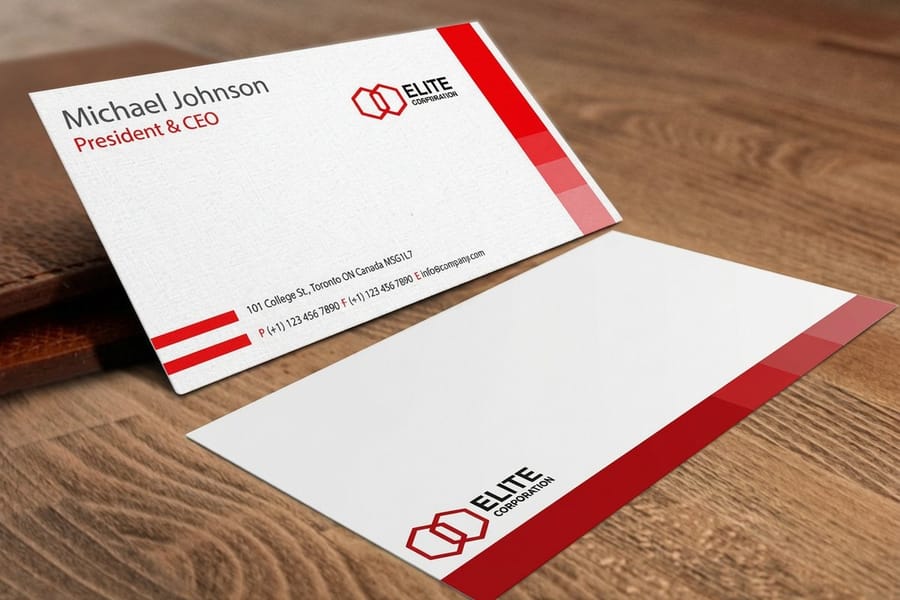
Quick tips
The Google Docs business card workflow in six steps
Design your card in Google Docs in six moves. Each one has its own step below.
- Set a 3.5 by 2 inch page with 0.25 inch margins.
- Pick one or two fonts and lay out your name and contact lines.
- Add your brand colors in print-safe shades.
- Place your logo with Insert then Image.
- Download a print-ready PDF.
- Order it on the stock you want.
4OVER4.COM offers 60+ paper types and free file review, so the card you designed is the card that lands in someone's hand.
Watch it printed
See standard business cards on the press, in 167 seconds
Why Google Docs works for business card design
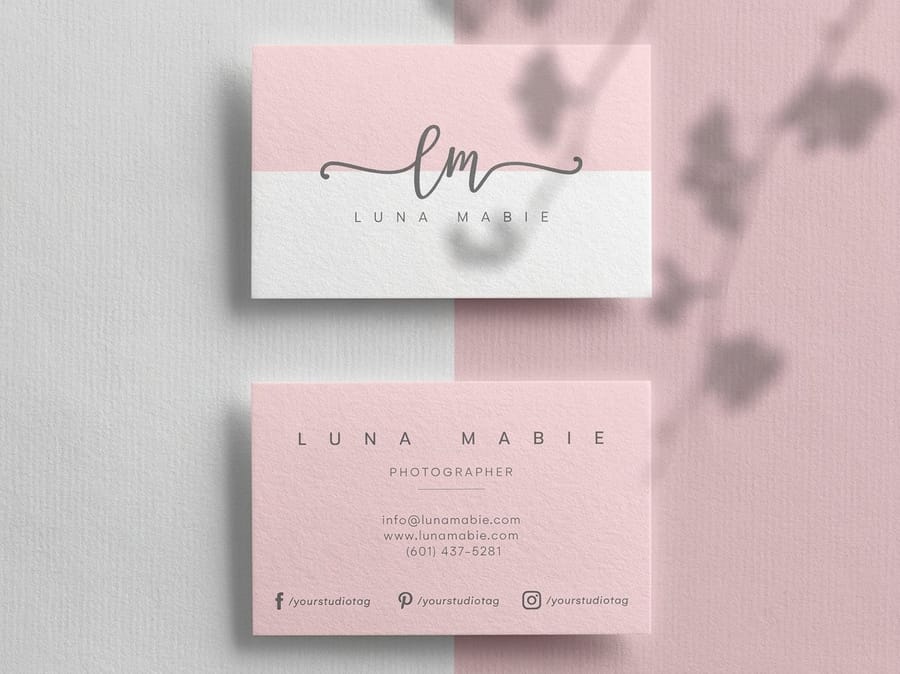
Business cards still matter in 2026. Handing someone a physical card makes a connection that a LinkedIn request cannot match, and you do not need a designer or a copy of Photoshop to make a good one. Google Docs is free, runs in any browser, and saves to the cloud automatically, so you never lose your work or fight with an install.
4OVER4.COM has printed more than 10 billion cards for over 150,000 businesses, so we know what keeps a card in someone's wallet instead of the trash. Start from a blank Google Doc or grab one of our ready-made business card design templates, and you will have a print-ready file in under 30 minutes.
Working on other branded pieces in the same sitting? Our guide to making custom magnets covers another easy DIY project, and everything you lay out here follows the same simple rules.
Step 1: Set up your document dimensions
Open a new Google Doc and go to File then Page Setup. Change the page size to 3.5 inches wide by 2 inches tall, the standard US business card size, then set every margin to 0.25 inches. That margin is your safe zone, and it keeps names, logos, and phone numbers from being trimmed off when the cards are cut.
If you want to print test copies at home first, switch to an 8.5 by 11 inch page instead and build a table with 2 columns and 5 rows. Resize each cell to 3.5 by 2 inches and you get ten cards per sheet. Run a draft on plain paper before you commit to real stock, and read every line at arm's length to check the sizing.
When Google Slides suits the card better than Docs
Docs keeps text in a flow, which is fine for a card that is mostly type. Slides gives you a free canvas where every element is a box you drag, so it is the easier tool when a logo, a color block and three lines of contact detail all have to sit in exact places.
The setup mirrors the Docs route. Open a blank presentation, go to File then Page setup, choose Custom, and enter 3.5 by 2 inches. Add a text box for your name, a second for the contact lines, then Insert then Image for the logo. Hold everything 0.25 inches in from the edge so nothing is trimmed off. For a double sided card, build slide one as the front and slide two as the back.
Export the same way, File then Download then PDF Document, and the two slides come out as a two page PDF you upload with double sided printing selected.
Copy our free Google Docs business card template
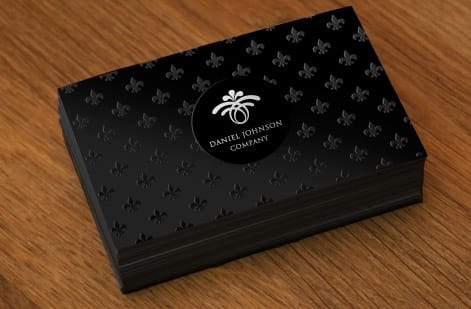
You do not have to build the page from scratch. Grab a free business card blank from 4OVER4, already set to 3.5 by 2 inches with the bleed and trim marked, and drop it into your Doc as the background image. Everything you type sits inside the safe zone by default.
The same flow works with any Docs template you find. Open the template, choose File then Make a copy, and start typing over the placeholder text. Copying first keeps the original clean, and it gives you a version you can duplicate for every future card without redoing the page setup.
If you would rather skip Docs entirely, the 4OVER4 design templates open straight in our online editor at the correct size, and you can order the card from the same screen.
Opening a Word or Avery layout inside Google Docs
Google Docs opens .docx files, so a card layout built in Word or downloaded from a label supplier can be reused instead of rebuilt. Upload the file to Drive, right click it, and choose Open with Google Docs. The table grid that holds the cards survives the conversion. Fonts sometimes do not, so read every line before you trust it.
Two things to verify once it opens. First, that each cell still measures 3.5 by 2 inches, because a converted table can shift by a fraction. Second, that your text sits 0.25 inches in from the cell edge.
One caution about label sheets. An Avery style sheet is built for home printing on perforated stock, so it puts ten cards on a page with no bleed at all. A commercial run wants a single card file with bleed on every edge, so use the sheet to test and export a one card PDF for the order.
Step 2: Choose your layout and typography
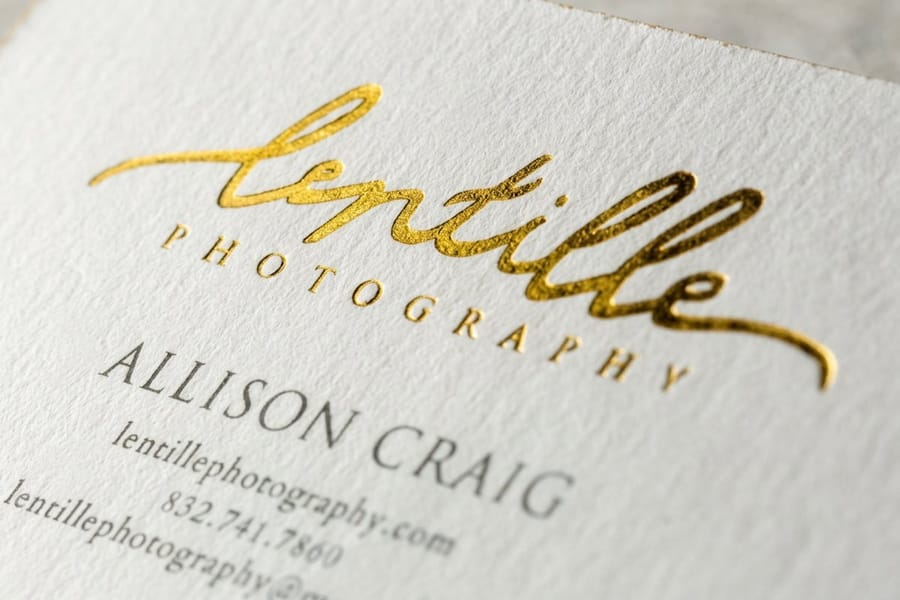
Keep the layout simple and use one or two fonts at most. Pick a bold font for your name and a clean, readable font for the contact details. Google Docs ships with Montserrat, Lato, and Open Sans, which all look professional at small sizes without feeling generic. Put your name at the top or center, then add your title, phone number, email, and website below it.
To add a logo, use Insert then Image and upload from your computer, Drive, Photos, or a URL. Click the image to resize it, reposition it, or wrap text around it, and open Format options if you want to fine-tune brightness, contrast, or a subtle shadow. Use the alignment tools to line elements up left, center, or right so the finished card looks deliberate rather than crowded.
White space is your friend here. A cluttered card gets tossed and a clean one gets kept. For more layout thinking, browse the 4OVER4 guide hub, and if you are building matching marketing pieces, our guide on how to make flyers covers the same design fundamentals.
Step 3: Add color and brand elements
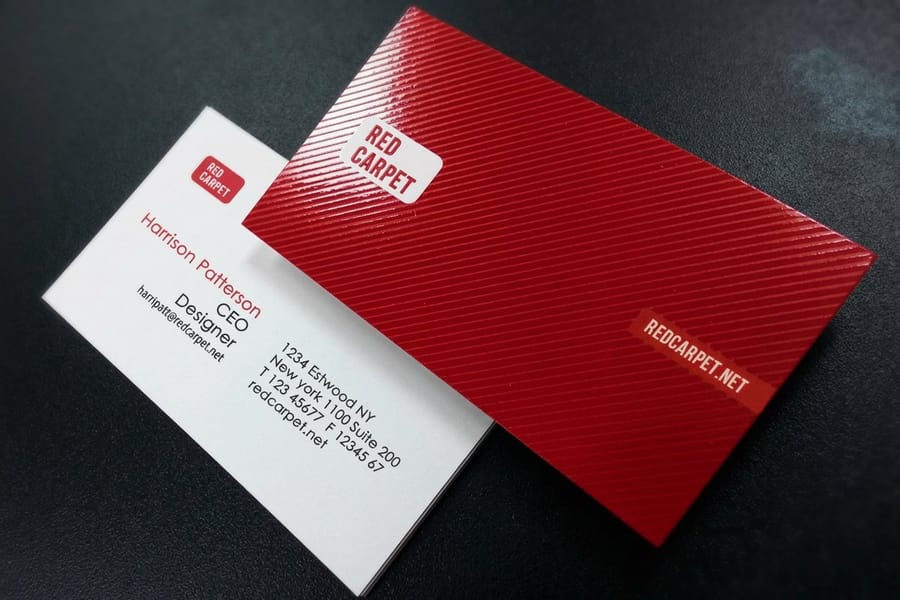
Your card should match your brand. Use your brand colors for text, borders, or a background accent. In Google Docs you change text color with the text color tool, and for a filled background you insert a rectangle through Insert then Drawing then New, set the fill, and drop it behind your text.
One warning worth repeating. What you see on screen is not exactly what prints. Monitors show RGB and presses use CMYK, so bright neon greens and electric blues tend to print darker or duller than expected. Stick to rich, deep colors like navy, burgundy, forest green, and charcoal for the most reliable results.
Want the card to do more than sit flat? After the design is done, 4OVER4.COM can add spot UV coating, foil stamping, or raised ink that turns a simple Google Docs layout into something people stop and notice. Even a specialty card like a lenticular or all-black design starts from a basic file, and you can grab a ready-sized blank in the templates below to skip the setup.
Step 4: Export a print-ready PDF
When the design looks right, go to File then Download then PDF Document. A PDF preserves your fonts, colors, and layout exactly as you built them, which is why it is the standard for professional printing and what the 4OVER4.COM upload system expects. For exact file specs the 4OVER4 help center lists everything the presses need, and you should avoid Word or image exports because those can shift color and soften your text.
Before you export, slow down and proofread. Spell your email correctly, verify the phone number, and read your name out loud. Typos on a business card are painful and permanent once 500 are printed. Have a second person look too, because fresh eyes catch what yours skip. If you want to print at home instead, use File then Print with a good printer and card paper, or save the PDF and let a printing service handle the run.
Step 5: Choose your paper stock and finish
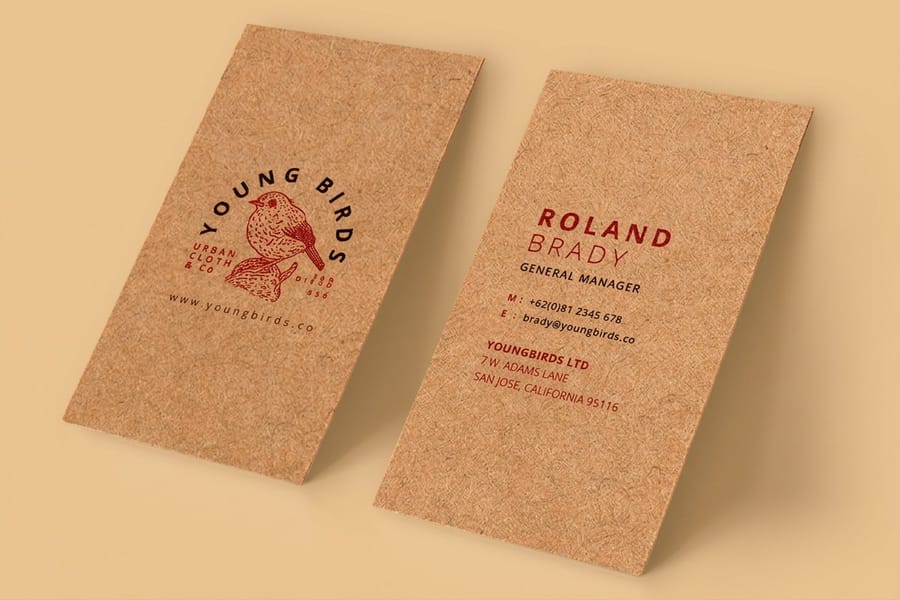
This is where a Google Docs file becomes a real card, and paper choice matters more than most people expect. A flimsy card says budget, while a thick, textured one says you take your work seriously. Here is how the common stocks compare:
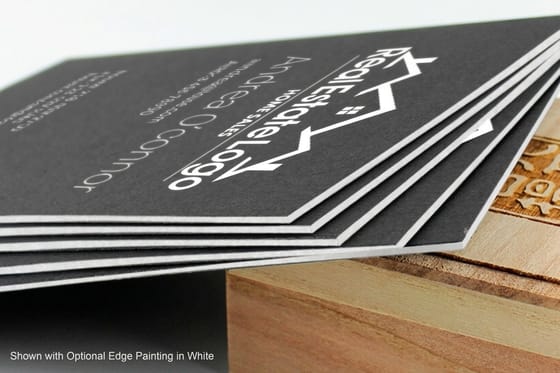
- 14pt cardstock is the standard, affordable at higher quantities and fine for most professionals.
- 16pt cardstock feels about as thick as a credit card and is the sweet spot for everyday business use.
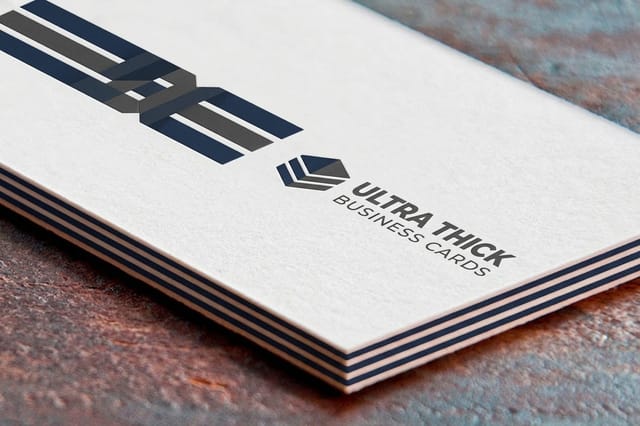
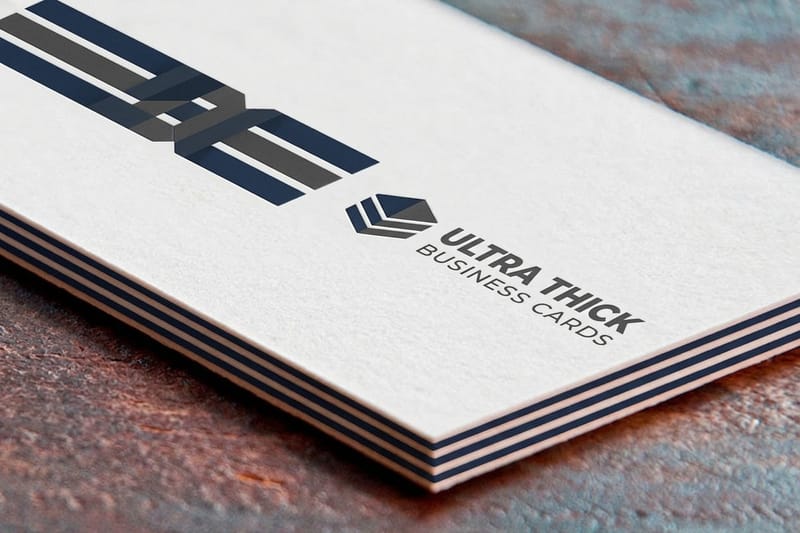
- 32pt ultra-thick is three times a standard card, the kind people physically cannot ignore.
- Kraft paper gives a natural, earthy look that suits coffee shops, artisans, and eco-minded brands.
- Cotton paper has a soft, textured feel that attorneys, consultants, and luxury brands lean on.
For finishes you can pick matte, gloss, soft-touch, or uncoated, and each one changes how the card feels and how your colors read. If you care about sustainability, print it through 4OVER4 green printing on recycled stock. Not sure which to commit to? Order free paper samples and feel them in your hand first, or start with a run of free business cards with free shipping to test your design in the real world.
Step 6: Upload, order, and level up your card
Head to 4OVER4.COM, choose Business Cards, and set your paper stock, finish, quantity, and turnaround. Upload your PDF and the system checks it for common issues like low resolution or the wrong dimensions before anything goes to press. If you would rather skip Google Docs entirely, the online editor lets you design right on the site with drag-and-drop tools.
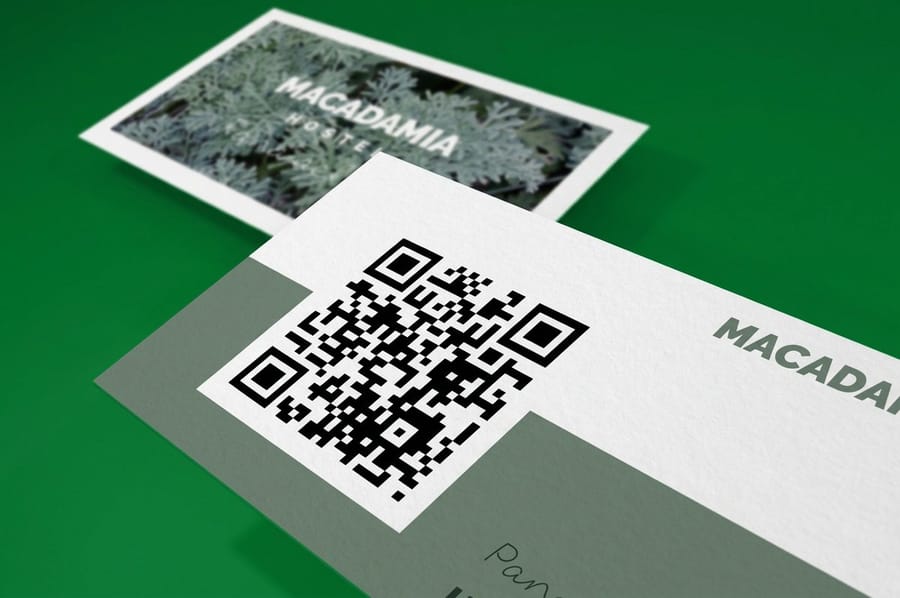
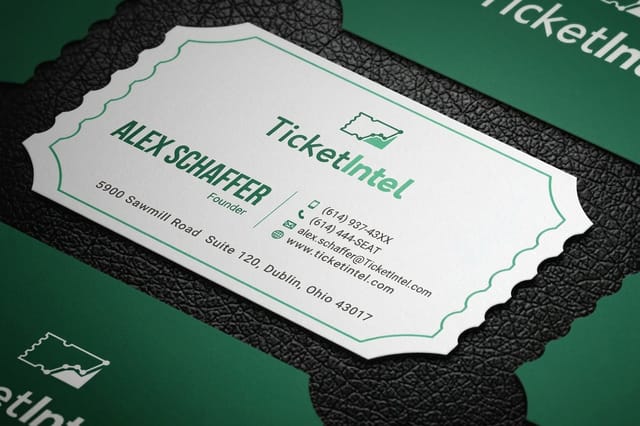
Once you are comfortable, push the card further. Use both sides: keep your name and contact details on the front and put a logo, tagline, or QR code on the back. Generate a free QR code, link it to your site or portfolio, insert it into your doc, and size it to about 0.75 by 0.75 inches so it scans cleanly. A rounded corner or a full die-cut shape also makes a card stand out in a stack.
Rounding out the rest of your kit? See our guides on how to make envelopes for matching stationery, how to fold a brochure for marketing collateral, and how to clean rubber stamps if you add hand-stamped touches to your brand.
Mistakes that ruin business cards, and how to avoid them
After helping 150,000 businesses print their cards, we see the same avoidable errors again and again. Skip these and you are already ahead of most people handing out cards.
- Cramming in too much. A card is not a brochure. One name, one title, one phone, one email, and a website is plenty.
- Fonts that are too small. Anything under 8pt is hard to read. Keep your name at 10 to 12pt and details at 8 to 9pt.
- Ignoring bleed and safe zones. Text set right at the edge can get trimmed, so hold everything at least 0.125 inches in.
- The wrong paper for your brand. Match the stock to your audience so the card never feels off or cheap.
- Skipping the proofread. "Manger" instead of "Manager" happens more than you would think, so always have a second person check.
Knowing how to make business cards is really about knowing what not to do. 4OVER4.COM file review catches most technical issues, but prevention beats correction every time.
Wally explains the Google Docs card
A free tool can still print a card people keep
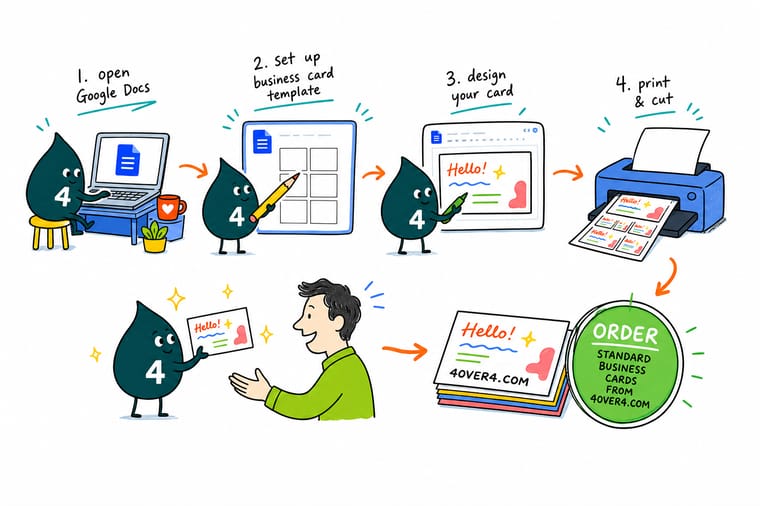
Wally treats the card like a tiny billboard you hand over in person: set the 3.5 by 2 inch page, keep it to one or two fonts, use deep print-safe colors, then export a PDF. Google Docs gets you a clean file for free, and the paper stock is what makes it feel expensive. Design it in the browser, then print it on 16pt or heavier at 4OVER4.
Print your business cards →Templates
Free business card templates to start from
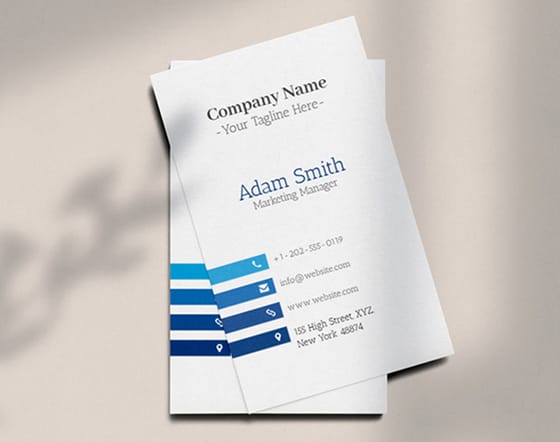
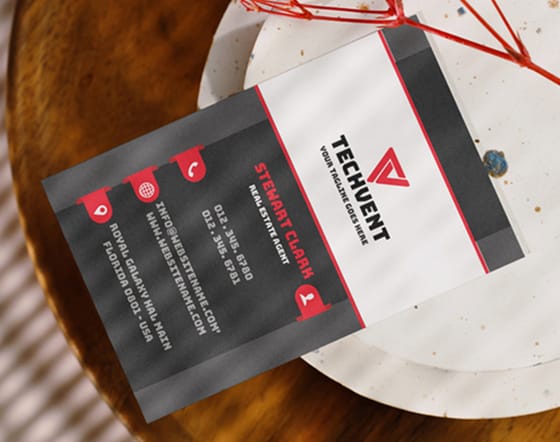
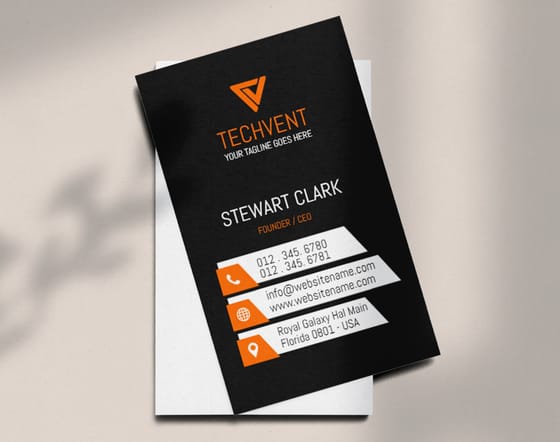
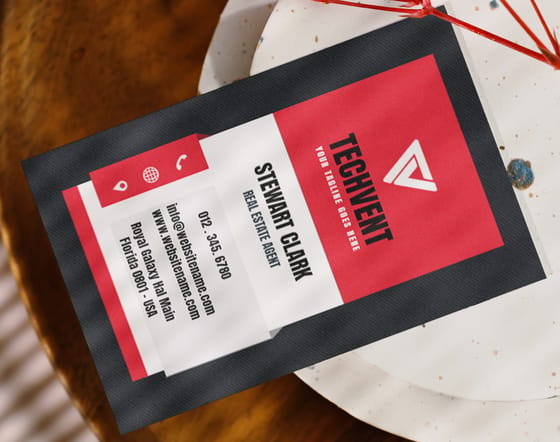
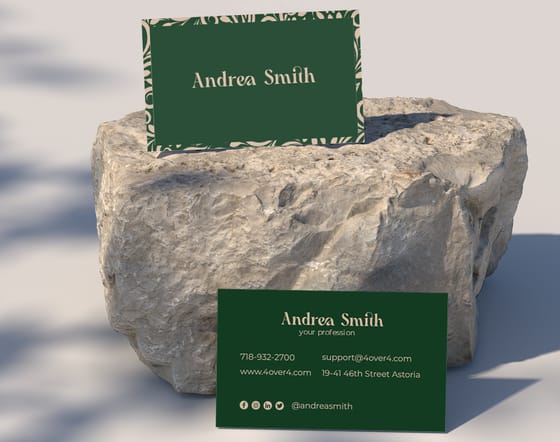
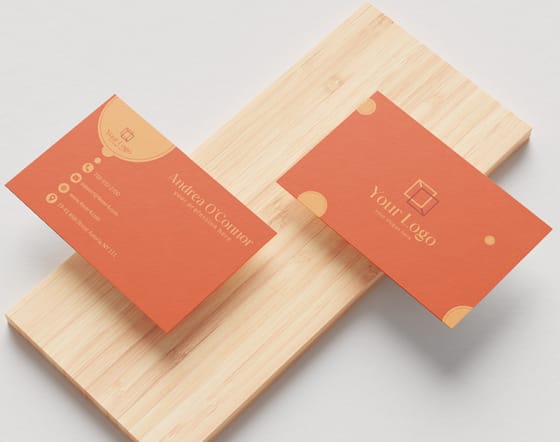
Skip the setup. These blank templates come pre-sized with the right bleed and trim, and the free design templates open straight in the 4OVER4 online editor.

Specs and pricing
Standard business card specs and pricing
Once your Google Docs PDF is ready, here is what a professionally printed standard business card gives you at 4OVER4.COM, with live specs and price-per-unit straight from the configurator.
| Quantity | Price Per Unit | Total |
|---|---|---|
| 100 | 17.6¢ | $17.57 |
| 200 | 11.5¢ | $23.07 |
| 300 | 9.15¢ | $27.46 |
| 400 | 7.96¢ | $31.86 |
| 500 | 7.25¢ | $36.26 |
| 600 | 6.77¢ | $40.64 |
| 700 | 6.43¢ | $45.04 |
| 800 | 6.18¢ | $49.43 |
Print it
Order your business cards at 4OVER4
See it in use
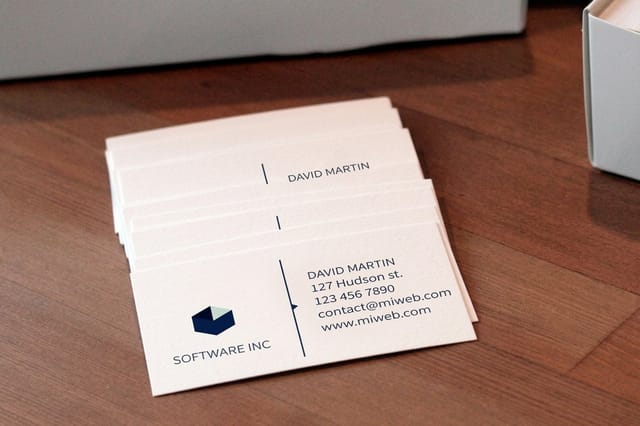
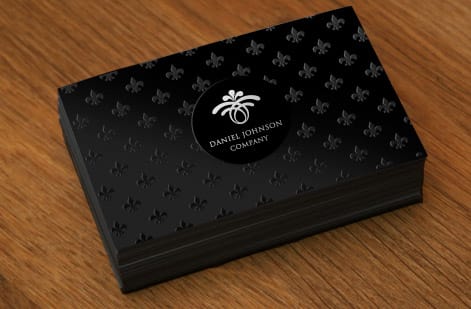
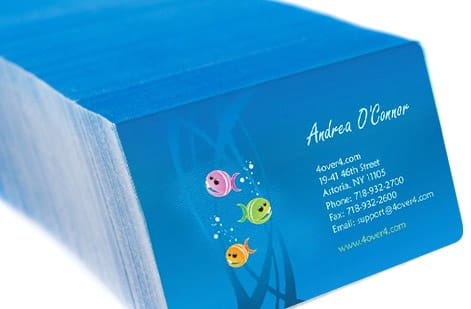
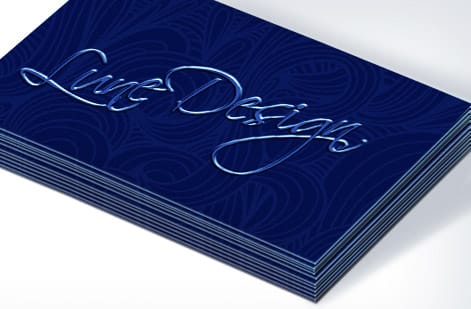
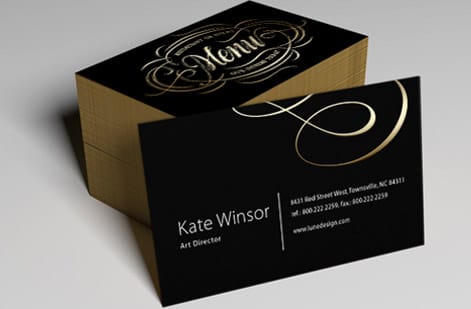
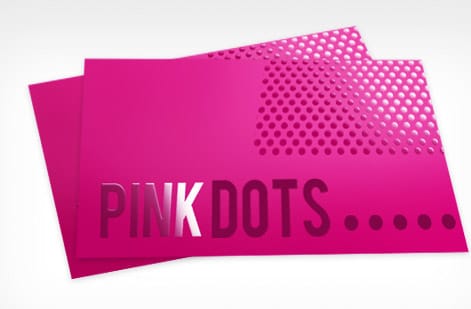
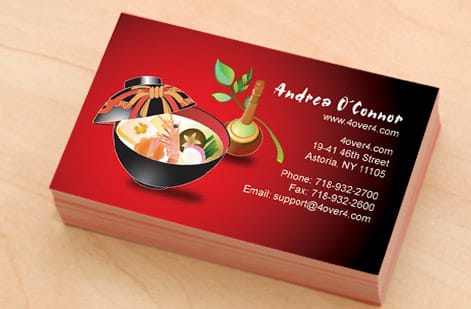
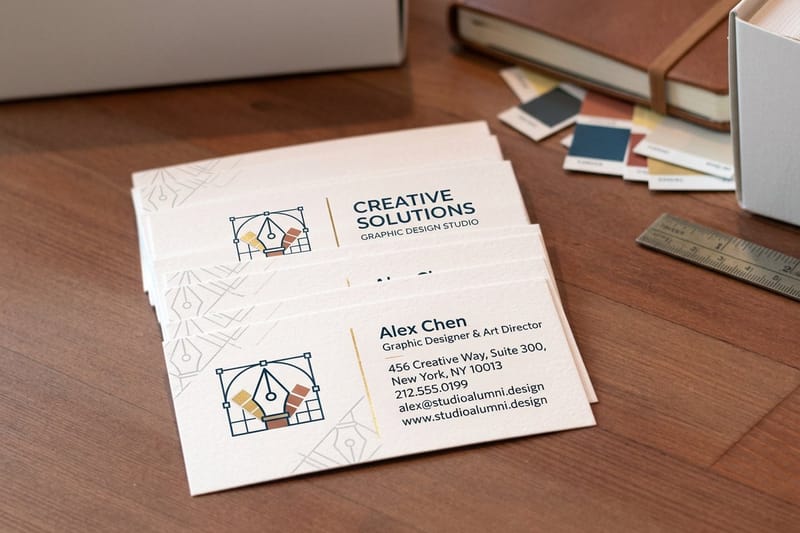
Standard business cards we have printed
Explore more
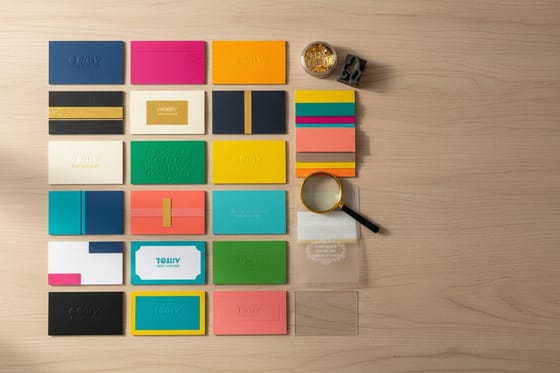
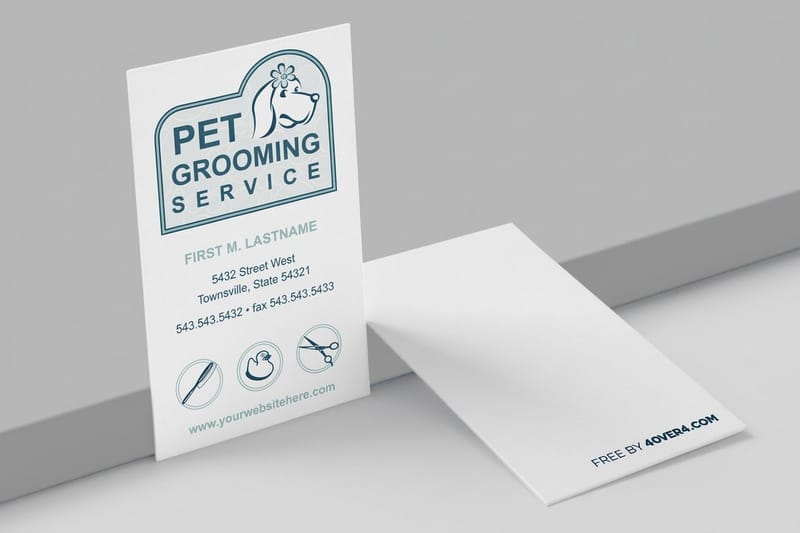
Where to go next

By the numbers
The card printer behind a Google Docs layout
Common Questions
Common questions about making business cards in Google Docs
Can I use a Word or Avery business card template in Google Docs?
Yes. Upload the .docx to Google Drive and open it with Google Docs, and the card grid comes across intact. Check that each cell is still 3.5 by 2 inches and that no font substituted during the conversion. Remember that a label sheet is laid out for home printing on perforated stock, so for a commercial run you want a single card file with bleed rather than the ten up sheet.
Is there a business card template in Google Slides?
Slides has no built in card template either, but it takes a custom page size the same way Docs does. Open File then Page setup, choose Custom, and enter 3.5 by 2 inches. Slides is the easier of the two when you want a logo and a color block placed precisely, because every element is a box you move rather than text inside a flow.
Can I really make professional business cards using Google Docs?
Yes. Google Docs handles text formatting, image placement, and custom page sizing, which covers most straightforward designs with your logo, name, and contact details. Set the page to 3.5 by 2 inches, lay out your card, then export as a PDF and upload it to 4OVER4.COM for professional printing on premium stock.
Does Google Docs have a business card template?
Not in the built-in template gallery. Docs ships with resumes, letters, and reports, but no business card layout, so you set the page size yourself under File then Page Setup. The faster route is to open a template someone already sized, choose File then Make a copy, and type over the placeholder text. You can also drop a free 4OVER4 business card blank into the Doc as a background so the bleed and trim are already marked.
What size is a business card in Google Docs?
3.5 by 2 inches, the standard US card size. Set it under File then Page Setup, switch the page size to Custom, enter 3.5 wide by 2 tall, and set all four margins to 0.25 inches. That margin is your safe zone, so keep text and your logo inside it and nothing gets cut off at trim.
What size should I set my Google Doc for a business card?
The standard US business card size is 3.5 by 2 inches. Set it under File then Page Setup and use 0.25-inch margins to create a safe zone. Keep any text or important graphics inside those margins so nothing gets trimmed during cutting.
What file format does 4OVER4.COM accept for business card uploads?
PDF is the preferred format because it preserves your fonts, colors, and layout accurately. When you export from Google Docs, choose File then Download then PDF Document. Avoid JPEG or PNG exports since they can lose quality and shift color. Full file specifications live in the 4OVER4 help center.
How do I make sure my colors print correctly?
Screen colors use RGB while print uses CMYK, so the two never match perfectly. Deep, saturated colors like navy, burgundy, and forest green translate best, while neon or very bright colors often appear muted in print. Order a proof or a free sample to check color accuracy before a large run.
What is the best paper stock for business cards designed in Google Docs?
It depends on your brand. 14pt cardstock works for budget-conscious orders, 16pt feels like a credit card and suits most professionals, and 32pt ultra-thick makes a bold statement. Kraft and cotton papers add texture for creative or eco-friendly brands.
How many business cards should I order?
Start with 250 to 500 if you are testing a new design. For active networkers, ordering 1,000 or more brings the per-unit cost down a lot. 4OVER4.COM pricing drops at higher quantities, so a larger run saves money over time.
Can I design a double-sided business card in Google Docs?
Yes. Create two pages in your document, page one for the front and page two for the back, then export both pages in a single PDF. When ordering, select double-sided printing and upload the two-page file, and the front and back print on opposite sides of the same card.
Get Started
Ready to print your Google Docs business card?
Upload your PDF, pick your stock and finish, and we print sharp, professional cards that feel like they cost far more than they did.
Legal Disclaimer
Gold Standard guarantees apply to all standard orders placed through 4over4.com. Price match requires verifiable proof of a competitor's published price for an equivalent product with matching specifications and turnaround time. Satisfaction guarantee covers manufacturing defects and print quality issues. Contact support with order number and documentation. On-time delivery rate based on tracked orders 1999 to 2026. Individual results may vary based on shipping carrier performance.