What You Need to Know Before Converting Pantone to CMYK
Pantone colors are pre-mixed inks matched to a numbered swatch system. CMYK uses four ink layers - cyan, magenta, yellow, and black - to simulate a wide color range. Converting between these two systems always involves some color shift. That's just physics. No Pantone to CMYK conversion guide can promise a perfect 1:1 match, but you can get close with the right approach. 4OVER4 prints on 60+ paper types, and each stock affects how converted colors appear on the final piece.
Why Pantone to CMYK Conversion Matters for Every Print Project
Pantone to CMYK conversion is the process of translating a spot color (a single pre-mixed ink) into a combination of four process inks. Every designer who sends files to a commercial printer deals with this. Get it wrong, and your brand's signature blue prints as a muddy purple. Get it right, and your printed materials look sharp, consistent, and professional.
4OVER4 backs every order with our 5 Gold Guarantees, including a 100% quality guarantee. That means if your colors don't match your approved proof, we make it right. But the best results start with proper file setup on your end. You can grab ready-to-use Design Templates from 4OVER4 to start with correct color modes already configured. If you're building from scratch, our Design Templates library also includes bleed guides and safe zones so your converted colors land exactly where they should.
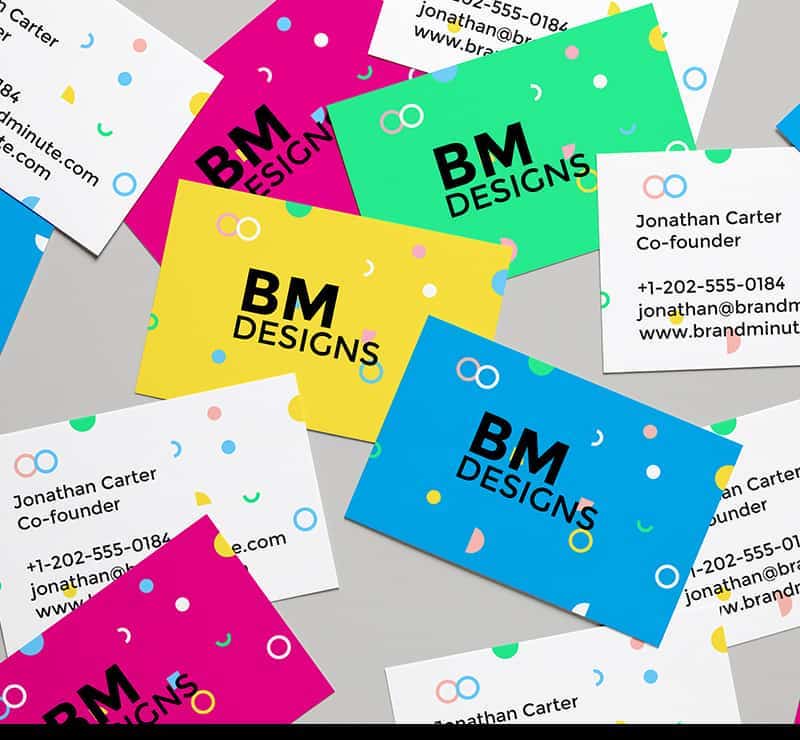
Below, you'll find a visual breakdown of the Pantone and CMYK color systems, along with practical examples of conversion results on different print materials.
How Pantone and CMYK Color Systems Actually Work
Pantone colors are proprietary, pre-mixed inks. Each one has a unique number - like PMS 186 C (Coca-Cola red) or PMS 294 C (a deep corporate blue). Printers buy or mix these inks to an exact formula. The result is dead-on color accuracy every time, on every press run. That's why brands with strict identity guidelines specify Pantone numbers.
CMYK works differently. Four inks - cyan, magenta, yellow, and black - print as tiny dots at different angles and densities. Your eye blends those dots into a perceived color. It's called process color, and it's the standard for most commercial printing because it can produce millions of color combinations from just four inks. When you're creating print projects like flyers, check out our guide on How To Make Flyers for tips on setting up color-accurate files.
The catch? CMYK's color gamut (the total range of colors it can reproduce) is smaller than Pantone's. Some Pantone colors - especially bright oranges, vivid greens, and deep purples - simply can't be reproduced exactly with four-color process printing. That gap is where conversion headaches begin.
The Pantone Matching System Explained
The Pantone Matching System (PMS) contains over 1,867 solid colors in the current Pantone Plus Series. Each color has a specific ink formula. PMS 185 C, for example, is a warm red made from a precise mix of pigments that no CMYK combination can perfectly replicate.
Pantone swatches come in two versions: Coated (C) and Uncoated (U). Coated swatches show how the ink looks on glossy or satin paper. Uncoated swatches show the same ink on matte or textured stock. The same PMS number looks different on each surface because paper absorbs ink differently. This matters when you're converting to CMYK, because your paper choice affects the final appearance just as much as the ink formula.
If you want to see how different paper stocks affect color in person, order Free Samples from 4OVER4 before committing to a large run.
CMYK Process Color Breakdown
CMYK stands for Cyan, Magenta, Yellow, and Key (black). Here's what each channel does:
- Cyan - a blue-green ink that handles cool tones and sky-like hues
- Magenta - a red-pink ink responsible for warm reds, pinks, and purples
- Yellow - covers warm tones from gold to green (when mixed with cyan)
- Black (Key) - adds depth, contrast, and true dark tones that mixing CMY alone can't achieve
These four inks print as halftone dots. Up close, you'd see a pattern of colored dots. From normal viewing distance, your brain merges them into a smooth image. The density and overlap of those dots determine the final perceived color.
Step-by-Step: Converting Pantone Colors to CMYK
Method 1: Use Pantone's Official Color Bridge Guide
Pantone publishes a Color Bridge guide that shows each PMS color alongside its closest CMYK equivalent. This is the most reliable reference because Pantone themselves calculated the best possible four-color approximation for each swatch. Buy the physical book. Screen colors lie. A printed swatch guide sitting on your desk is worth more than any digital tool for color-critical work.
Open the guide, find your PMS number, and read the CMYK values printed next to it. Those values go directly into your design file. Done. For projects like brochures, where color consistency across multiple panels matters, check our guide on How To Fold A Brochure for layout tips that keep your converted colors looking uniform.
Method 2: Convert in Adobe Illustrator or InDesign
Select the Pantone swatch in your design software. In Illustrator, open the Swatches panel, double-click the Pantone color, and change the Color Mode to CMYK. The software calculates a CMYK equivalent automatically. In InDesign, the process is similar - edit the swatch and switch from Spot to Process.
A word of caution: Adobe's built-in conversion algorithms are decent but not perfect. They use ICC color profiles to calculate the translation. Your results depend on which profile is active. For commercial printing, use the "U.S. Web Coated (SWOP) v2" profile as your CMYK working space. This profile matches the standard most commercial printers - including 4OVER4 - calibrate their presses to.
Method 3: Online Conversion Tools
Several websites let you type in a PMS number and get CMYK values back. These are fine for quick reference, but don't treat them as gospel. Different tools use different conversion algorithms. Cross-reference any online result with Pantone's official Color Bridge values when accuracy matters. For more print resource guides, visit our Faq Hub where you'll find dozens of practical how-to articles.
Colors That Shift the Most During Conversion
Not all Pantone colors convert equally. Some translate to CMYK almost perfectly. Others lose their punch completely. Here are the problem areas:
Bright oranges (PMS 021, PMS 1505) - CMYK oranges tend to look duller and more red-shifted than their Pantone originals. The magenta and yellow inks just can't hit that electric neon quality.
Vivid greens (PMS 354, PMS 3405) - Process greens often print muddier than the spot color. The cyan-yellow mix struggles with saturated, pure greens.
Deep purples and violets (PMS 2685, PMS Violet C) - These are notorious. CMYK purples lean toward blue or look washed out compared to the rich, saturated Pantone originals.
Metallic and fluorescent Pantone colors - These can't be converted to CMYK at all. Metallic inks contain actual metal particles. Fluorescent inks use pigments that absorb UV light. CMYK has no equivalent. If your brand uses PMS 877 (silver metallic), you'll need a specialty print process - not a CMYK conversion.
When you're working on projects that require precise color matching, like Custom Magnets Faq or branded stationery, test your converted colors with a physical proof before approving a full run.
Paper Stock and Finish: The Hidden Variable
Your CMYK values might be perfect, but the paper you print on changes everything. A glossy coated stock reflects light, making colors appear more vivid and saturated. An uncoated matte stock absorbs ink, pulling colors slightly darker and less bright. Textured stocks like linen or felt add another layer of unpredictability.
This is why Pantone publishes separate Coated and Uncoated guides. The same PMS 185 looks different on each surface - and so will its CMYK conversion. When setting up your file, ask yourself: what paper am I printing on? Then reference the matching Pantone guide (C or U) for your conversion values.
4OVER4 offers 60+ paper types across different weights and finishes. If you're unsure how your converted Pantone colors will look on a specific stock, start with our Blank Templates to build your file with correct dimensions, then request a hard copy proof before printing the full order.
How Ink Coverage Affects Converted Colors
Heavy ink coverage areas (like a solid background) show conversion shifts more than small text or thin lines. A PMS 286 blue headline on white paper might look fine in CMYK. But that same PMS 286 as a full-bleed background covering the entire card? You'll notice the difference immediately. The larger the color area, the more visible any shift becomes.
For envelope projects and similar stationery with large color fields, see our guide on How To Make Envelopes for file setup tips. And for maintaining tools like rubber stamps that use spot color inks, our How To Clean Rubber Stamps guide has practical maintenance advice.
Practical Tips for the Best Possible Conversion
Always Work in CMYK Mode From the Start
If you know your project will print in four-color process, set your document to CMYK color mode before you start designing. Don't design in RGB and convert later. RGB has an even larger gamut than Pantone, so designing in RGB and then converting to CMYK means two rounds of color compression. Set it up right from the beginning.
Use Soft Proofing
In Photoshop and Illustrator, you can enable "Proof Colors" (View > Proof Colors) to simulate how your CMYK file will look on paper. It's not perfect - your monitor isn't calibrated to match a printing press - but it gives you a rough preview. If a color looks off in soft proof mode, it'll look off on paper too.
Request a Hard Copy Proof
This is the single most reliable step. A printed proof on the actual paper stock shows you exactly what you're getting. 4OVER4 offers proofing options so you can approve colors before the full run hits the press. For brand-critical jobs, never skip this step.
Adjust CMYK Values Manually When Needed
Sometimes the "official" CMYK conversion doesn't look right on your specific paper. That's okay. You're allowed to tweak the values. Bump up the magenta by 3-5% if a red looks flat. Add a touch more cyan if a blue feels washed out. Small manual adjustments based on proof results often produce better outcomes than blindly trusting a conversion chart.
"I converted our PMS 300 brand blue to CMYK for a postcard run at 4OVER4. The first proof looked slightly greener than expected on their 16pt matte stock, so I bumped cyan from 100 to 98 and added 2% black. The final print was spot-on."
Derek L., Brand Designer
Conversion Mistakes That Wreck Your Print Colors
Even experienced designers slip up with Pantone to CMYK conversion. Here are the most common errors and how to dodge them.
Designing in RGB mode. Your screen displays RGB. Your printer uses CMYK. If you forget to convert your document's color space, every color shifts when the file hits the press. Always check your document mode before exporting.
Ignoring the paper stock. Using Coated Pantone values on an uncoated paper (or vice versa) throws off your conversion. Match the guide to the stock.
Trusting your monitor. Screens aren't calibrated to match print output. What looks perfect on a MacBook might print 10% darker. Calibrate your monitor yearly, and always request a physical proof from 4OVER4 for color-critical jobs.
Converting metallics and neons to CMYK. This never works. These specialty Pantone inks have no CMYK equivalent. Period. If your brand uses them, plan for a spot color press run instead.
Skipping the proof. This is the biggest one. A Pantone to CMYK conversion guide can get you close, but only a printed proof confirms accuracy. Don't gamble your budget on assumptions.
Print Products Where Pantone to CMYK Conversion Matters Most
Color accuracy hits hardest on products with large color fields and brand-critical visuals. Business cards, postcards, and Custom Booklets all rely on consistent CMYK reproduction to look professional. If your brand guidelines specify Pantone colors, converting them correctly before ordering any of these products saves you from costly reprints.
-
Uses the 4 standardized base colors (cyan, magenta, yellow and black).
-
The most widely used and cost-effective color system in commercial printing.
-
Small dots of color are printed on paper types in various angles for a printed image that is high in quality.
-
Colors of each printed image will be identical.
-
To convert files using Photoshop, just click on Image, Mode and CMYK color.
-
To convert files using Adobe Illustrator, click on Edit, Edit Colors and then click on Convert to CMYK. Next, you need to click twice on one of the Pantone colors in the palette. After that, go to the Color Mode menu and click on CMYK.
-
Also, go to the Color Type menu and click on Process before clicking on OK. Last but not least, make sure to repeat these quick steps for each and every one of the Pantone colors in your piece.
-
To convert files using InDesign, click on Window, Color and Swatches. Next, go to the upper right corner and click on the arrow before choosing Select All Unused. After that, delete unused colors by clicking on the trashcan icon. Now you need to click twice on one of the Pantone colors in the palette.
-
Go to the Color Mode menu before choosing CMYK and go to the Color Type menu before choosing Process. Click OK. Last but not least, make sure to repeat these quick steps for each and every one of the Pantone colors in your piece.
-
Use an online tool to convert Pantone colors to RGB color and check out what each color looks like on your screen.
-
You must use PMS or CMYK color palettes when designing for printing.
-
Pantone offers a myriad of formula guides and chip books that showcase PMS colors. They help you see exactly how colors will appear once printed using CMYK inks. Retailing at $155, this very helpful color guide by Pantone is a great resource when choosing PMS colors for printed pieces. It lets designers see what the PMS color looks like after it is created on a CMYK printer.
-
Once you choose a printing company, make sure to send a hard copy of your artwork in order to give them an idea of how you wish the color to appear.
-
Schedule enough time to allow the printing company to provide you with physical full color copies/proofs.
-
Switching your workspaces to CMYK is a simple and free procedure that lets you avoid costly issues during production.
-
Keep in mind that screens are not calibrated the same way, thus colors look different across screens. A standard CRT monitor’s colors are more vivid, while colors on an LCD monitor will appear more muted and sometimes washed out.
4OVER4 prints across 60+ paper stocks, and each one interacts with CMYK inks differently. Below you'll find reviews from customers who nailed their color conversions and saw the difference proper Pantone to CMYK preparation makes on the final printed product.
"Ordered pantone to cmyk conversion guide from 4OVER4 and the quality blew me away. Sharp colors, premium feel, arrived 2 days early."
"Been using 4OVER4 for pantone to cmyk conversion guide for a year. Consistent quality every time. The online designer made it easy."
"Switched to 4OVER4 and saved 40% on pantone to cmyk conversion guide. Better quality than my old printer. 60+ paper options."
"4OVER4's pantone to cmyk conversion guide helped us look more professional. Clients notice the difference."
Common Questions About Pantone to CMYK Conversion
Can I get an exact Pantone color match with CMYK printing?
No. CMYK has a smaller color gamut than the Pantone system, so some shift is unavoidable. Most Pantone colors convert closely enough that the difference is barely noticeable, especially on coated paper stocks. For exact matches, you'd need a spot color press run using the actual Pantone ink.
Which Pantone colors are hardest to convert to CMYK?
Bright oranges, vivid greens, deep purples, and any metallic or fluorescent Pantone colors convert poorly. PMS 021 (orange), PMS 2685 (violet), and PMS 354 (green) are notorious for looking a lot different in CMYK. Metallic and neon Pantone inks have no CMYK equivalent at all.
Should I use the Coated or Uncoated Pantone guide for my conversion?
Match the guide to your paper. Printing on glossy or satin stock? Use the Coated (C) Pantone reference. Printing on matte, linen, or uncoated paper? Use the Uncoated (U) reference. Using the wrong guide introduces an extra layer of color inaccuracy.
What ICC profile should I use for CMYK conversion?
For standard commercial printing in North America, use "U.S. Web Coated (SWOP) v2." This is the industry standard profile that most commercial printers, including 4OVER4, calibrate their equipment to. Setting this as your working CMYK space ensures your file's color values translate accurately to the press.
How do I check my converted colors before printing a full order?
Request a hard copy proof. A printed proof on the actual paper stock you've selected is the only reliable way to verify your Pantone to CMYK conversion looks correct. Soft proofing on a calibrated monitor helps as a first check, but nothing replaces seeing ink on paper before approving a full run.
Does paper weight affect how my CMYK colors look?
Paper weight (thickness) has minimal direct effect on color. But paper finish and coating matter a lot. A 14pt glossy card and a 14pt matte card will show the same CMYK values differently. Glossy stocks make colors pop. Matte stocks absorb more ink, producing softer, slightly darker tones. Always factor in finish when evaluating your conversion.