Quick Tips for Adding Social Media Handles to Business Cards
Knowing how to write social media handles on business cards comes down to a few rules. Use the @ symbol followed by your username - skip the full URL. Pair each handle with its platform icon so people recognize it instantly. Keep only 2-3 platforms that matter most to your audience. Place handles on the back or bottom of your card so they don't compete with your name and phone number. 4OVER4 has printed over 10 billion cards, and the best ones keep social info clean and scannable.
Why Your Business Card Needs Social Media Handles
"Standard Business Cards /5"
| Quantity | Price Per Unit |
|---|---|
| 100 | $0.18 |
| 4,000 | $0.03 |
| 35,000 | $0.02 |
| 100,000 | $0.02 |
Ink Color
Finish
Variable Data (Codes, Names, Etc.)
Rounded Corners
Total Sets
Proof Options
A business card without social media handles is a dead end. Someone meets you, takes your card, and that's it - one touchpoint. But add your Instagram or LinkedIn handle, and you've just opened a door to ongoing connection. That's where relationships actually grow.
"Free Business Cards With Free Shipping /5Paper Type14pt Gloss Cover14pt Uncoated Cover (30% PCW)Proof OptionsStraight To ProductionFree Online Proof"
Learning how to write social media handles on business cards isn't complicated, but there's a right way and a wrong way. The wrong way clutters your card with five platforms and full URLs nobody will type. The right way is clean, intentional, and makes it easy for someone to find you in two seconds. Over 150,000+ businesses trust 4OVER4 for their printed materials, and we see the difference good formatting makes every day.
"Die-Cut Any Shape Business Cards /5"
Ink Color
Finish
Die Cutting
Total Sets
Proof Options
This guide walks you through exact formatting, placement, and design choices. Whether you're building a brand or just want your card to work harder, you'll find what you need here. For other hands-on printing tips, check out our guides on How To Clean Rubber Stamps and How To Fold A Brochure.
Formatting Social Media Handles: The Complete Breakdown
The biggest question people have is simple: what's the right format? Do you write the full URL? Just the handle? Include the platform name? Let's settle this once and for all.
Use the @ Symbol, Not the Full URL
Write your handle as @yourhandle, not https://www.instagram.com/yourhandle. Full URLs are long, ugly, and nobody types them manually. The @ symbol is universally recognized. People know what it means. It's cleaner on the card and faster to read.
For LinkedIn, the format is slightly different. LinkedIn doesn't use the @ convention the same way, so write it as linkedin.com/in/yourname or simply use the LinkedIn icon next to your name. Either works. Just don't paste the entire URL with tracking parameters - that's a mess nobody wants to decode.
For X (formerly Twitter), Instagram, TikTok, and Facebook, stick with @handle format. It's consistent and looks professional. If you're exploring creative print projects beyond cards, our How To Make Flyers guide covers similar design principles.
Pair Each Handle with a Platform Icon
Text alone isn't enough. When someone glances at your card, they need to instantly know which platform each handle belongs to. A small Instagram icon next to @yourstudio tells the whole story in a split second.
Use recognizable, current platform icons. Don't use the old Twitter bird if you're on X now. Don't use a custom-designed icon that looks "close enough" to the Facebook logo. People scan icons before they read text. If the icon is wrong or confusing, they'll skip it entirely.
Keep icons the same size - about 10-12pt equivalent. Line them up vertically for a clean stack, or run them horizontally along the bottom of the card. Consistency matters here. Mismatched icon sizes look sloppy and undermine the professionalism you're trying to project.
How Many Platforms Should You Include?
Two or three. That's it. Resist the urge to list every platform you've ever signed up for.
Think about where your audience actually connects with you. A photographer? Instagram and maybe Pinterest. A B2B consultant? LinkedIn and X. A restaurant owner? Instagram and Facebook. Pick the platforms where you're active and responsive. There's nothing worse than someone finding a dead account because you listed a platform you haven't posted on in six months.
If you absolutely need four platforms, it can work - but only if your card design has room. A standard 3.5 x 2 inch card gets crowded fast. For something with more real estate, consider exploring 3D Lenticular Business Cards or other specialty formats that give you a creative edge and extra space.
Free Design Templates:
Where to Place Social Media Handles on Your Card
Placement is about hierarchy. Your name, title, phone number, and email are the primary information. Social handles are secondary - important, but not the first thing someone should see.
Best placement options:
- Bottom of the front, below your contact info, in a slightly smaller font size
- Back of the card, centered or aligned left, with platform icons
- Right side of the front, stacked vertically alongside other contact details
The back of the card is the most popular choice, and for good reason. It keeps the front clean and gives social handles their own dedicated space. You can make the icons slightly larger on the back without competing with your name or logo.
If your card is single-sided, place handles at the very bottom in a smaller font. Use a thin line or extra white space to visually separate them from your phone and email. This creates a clear visual hierarchy that guides the reader's eye naturally.
Font Size and Readability for Social Handles
Don't shrink your handles down to 6pt font just to fit everything. If people need a magnifying glass, you've failed. The minimum readable size for social handles on a business card is 7.5pt, but 8-9pt is better.
Use a clean sans-serif font for handles. Even if your card design uses a decorative serif font for your name, switch to something like Helvetica, Montserrat, or Open Sans for the social media section. Handles with special characters and mixed cases need clarity, and sans-serif fonts deliver that.
Color matters too. Make sure your handle text has enough contrast against the background. Light gray text on a white card? Almost invisible. Dark text on a dark background? Same problem. Test your card at actual print size before you approve the design. 4OVER4 offers Free Samples so you can see exactly how your text reads on different paper stocks before committing to a full order.
Standard Business Cards
Starting from $17.57
Free Design Templates:
Consistency Across All Platforms
Use the same handle across every platform when possible. If you're @janedoedesign on Instagram, be @janedoedesign on X and TikTok too. This makes it dead simple for people to find you. One handle to remember, not three different ones.
If your preferred handle isn't available on every platform, pick the closest variation and make sure it's obvious. Don't use @janedoe on one platform and @jddesigns2024 on another without some visual cue that they're the same person. Confusion kills follow-through.
When you're consistent, your card becomes a single reference point. Someone pulls it out of their wallet two weeks later, sees @janedoedesign, and searches it on whatever platform they prefer. Done. No guessing, no Googling, no giving up. For more creative project ideas, browse our full Faq Hub for step-by-step printing guides.
QR Codes vs. Written Handles
Some people skip written handles entirely and use a QR code that links to a Linktree or social media profile. This can work - but it has trade-offs.
QR codes are great when:
- You have many platforms and don't want to list them all
- You want to track how many people scan your card
- Your audience is tech-comfortable and likely to scan
Written handles are better when:
- You want instant recognition without requiring a phone
- Your audience skews older or less tech-savvy
- You only have 1-2 platforms to share
The best approach? Use both. Put your top 1-2 handles in text with icons, and add a small QR code on the back that links to your full online presence. That way you cover everyone. For related creative projects like custom print pieces, check out our guides on Custom Magnets Faq and How To Make Envelopes.
Design Examples That Work
Let's look at what clean social media formatting looks like in practice. The best business card designs we've printed at 4OVER4 follow a few patterns.
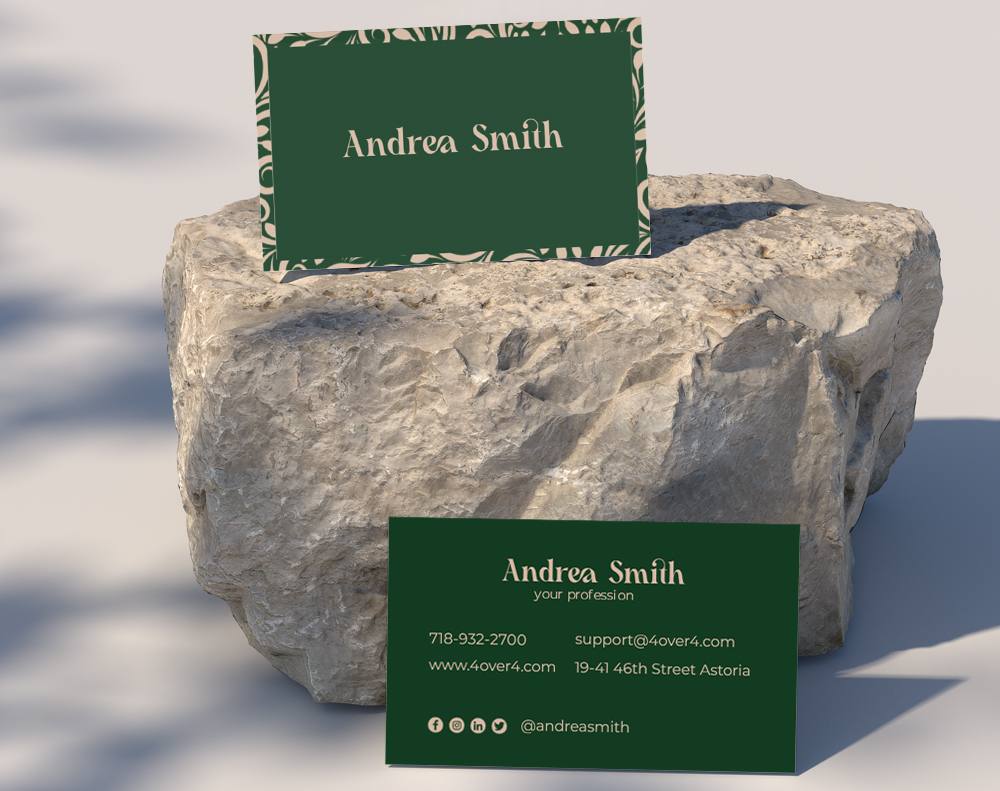
The Minimal Stack: Three platform icons stacked vertically on the back, each followed by @handle in 8pt sans-serif. Plenty of white space. Nothing else on the back except maybe a logo watermark. This is the most popular layout and it works for almost any industry.
The Inline Row: Icons and handles running horizontally along the bottom of the front, separated by small dots or vertical bars. Works well when the card has a simple front layout with room at the bottom.
The QR Hybrid: One or two written handles on the front, with a QR code on the back linking to a full social profile page. Great for creators and freelancers with multiple platforms.
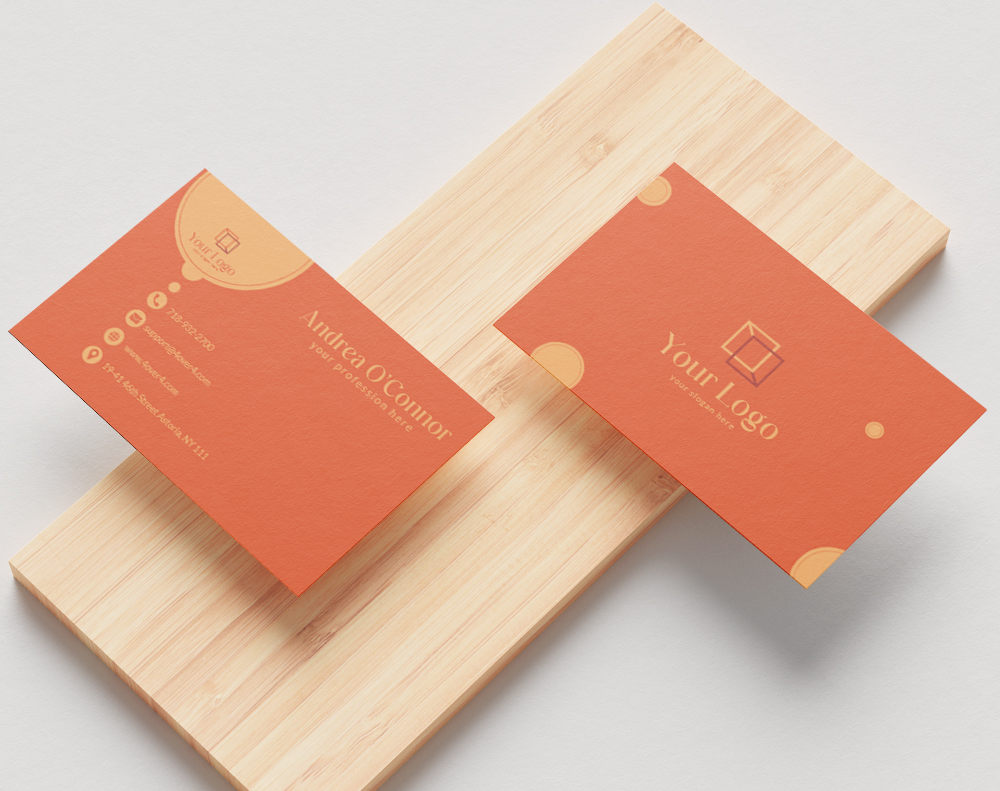
Want to see these layouts in action? Here are some real designs and templates from 4OVER4 customers to get you started.
Blank Templates


Mistakes That Make Your Social Handles Useless
Even smart professionals mess these up. Here's what to avoid when adding social media handles to your Business Cards.
Listing inactive accounts. If you haven't posted on Facebook since 2021, don't put it on your card. Dead profiles make you look out of touch. Only list platforms where you're active and posting regularly.
Using full URLs instead of handles. Nobody is typing "https://www.facebook.com/pages/yourbusiness/123456789" from a 3.5-inch card. Use @handle format or shortened profile links.
Forgetting to proofread handles. One wrong character and your prospect lands on someone else's profile - or nowhere at all. Triple-check every handle before sending your file to print. 4OVER4's free proof process catches layout issues, but only you know if your handle is spelled right.
Cramming too many platforms. Five or six social icons create visual noise. Your card looks cluttered, and people don't know where to look first. Stick to two or three max.
Skipping platform icons. Text-only handles without icons force people to guess which platform you mean. Always pair handles with recognizable icons.
Best Business Cards for Showcasing Social Media Handles
The right card stock makes your social handles pop. Matte finishes give icons a clean, modern look. Gloss finishes make colors in platform icons stand out. Thicker stocks like 32pt feel premium and give your card staying power in someone's wallet.
4OVER4 prints Business Cards on 60+ paper types, so you can match your card's feel to your brand personality. Need your cards fast? Same Day Printing gets them out the door quickly. Want to reduce your environmental footprint? Our Green Printing options use recycled and sustainably sourced stocks.
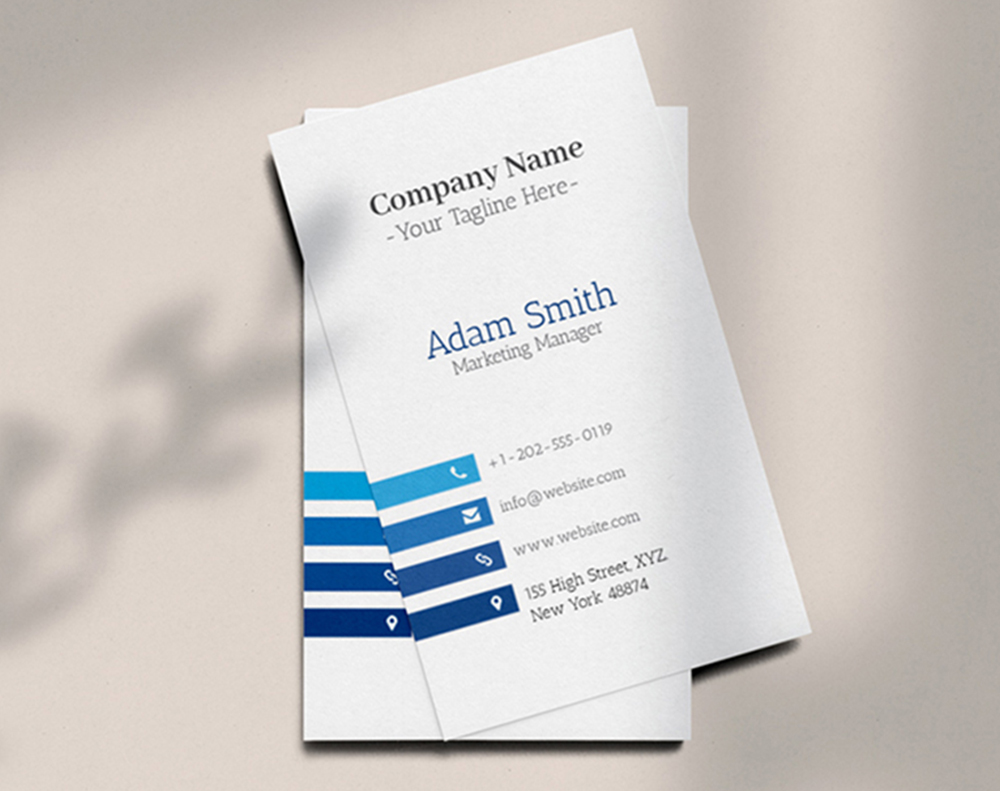
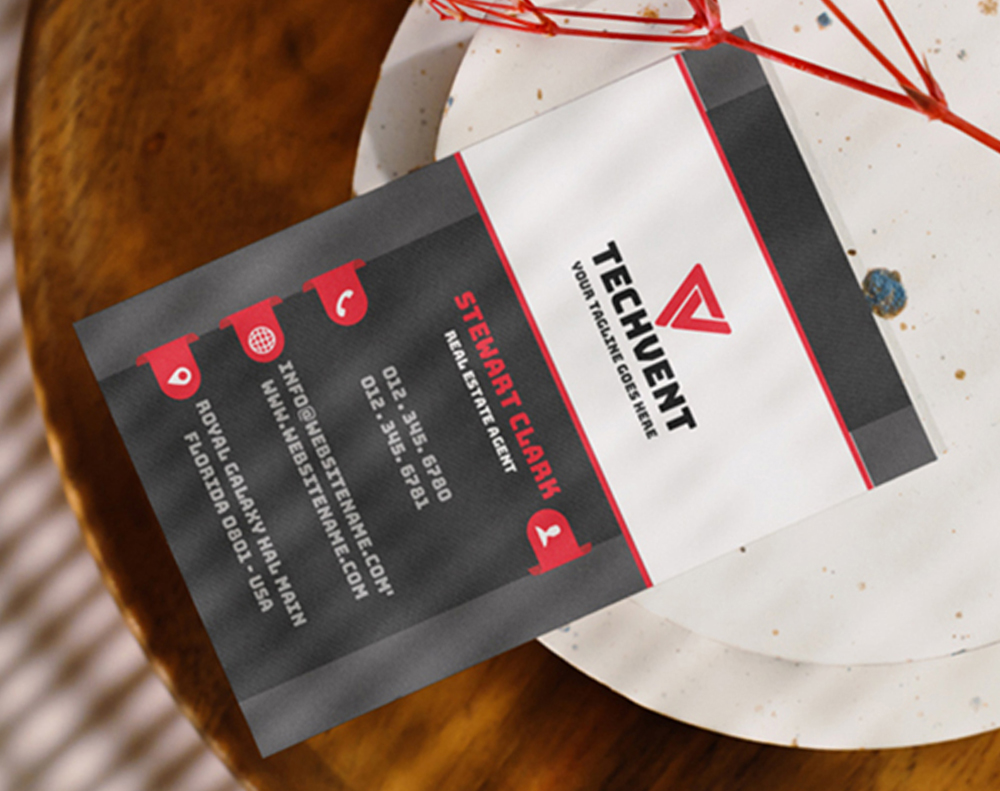
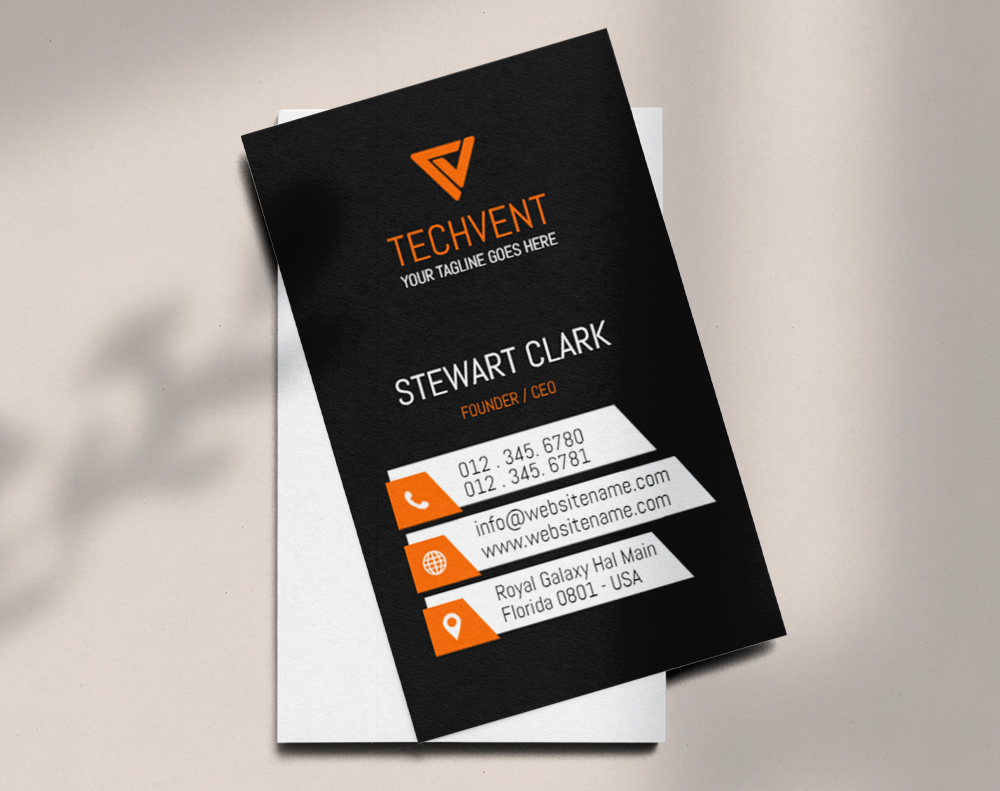
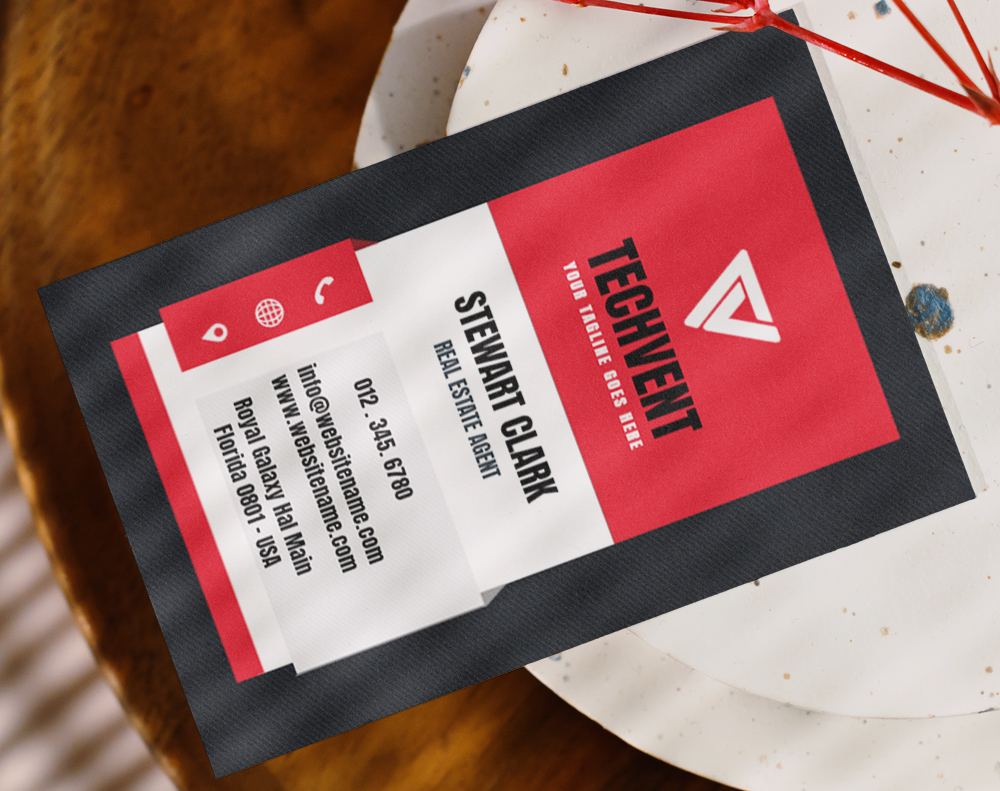
Here's a look at our most popular Business Card options, pricing, and specs to help you choose.
Free Design Templates
Ink Color
Finish
Variable Data (Codes, Names, Etc.)
Rounded Corners
Total Sets
Proof Options
"Ordered how to write social media handles on business cards from 4OVER4 and the quality blew me away. Sharp colors, premium feel, arrived 2 days early."
"Been using 4OVER4 for how to write social media handles on business cards for a year. Consistent quality every time. The online designer made it easy."
"Switched to 4OVER4 and saved 40% on how to write social media handles on business cards. Better quality than my old printer. 60+ paper options."
"4OVER4's how to write social media handles on business cards helped us look more professional. Clients notice the difference."
Your Questions About Social Handles on Business Cards, Answered
Should I include the platform name or just the icon next to my handle?
Use the icon only. Platform icons are universally recognized and save space on your card. Adding the word "Instagram" next to the Instagram icon is redundant. If you're worried about clarity, use the official icon at 10-12pt size - that's large enough for instant recognition without eating into your layout.
What if my social media handle is different on each platform?
List each handle separately with its corresponding platform icon. Place them in a vertical stack so each line reads as icon + @handle. This keeps things clear even when handles don't match. Long-term, try to unify your handles across platforms so your Business Cards only need one handle listed.
Is it okay to use a QR code instead of writing social media handles on business cards?
You can, but don't rely on it alone. Some people won't scan a QR code - they'd rather just type a handle into their phone. The strongest approach is listing your top 1-2 handles in text with icons, then adding a QR code on the back for your full online presence. Visit our Help Center if you need guidance on setting up your card design file.
How small can social media handle text be on a business card?
Don't go below 7.5pt font size. At that size, most people can still read the text comfortably. For better readability, aim for 8-9pt in a clean sans-serif font. Test your design at actual print size before ordering - what looks fine on a computer screen can be surprisingly tiny on a 3.5 x 2 inch card.
Should social media handles go on the front or back of my business card?
The back is the most popular and practical choice. It keeps the front focused on your name, title, and primary contact info. The back gives social handles dedicated space with room for icons. If your card is single-sided, place handles at the very bottom of the front in a slightly smaller font, separated from other contact details with white space.
Do I need to include my personal and business social media accounts?
Only include accounts relevant to your professional relationship with the person receiving the card. If your personal Instagram is a mix of vacation photos and cat videos, leave it off. Stick to accounts that represent your brand, showcase your work, or provide value to potential clients and collaborators.