
How to Create a Logo in Illustrator Step by Step


Build a clean vector logo in Adobe Illustrator, from artboard setup to a press-ready export. This walkthrough ends with a CMYK export checklist and a no-software route, so your finished mark prints sharp on cards and signs.
Create a logo in Illustrator by building it as clean vector shapes in a CMYK document. Set up a square artboard, sketch the concept, build with the shape and pen tools, apply a tight color palette and type, outline the fonts, then export a print-ready CMYK PDF plus an SVG and transparent PNG for the web. Print a proof card to confirm it holds up.
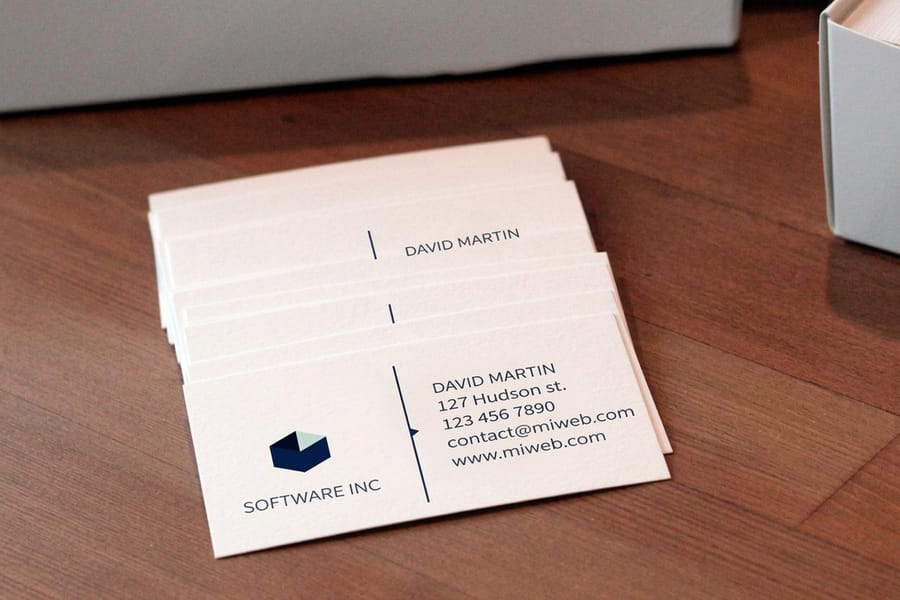
Start here
From a shape to a press-ready PDF
A logo in Illustrator is a vector mark built for print and screen alike. Start a CMYK document on a square artboard, sketch the concept, build with clean vector shapes, apply a tight color palette and deliberate type, outline the fonts, and export a press-ready PDF plus an SVG and transparent PNG. Print a proof card at 4OVER4.COM to confirm it holds up in ink. The export blueprint below shows the settings that matter.
Setting up your Illustrator artboard
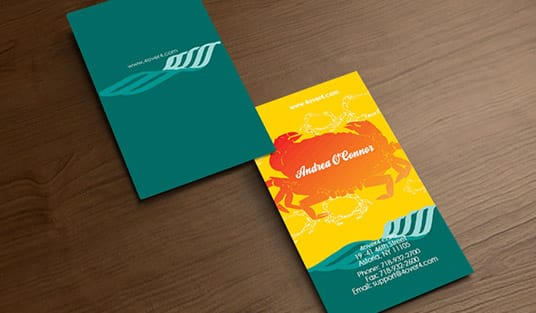
Before you draw anything, set the document up for where the logo will end up: on paper. Create a new file, choose the print profile so the color mode starts in CMYK, and use a square artboard with generous margins around the center. A square canvas keeps proportions honest and makes it painless to export the variants you will need later.
Starting in CMYK matters more than it looks. If you build in RGB and convert at the end, bright colors can shift the moment they hit ink, and your carefully chosen brand color prints a shade off. Setting the mode now means the colors you approve on screen are close to what lands on a printed business card.
This first step is pure setup, and it pays off at the very end. If you would rather skip the software entirely, our online design tool handles these print rules for you, and our design templates give you a print-ready canvas to start from.
Sketching and building vector shapes
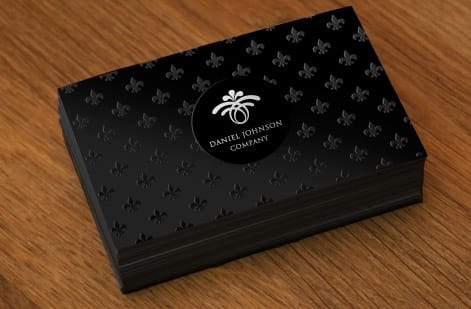
Rough the concept first, on paper or a scratch layer, so you build with a plan instead of nudging anchor points at random. Then construct the mark from simple geometry: the shape tools for circles and rectangles, the pen for custom curves, and the pathfinder to combine and subtract forms into something new.
Lean toward simple. The strongest logos are a few clean shapes, because simple marks stay legible when they shrink to a card corner or an app icon, while fussy detail turns to mud. If a shape only reads at full screen size, it is too complex for a logo. Our guide on logo design best practices goes deeper on why restraint wins.
Work non-destructively: keep elements on separate layers, use guides, and avoid flattening until you export. That way you can adjust a curve or recolor a shape late in the process without rebuilding, which you will want to do once you see the mark in print.
Choosing colors and typography
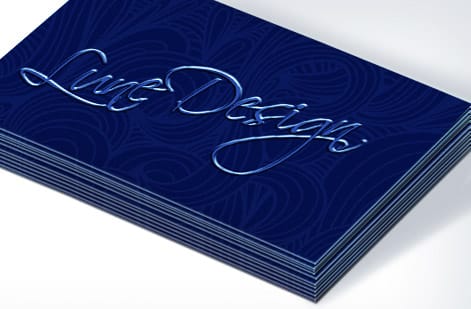
Apply your palette in CMYK and keep it tight, usually one or two colors plus black. A restrained palette is easier to reproduce consistently across every printed piece and reads as more confident than a rainbow. If one exact color defines your brand, note a spot reference alongside the CMYK build so it stays identical from job to job.
Type is half of most logos, so choose it deliberately. Pair the mark with a face that matches the brand's personality, and set the spacing by eye rather than trusting the defaults. Our guide on serif versus sans serif helps you pick a direction, and choosing a brand color palette covers the color side in depth.
Watch the details that print badly: very thin strokes can disappear at small sizes, and near-black colors built from four inks look muddier than a true black. Keep small text a solid black and give strokes enough weight to survive the press.
Exporting print-ready and web files

Before you export a thing, outline your type. Select the text and convert it to outlines, which turns the letters into vector shapes locked inside the file. Once outlined, the type can never be substituted on another machine or at the press, which is one of the most common ways a logo goes wrong in handoff.
Then export two sets. For print, save a flattened CMYK PDF using the PDF/X-1a preset, the industry standard that strips out anything a press cannot use. For the web, export an SVG for crisp scaling and a transparent PNG for quick placement. Our guide on exporting a print-ready PDF walks the exact dialog settings, and making a logo transparent covers the web variants.
While you are exporting, produce the variant pack too: full color, a single-ink version for stamps or foil, and a reversed version for dark backgrounds. Having these ready now saves scrambling later when a sign shop or a printer asks for a specific format.
Common Illustrator logo mistakes
A few mistakes trip up almost every first logo. The biggest is forgetting to outline fonts, which lets the press substitute a typeface and quietly wreck the mark. Close behind is building in RGB and converting at the end, which shifts colors on paper. Both are avoidable by setting CMYK at the start and outlining before export.
Others are about restraint. Raster effects like drop shadows and glows can look great on screen but muddy a printed logo and break the clean vector chain, so keep the core mark pure vector. Overly thin lines, too many colors, and detail that only reads at large sizes all fail the same test: they do not survive shrinking to a card.
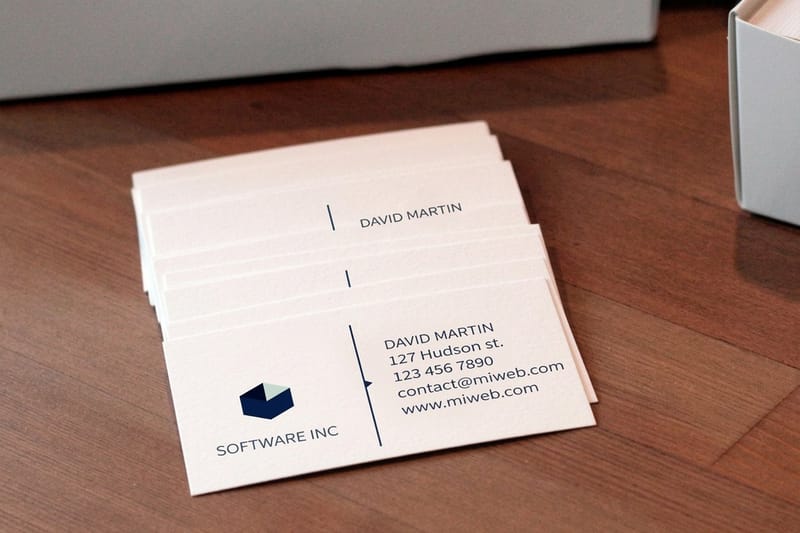
The surest way to catch these is to print. Order the mark on a real business card at actual size and judge it in your hand, where every one of these problems becomes obvious in a way a monitor hides.
Print your new logo at 4OVER4
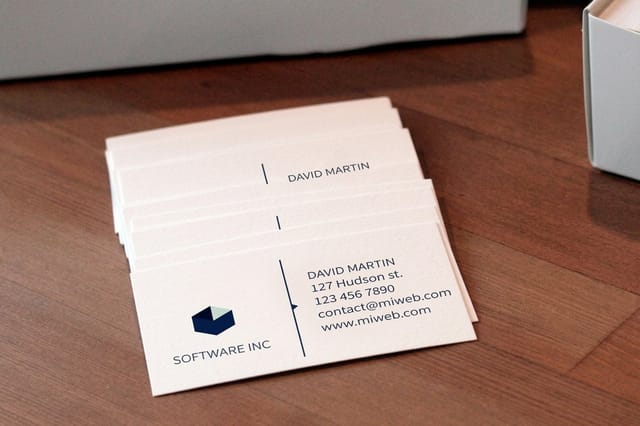
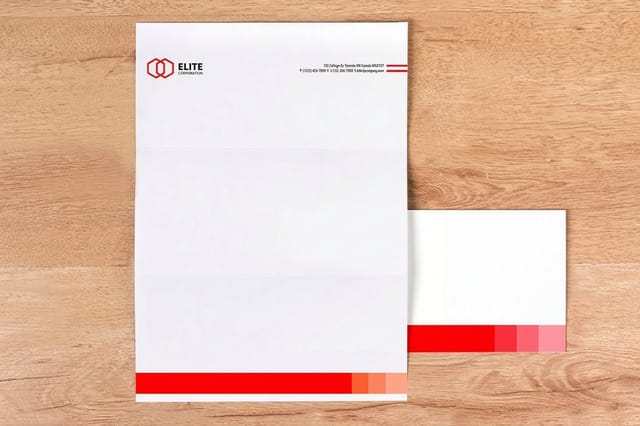
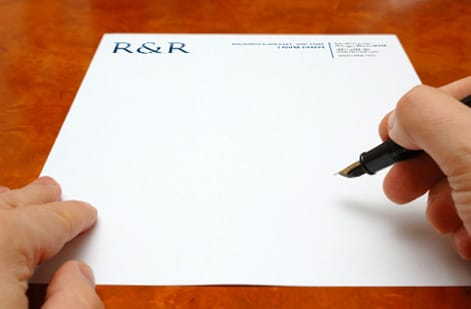
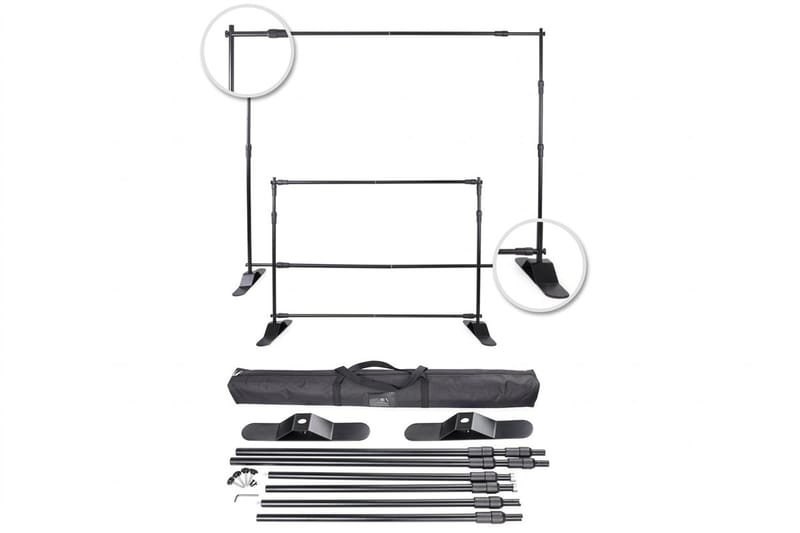
A finished vector logo is meant to be used, and the first real test is a printed proof. Order it on standard business cards at actual size, check the color and clarity in ink, then roll the mark out across the rest of your materials: letterhead, signage, and beyond.
Printing the full set in one order keeps color consistent from card to sign, since the same PDF runs on the same presses. Pricing scales with quantity, size, stock, and finish and updates live in the configurator, so you can weigh a premium card stock against a lighter flyer stock before committing. For exact color, order free paper samples first.
Use the live specs and pricing panel below to print your proof card, confirm the mark holds up, then bring the rest of your identity to press with confidence.
Wally builds it in vector, then proves it in ink
CMYK document, clean shapes, outlined type
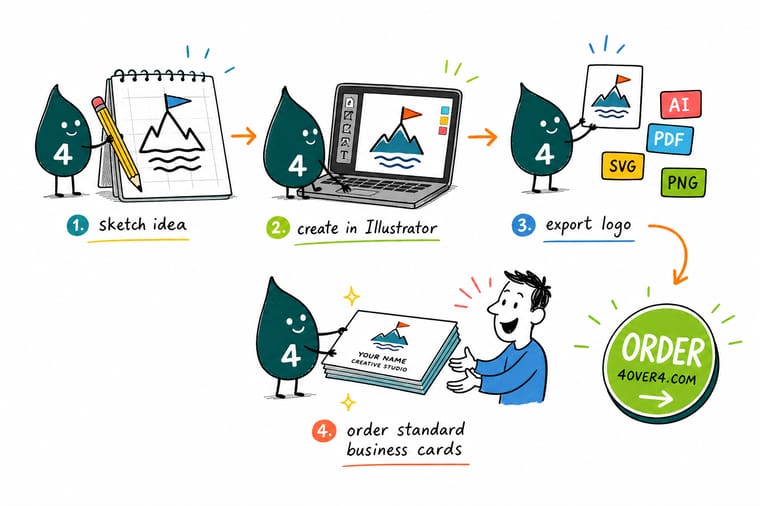
Wally makes a logo the reliable way: a CMYK document, a square artboard, a mark built from simple vector shapes, a tight palette, and type outlined before handoff. Then he exports a press-ready PDF plus SVG and PNG, and prints a proof card at actual size to catch anything a screen hides. Build it clean in Illustrator, and 4OVER4 prints it sharp.
Print your logo on cards →Quick reference
The Illustrator logo setup, at a glance
Every print-ready logo file comes down to the same handful of settings. Match these in Illustrator and your mark is ready for cards, signs, and the web.
| Setting | Get it to | Why it matters |
|---|---|---|
| Color mode | CMYK | Set the new document to CMYK so the logo colors you build match what the press will print in ink. |
| Artboard | Square, generous canvas | A square artboard with room around the mark keeps proportions clear and makes exporting variants easy. |
| Build tools | Shapes, pen, pathfinder | Combine simple geometry rather than drawing fussy detail, so the mark stays clean at any size. |
| Type | Outlined before handoff | Convert text to outlines so the font travels inside the artwork and cannot be substituted. |
| Print export | PDF, CMYK, PDF/X-1a | A flattened CMYK PDF is the format a commercial press reads directly without editing. |
| Web export | SVG and transparent PNG | Vector SVG and a transparent PNG cover websites, apps, and social profiles cleanly. |
| Variants | Full, one-color, reversed | Export the mark in full color, a single ink, and reversed so it works on any background. |
Step by step
Create a logo in Illustrator in 7 steps
- Create a CMYK document Open a new file, choose the print profile so the color mode is CMYK, and set a square artboard with comfortable margins around where the mark will sit.
- Sketch the concept first Rough the idea on paper or a scratch layer before you build. A clear concept keeps you from fiddling endlessly with anchor points that never had a plan behind them.
- Build with vector shapes Use the shape tools, the pen, and the pathfinder to combine simple forms into the mark. Favor clean geometry over ornate detail, since simple shapes read at every size.
- Set color and type Apply your brand colors in CMYK and pair the mark with a typeface that fits the brand. Keep the palette tight, usually one or two colors plus black.
- Outline the type Select your text and convert it to outlines so the letters become vector shapes locked into the file, immune to font substitution anywhere the logo travels.
- Export print and web files Save a flattened CMYK PDF for print, plus an SVG and a transparent PNG for the web, and export one-color and reversed variants while you are at it.
- Print a proof and refine Order the mark on a real business card at actual size, look at it in your hand, and refine anything that loses clarity before you roll it out everywhere.
Specs and pricing
Business card specs and live pricing
The fastest way to test a new logo is on a real card, at 100 for $17.57, which is $0.18 each.
| Quantity | Price Per Unit | Total |
|---|---|---|
| 100 | 17.6¢ | $17.57 |
| 200 | 11.5¢ | $23.07 |
| 300 | 9.15¢ | $27.46 |
| 400 | 7.96¢ | $31.86 |
| 500 | 7.25¢ | $36.26 |
| 600 | 6.77¢ | $40.64 |
| 700 | 6.43¢ | $45.04 |
| 800 | 6.18¢ | $49.43 |
Print it
Put your new mark on paper

See it in use
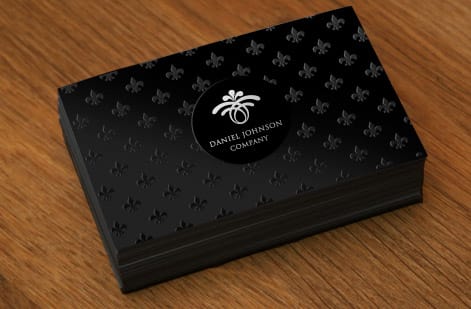
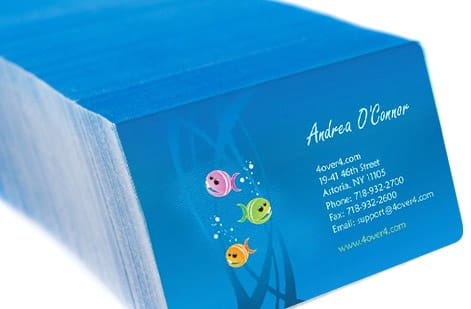
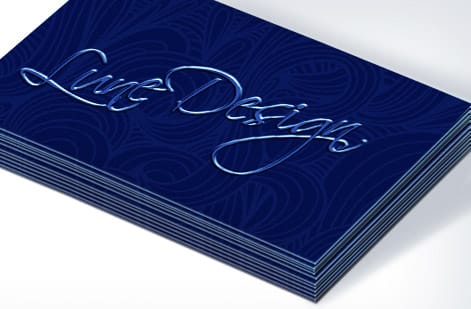
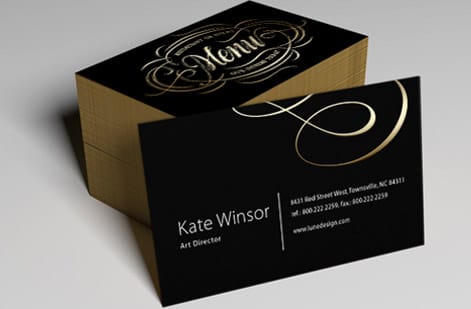
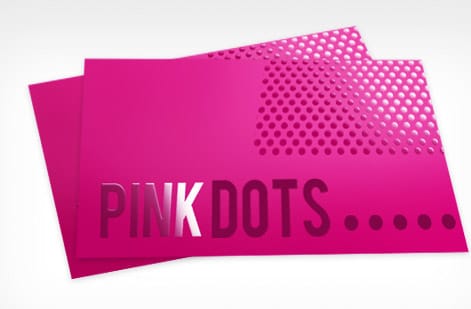
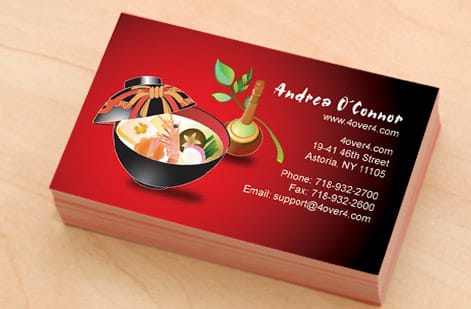
Vector marks we printed at every size
Explore more
Where to go next

By the numbers
Where a finished logo file goes to print
Common Questions
Common questions about making a logo in Illustrator
What is a logo built in Illustrator?
A logo built in Illustrator is a vector graphic, meaning it is made of mathematically defined paths rather than a fixed grid of pixels. That is the key reason designers reach for Illustrator: a vector mark scales from a tiny favicon to a wide banner with no loss of sharpness, because the paths simply recalculate at any size. Building in Illustrator also lets you set the document to CMYK for print, outline your type so fonts never substitute, and export both a press-ready PDF and a clean SVG for the web from a single master file, which is exactly what a professional logo needs to work everywhere.
How do I know the mark still works in one color?
Start from a concept before you touch the pen tool, because a clear idea beats endless anchor-point fiddling. Favor simple geometry built from the shape tools and the pathfinder, since simple marks survive at small sizes where detailed ones turn to mud. Keep the palette tight, usually one or two colors plus black, and pair the mark with a typeface that fits the brand. Then test candidates by exporting them and placing them on a real printed card at actual size. The right design is the one that stays legible and recognizable when it is small and in ink, not just when it is large on your screen.
What does it cost to create and print a logo, and how are prices set?
Designing the logo in Illustrator costs only your time if you build it yourself, or a designer fee if you hire out. If you do not have Illustrator, our free online design tool lets you build a print-ready mark at no software cost. The printing cost comes when you put the logo on materials, and it scales with quantity, size, paper stock, and finish. You choose each option in the configurator and the price updates live as you go, so you can see exactly how a heavier card stock or a larger run changes the total before you order.
What sizes, stocks, and finishes work best for printing a logo?
A logo has to hold up at every size it prints, so build it in vector and confirm it reads on a small business card and a large sign alike. For a first print run, standard business cards on a heavier stock show the mark off with a crisp, professional feel, and a matte or soft-touch finish keeps colors clean. If your brand color must be exact, order free paper samples or a proof so you can judge the ink on the real stock before committing to a full run of cards or signage.
How long does it take to design and print a logo?
Building a clean logo in Illustrator can take anywhere from an afternoon to several sessions, depending on how many concepts you explore and refine. Printing is the predictable part: once your press-ready PDF is exported, standard products move through production and ship on a set timeline, and you can order a proof card first to check the mark in ink, then reprint the full set of cards, letterhead, and signage together once you are happy.
Do I have to use Illustrator to make a logo?
No. Illustrator is the professional standard because it produces scalable vector files, but you do not need it to get a print-ready logo. Our free online design tool lets you build and lay out a mark in the browser, with the print rules already handled, and our ready-to-edit design templates give you a strong starting point. If you do want the full vector control that Illustrator offers, this guide walks the whole process, but the no-software route still ends in a mark you can print sharp on cards and signs.
Get Started
Order 100 business cards at $0.18 each and judge it
Export your press-ready file and print it at 4OVER4.COM on the size, stock, and finish your brand calls for. Letterhead runs 50 for $99.95, which is $2.00 a sheet.
Legal Disclaimer
Gold Standard guarantees apply to all standard orders placed through 4over4.com. Price match requires verifiable proof of a competitor's published price for an equivalent product with matching specifications and turnaround time. Satisfaction guarantee covers manufacturing defects and print quality issues. Contact support with order number and documentation. On-time delivery rate based on tracked orders 1999 to 2026. Individual results may vary based on shipping carrier performance.
